Skip to content
Menu
  • By Platform
    • Google Slides
    • PowerPoint
    • Canva
  • By Color
    • Yellow
    • White
    • Blue
    • Brown
    • Green
    • Red
    • Orange
    • Grey
    • Grey
    • Black
    • Pink
    • Purple
  • By Style
    • Infographic
    • Minimalist
    • Modern
    • Creative
    • 3D
    • Simple
    • Professional
    • Elegant
    • Luxury
    • Cool
    • Aesthetic
  • Business
    • Business Strategy
    • Competitive Analysis
    • Pitch Deck
    • Proposal
    • Project Management
    • Timeline
    • Roadmap
    • Executive Summary
  • Marketing
    • Marketing Campaign
    • Marketing Mix
    • SWOT Analysis
    • Market Analysis
    • Market Research
    • Sales
    • Sales Pitch
    • Growth
    • Funnel
Prime Slides
PrimeSlides
  • By Platform
    • Google Slides
    • PowerPoint
    • Canva
  • By Color
    • Yellow
    • White
    • Blue
    • Brown
    • Green
    • Red
    • Orange
    • Grey
    • Grey
    • Black
    • Pink
    • Purple
  • By Style
    • Infographic
    • Minimalist
    • Modern
    • Creative
    • 3D
    • Simple
    • Professional
    • Elegant
    • Luxury
    • Cool
    • Aesthetic
  • Business
    • Business Strategy
    • Competitive Analysis
    • Pitch Deck
    • Proposal
    • Project Management
    • Timeline
    • Roadmap
    • Executive Summary
  • Marketing
    • Marketing Campaign
    • Marketing Mix
    • SWOT Analysis
    • Market Analysis
    • Market Research
    • Sales
    • Sales Pitch
    • Growth
    • Funnel
Prime Slides
PrimeSlides
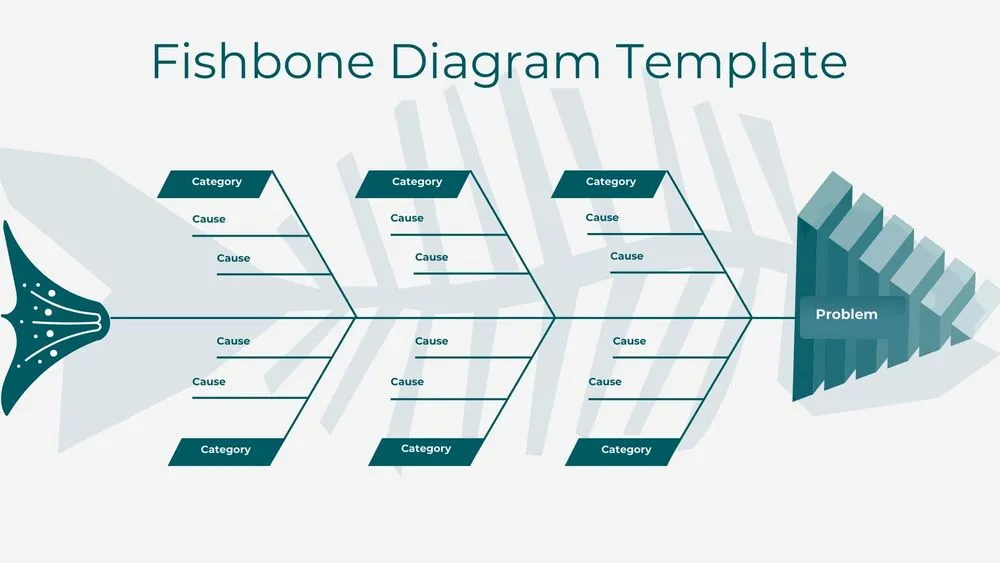
3D Green Fishbone Diagram Presentation Template for PowerPoint, Canva & Google Slides

3D Green Fishbone Diagram Presentation Template for PowerPoint, Canva & Google Slides

  • Free Presentation TemplateUncategorized
  • 3DBusinessChecklistDecision TreeDiagramEconomicsEditor’s ChoiceEducationFishbone DiagramFlatGreenInfographicKnowledgeMinimalistProblem SolvingProject ManagementSimpleStrategic PlanningTeacherUniversity
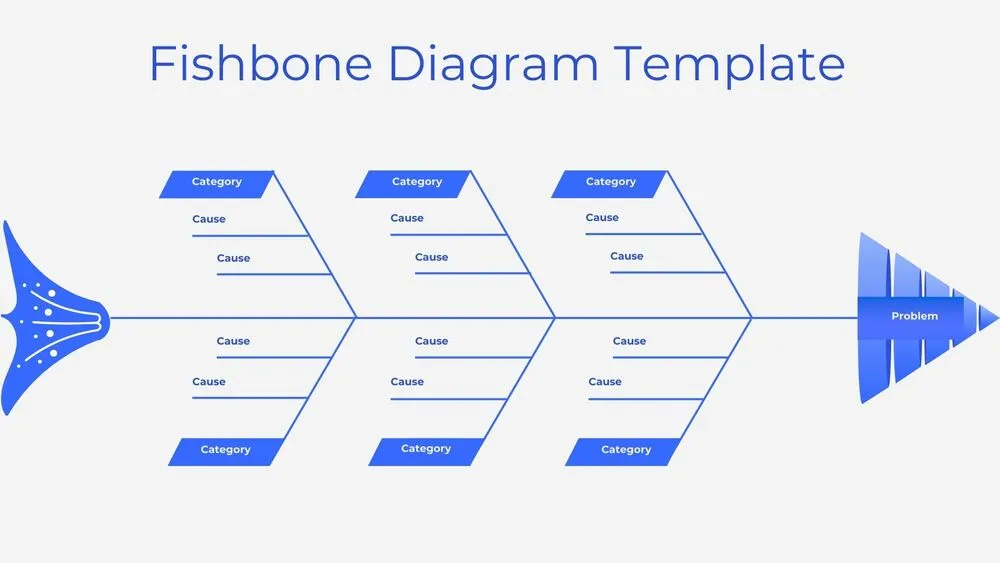
Minimalist Blue Fishbone Diagram Presentation Template for PowerPoint, Canva & Google Slides

Minimalist Blue Fishbone Diagram Presentation Template for PowerPoint, Canva & Google Slides

  • Free Presentation TemplateUncategorized
  • BlueBusinessChecklistDecision TreeDiagramEconomicsEducationFishbone DiagramInfographicKnowledgeMinimalistProblem SolvingProject ManagementSimpleSolid ColorStrategic PlanningTeacherUniversity
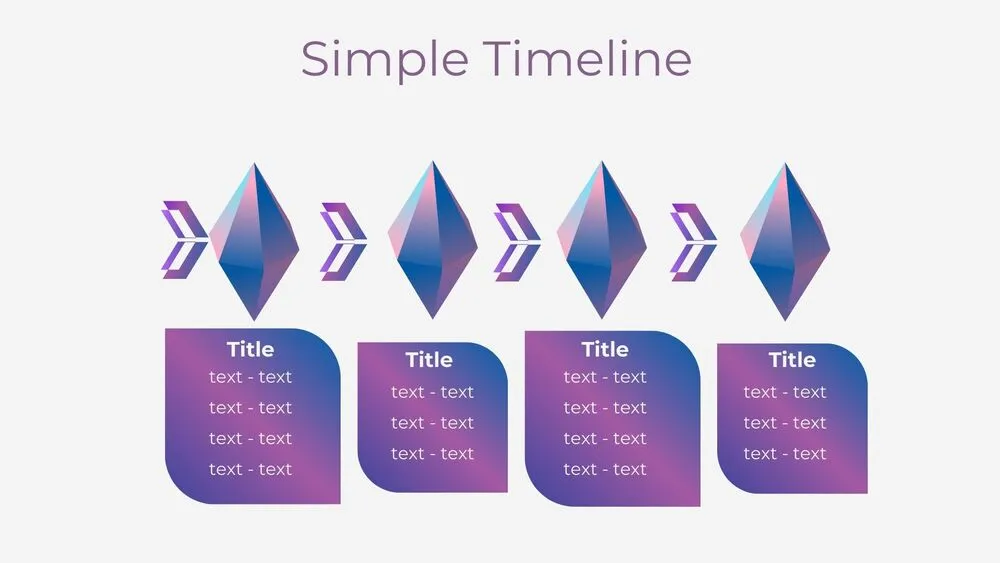
Futuristic Gems Timeline Diagram Presentation Template for PowerPoint, Canva & Google Slides

Futuristic Gems Timeline Diagram Presentation Template for PowerPoint, Canva & Google Slides

  • Free Presentation TemplateUncategorized
  • Action PlanBusinessChecklistDiagramEconomicsEducationGoalsGradientInfographicKnowledgeMilestonesMinimalistProgressProject ManagementProposalPurpleSimpleStrategic PlanningSuccessTeacherTimelineUniversityWorkflow
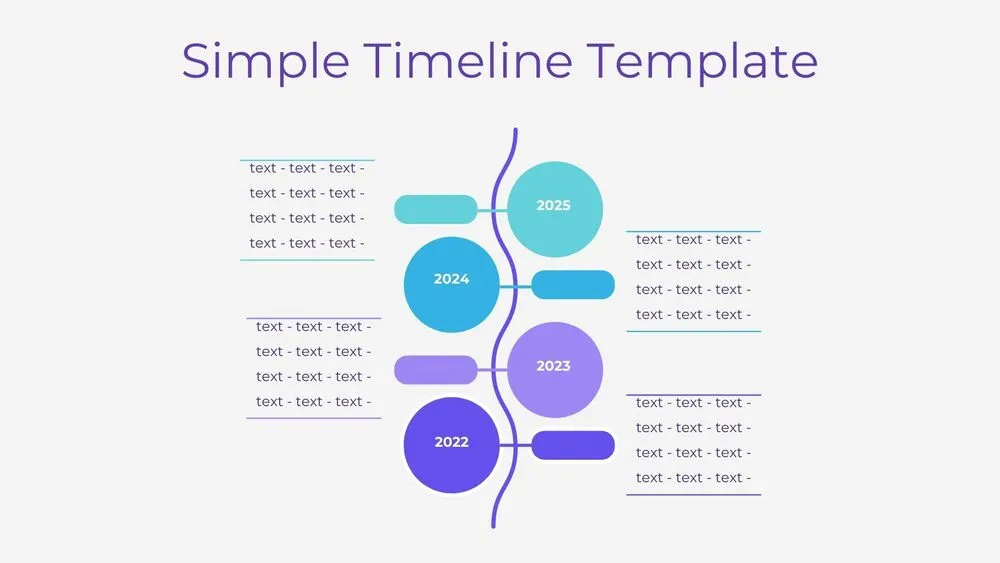
Vertical Wave Timeline Diagram Presentation Template for PowerPoint, Canva & Google Slides

Vertical Wave Timeline Diagram Presentation Template for PowerPoint, Canva & Google Slides

  • Free Presentation TemplateUncategorized
  • Action PlanBlueBusinessChecklistDiagramEconomicsEditor’s ChoiceEducationGoalsInfographicKnowledgeMilestonesMinimalistProgressProject ManagementProposalPurpleSimpleSolid ColorStrategic PlanningSuccessTeacherTimelineUniversityWorkflow
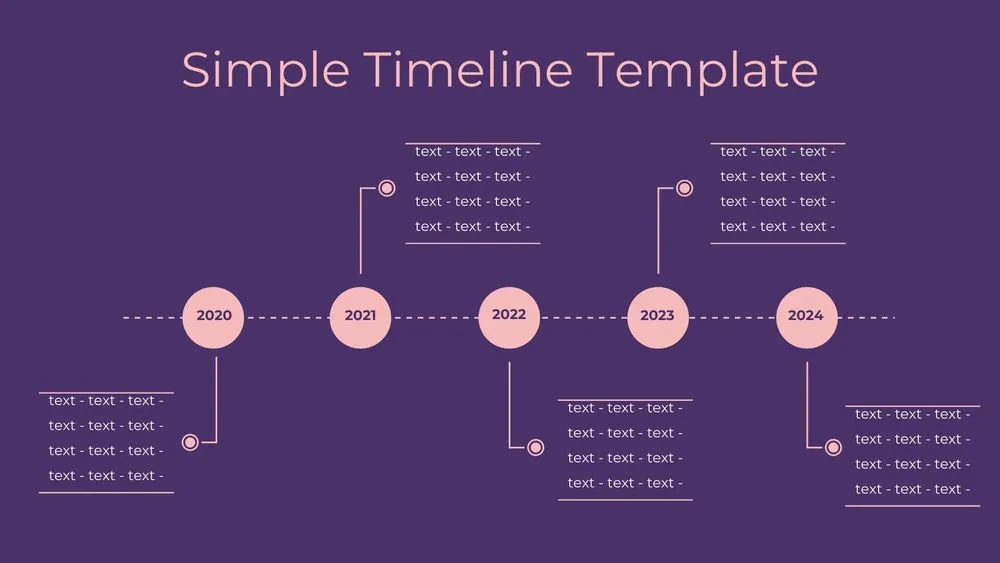
Dark Violet Pins Timeline Diagram Presentation Template for PowerPoint, Canva & Google Slides

Dark Violet Pins Timeline Diagram Presentation Template for PowerPoint, Canva & Google Slides

  • Free Presentation TemplateUncategorized
  • Action PlanBusinessChecklistDiagramEconomicsEditor’s ChoiceEducationGoalsInfographicKnowledgeMilestonesMinimalistPinkProgressProject ManagementProposalPurpleSimpleSolid ColorStrategic PlanningSuccessTeacherTimelineUniversity
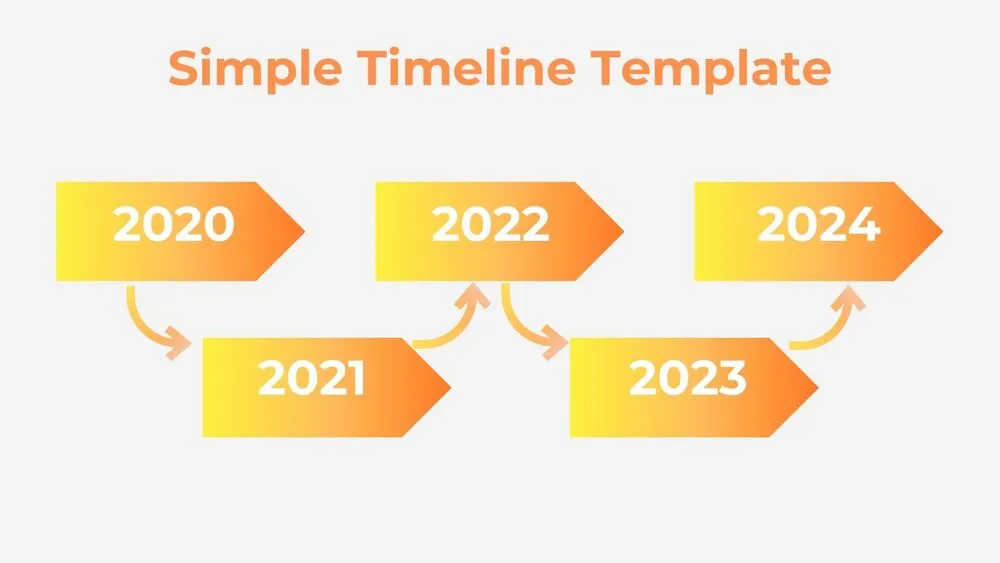
Stepped Path Timeline Diagram Presentation Template for PowerPoint, Canva & Google Slides

Stepped Path Timeline Diagram Presentation Template for PowerPoint, Canva & Google Slides

  • Free Presentation TemplateUncategorized
  • Action PlanBusinessChecklistDiagramEconomicsEditor’s ChoiceEducationGoalsInfographicKnowledgeMilestonesMinimalistOrangeProgressProject ManagementProposalRedSimpleSolid ColorStrategic PlanningSuccessTeacherTimelineUniversityWorkflow
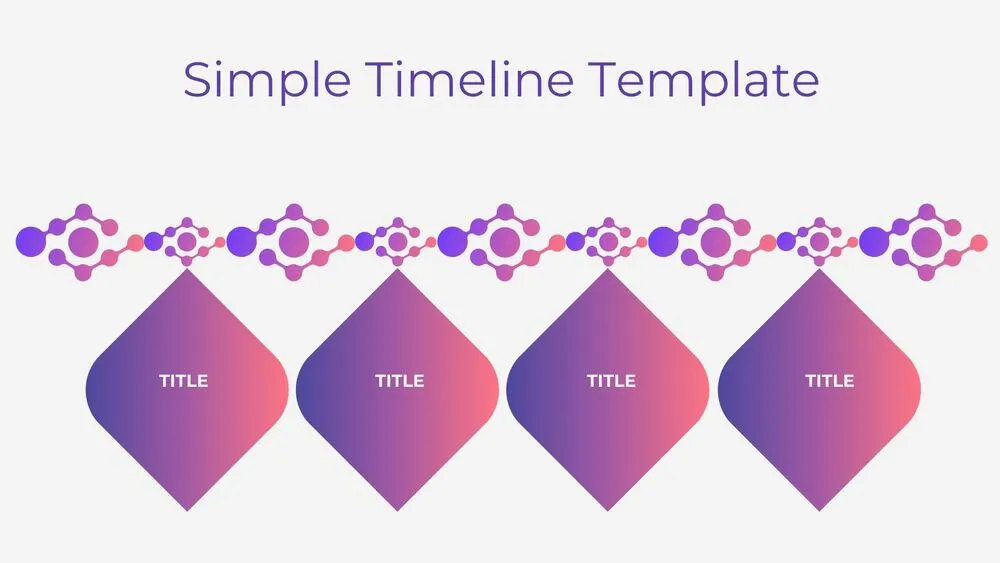
Atom Path Timeline Diagram Presentation Template for PowerPoint, Canva & Google Slides

Atom Path Timeline Diagram Presentation Template for PowerPoint, Canva & Google Slides

  • Free Presentation TemplateUncategorized
  • Action PlanBusinessChecklistDiagramEconomicsEducationGoalsGradientInfographicKnowledgeMilestonesMinimalistProgressProject ManagementPurpleSimpleStrategic PlanningSuccessTeacherTimelineUniversityWorkflow
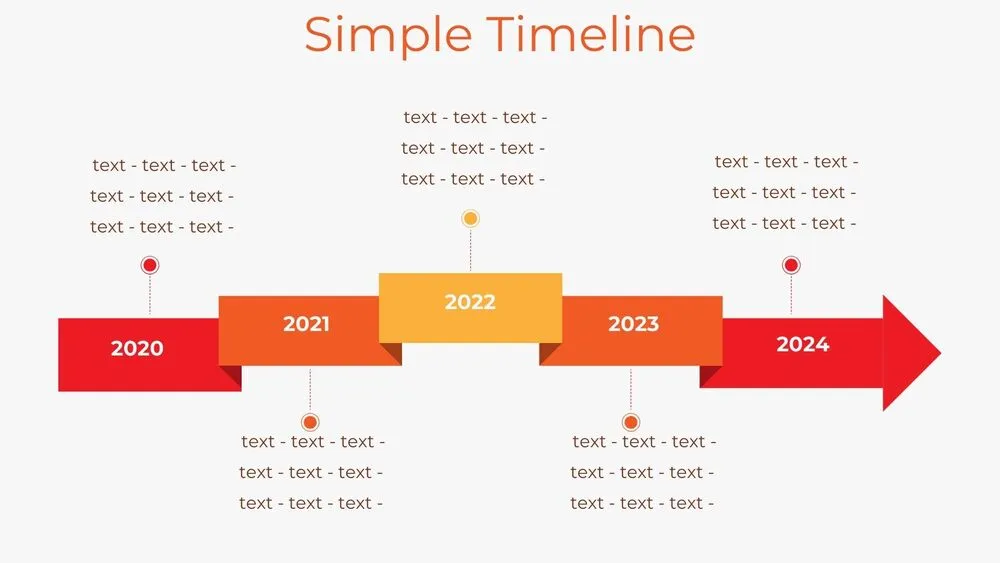
Simple Arrow Timeline Diagram Presentation Template for PowerPoint, Canva & Google Slides

Simple Arrow Timeline Diagram Presentation Template for PowerPoint, Canva & Google Slides

  • Free Presentation TemplateUncategorized
  • Action PlanBusinessChecklistDiagramEconomicsEducationGoalsGradientInfographicKnowledgeMilestonesMinimalistOrangeProgressProject ManagementProposalSimpleStrategic PlanningSuccessTeacherTimelineUniversityWorkflow
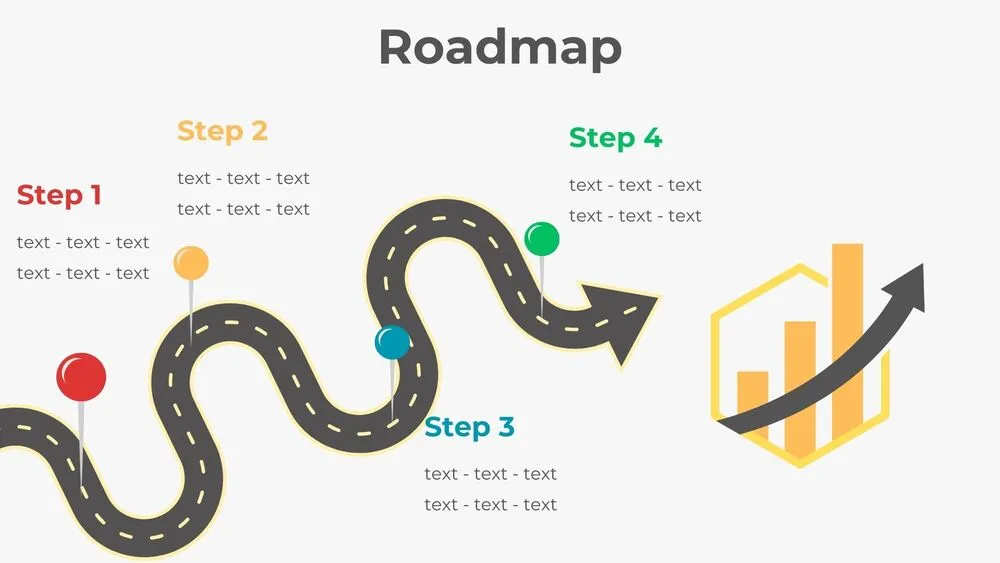
Wavy Road Four-Step Roadmap Diagram Presentation Template for PowerPoint, Canva & Google Slides

Wavy Road Four-Step Roadmap Diagram Presentation Template for PowerPoint, Canva & Google Slides

  • Free Presentation TemplateUncategorized
  • BusinessBusiness StrategyCreativeDiagramEconomicsEditor’s ChoiceEducationFlatGoalsGreyGrowthInfographicKnowledgeMilestonesOKRProgressProject ManagementRoadmapStrategic PlanningStrategyStrategy MapTask ManagementTeacherUniversity
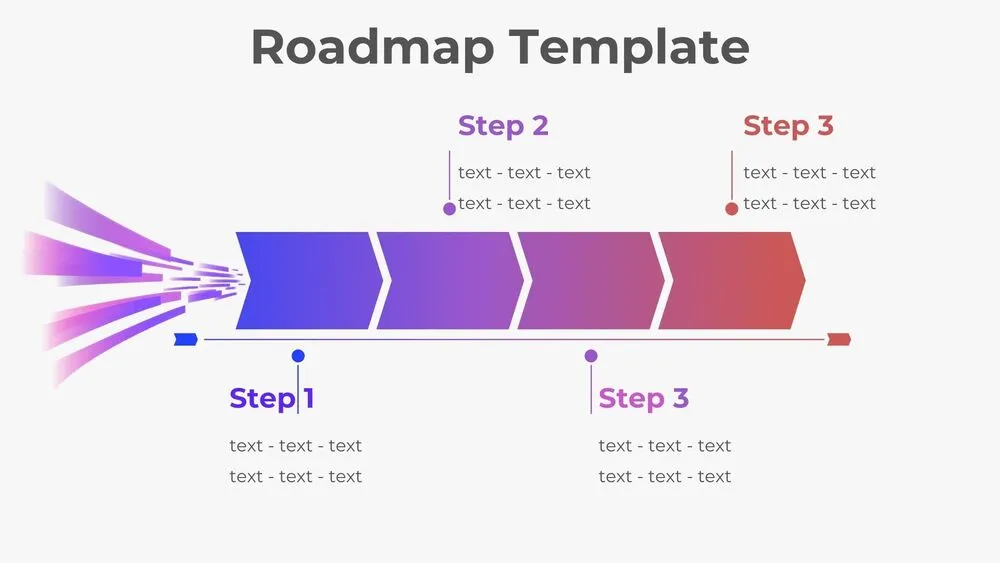
Horizontal Rocket Roadmap Diagram Presentation Template for PowerPoint, Canva & Google Slides

Horizontal Rocket Roadmap Diagram Presentation Template for PowerPoint, Canva & Google Slides

  • Free Presentation TemplateUncategorized
  • BusinessBusiness StrategyCreativeDiagramEconomicsEducationGoalsGradientGrowthInfographicKnowledgeMilestonesOKRProgressProject ManagementPurpleRoadmapStrategic PlanningStrategyStrategy MapTask ManagementTeacherUniversity
Prev
1 2 3 4 5 6 … 9
Next

Discover more free presentation templates by platform:

PowerPoint
Canva
Google Slides
  • Privacy Policy
  • Cookie Policy
  • Legal Notice
  • Terms of Use
  • About me
Instagram YouTube LinkedIn

© 2026 AshotMB · All rights reserved

Website created by AshotMB.com

🎉 ¡Gracias por la descarga!

¿Te gustaría recibir acceso anticipado a nuevas plantillas de presentación gratuitas, consejos de diseño y novedades exclusivas? Suscríbete a nuestro boletín hoy mismo.

🛠️ Cómo descargar y editar tu plantilla en Canva

Canva es la forma más rápida y sencilla de personalizar tu plantilla.
Edita textos, colores, imágenes y diseños con solo unos clics, sin necesidad de instalar ningún programa.

✨ Incluye:

  • Iconos, elementos y gráficos animados gratuitos
  • Fuentes, paletas de color y herramientas de diseño integradas
  • Subida de archivos, audio, vídeo y colaboración en tiempo real

✅ Sigue estos pasos para personalizarla en Canva

PASO 1. Haz clic en el botón azul “Canva” para descargar el archivo en formato .pptx.

Step 1
Step 1

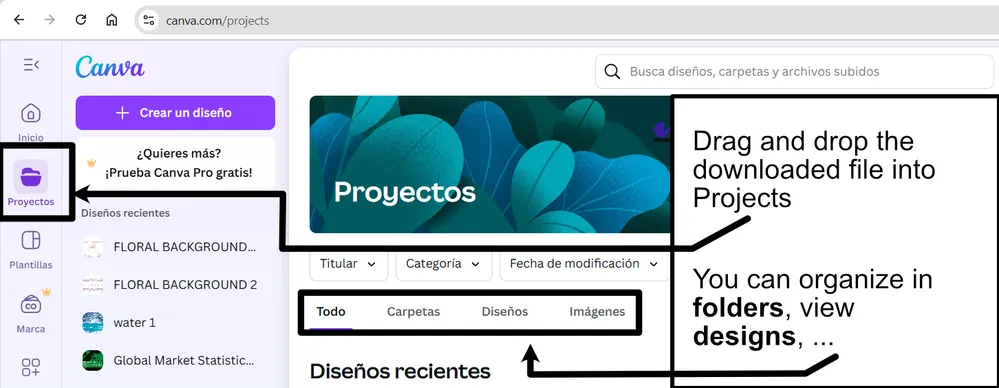
 PASO 2. Arrastra y suelta el archivo descargado en la sección Proyectos de tu panel de Canva.

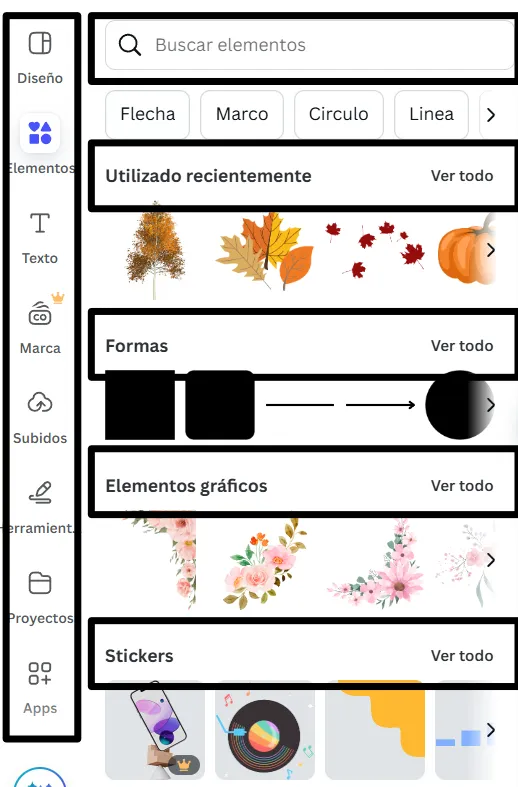
Dentro de Proyectos encontrarás pestañas como Carpetas, Diseños, Imágenes y una sección “Todo” que las agrupa. En la barra lateral izquierda verás además muchas herramientas útiles para editar tu presentación.

PASO 3. Al abrir la plantilla, verás en el panel izquierdo las diapositivas prediseñadas, junto con elementos como fotos gratuitas y premium, vectores, textos, archivos subidos y otras herramientas o aplicaciones disponibles en Canva.

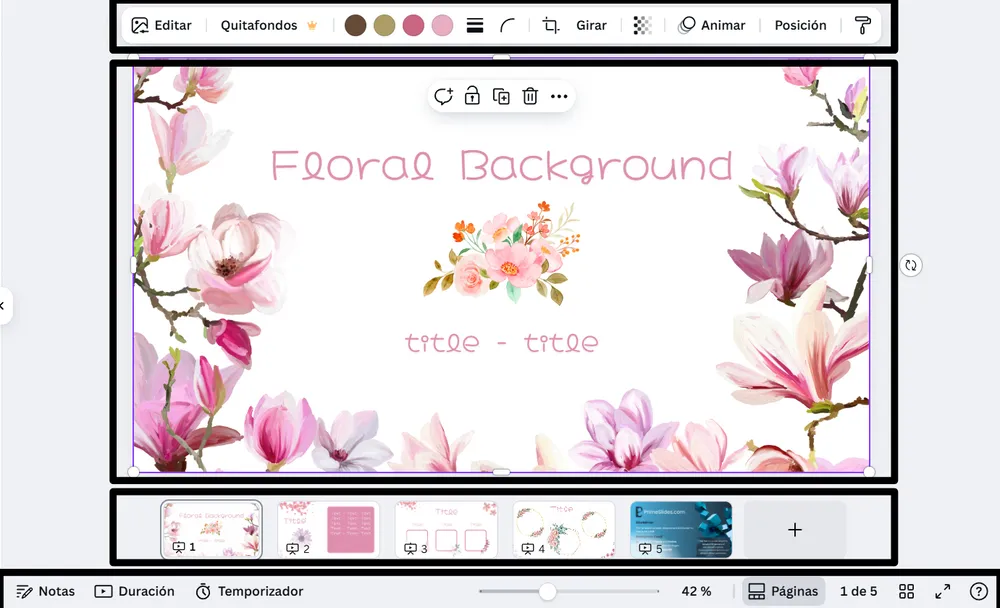
PASO 4. En el centro de la pantalla se mostrará la diapositiva activa.

  • En la parte superior encontrarás una barra de herramientas con opciones como Editar, Eliminador de fondo (función premium), controles de color para los elementos o imágenes seleccionadas y otras herramientas de texto e imagen.
  • En la parte inferior verás el navegador de diapositivas con todas las páginas y un botón “+” para añadir una nueva diapositiva.
  • Justo debajo, encontrarás una barra adicional con opciones como Notas, Duración de la presentación, Temporizador, entre otras.

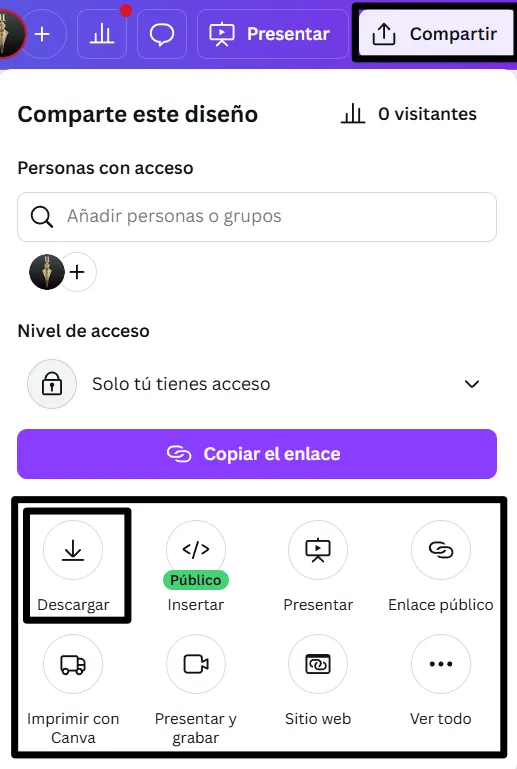
PASO 5. Cuando termines de editar, haz clic en “Compartir” para acceder a varias opciones: Descargar, Presentar, Insertar en un sitio web, Crear un enlace público, y más.

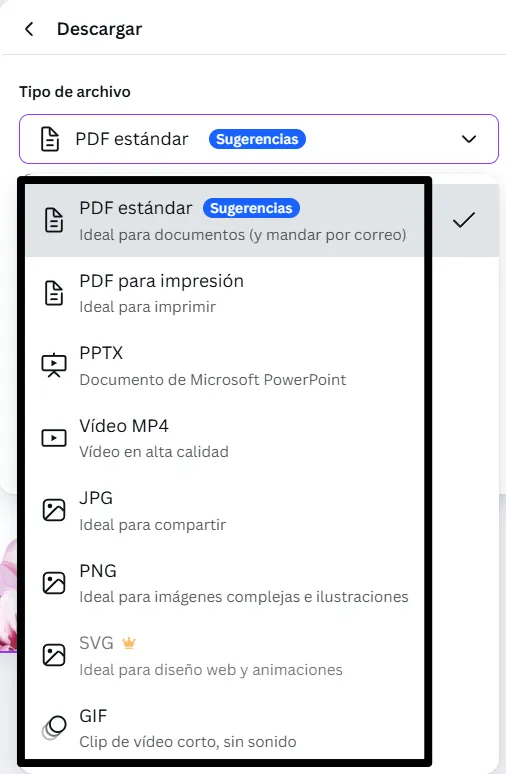
 PASO 6. Puedes exportar tu presentación en varios formatos: PDF, PPTX, vídeo, JPG, PNG, entre otros.

Step 1

🛠️ How to Download and Edit Your Template in Canva?

Canva is the fastest and easiest way to personalize your template.
Edit text, colors, images, and layouts with just a few clicks — no software needed.

✨ Includes:

  • Free icons, elements, and animated graphics
  • Built-in fonts, palettes, and design tools
  • Uploads, audio, video, and real-time collaboration

✅ Follow These Steps to Customize in Canva

 – STEP 1. Click the blue “Canva” button to download the .pptx file.

Step 1
Step 1

 – STEP 2. Drag and drop the downloaded file into the Projects section of your Canva dashboard.
Inside Projects, you’ll find tabs like Folders, Designs, Images, and an “All” section that combines them. On the left sidebar, you’ll see even more useful tools.

– STEP 3. Once you open the template, you’ll find on the left, pre-designed slides, elements like free and premium photos, vectors, text, uploads, and other tools or apps available in Canva.

– STEP 4. In the center, you’ll see your active slide.
At the top, there’s a toolbar with options like Edit, Background Remover (premium), color controls for selected elements or images, and other text/image tools.
At the bottom, you’ll see a slide navigator with all pages and a “+” button to add a new slide.
At the very bottom, there’s an extra toolbar with options for Notes, Presentation Duration, Timer, etc.

 – STEP 5. Download the .pptx file. When you’re done editing, click “Share” to see multiple options: Download, Present, Embed on a Website, Create a Public Link, and more.

 – STEP 6. You can export your presentation in several formats: PDF, PPTX, Video, JPG, PNG, etc.

Step 1

🎉 Thanks for downloading!

Do you want early access to new free presentation templates, design tips, and exclusive updates? Join our newsletter today.