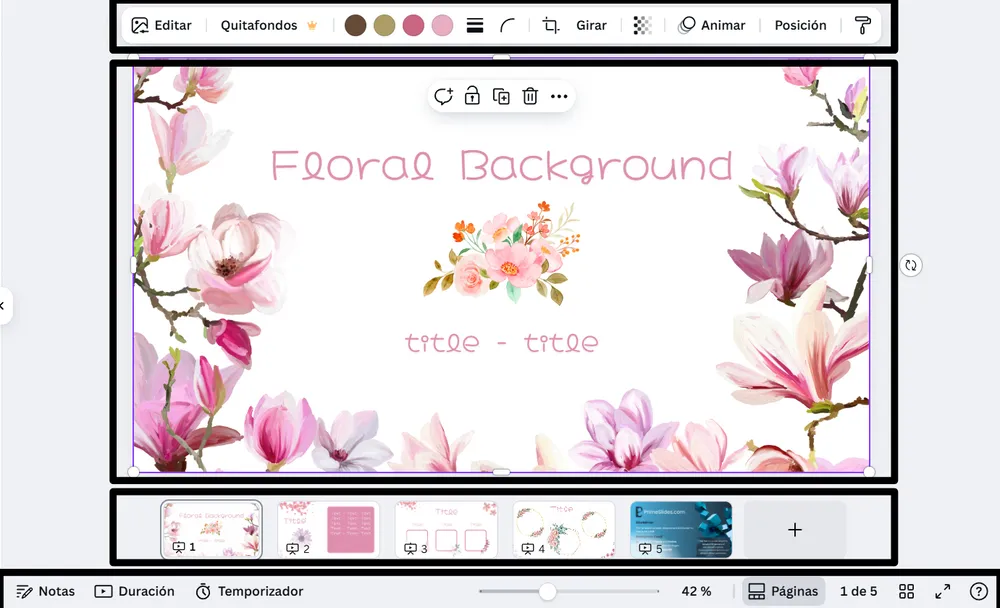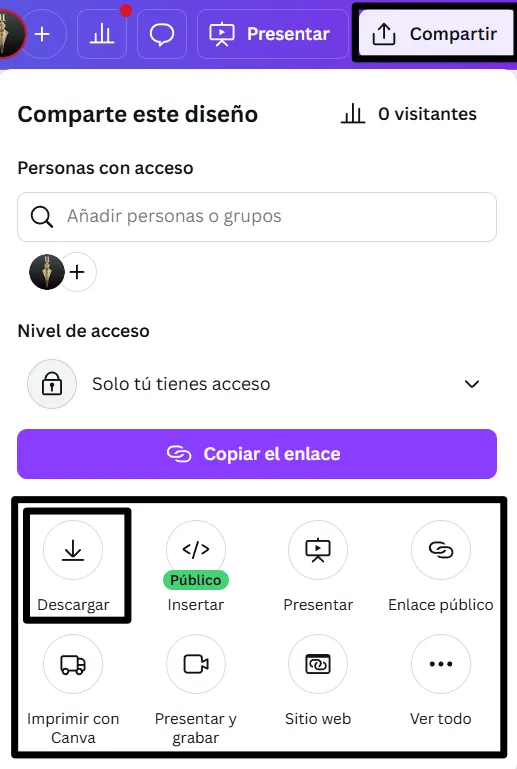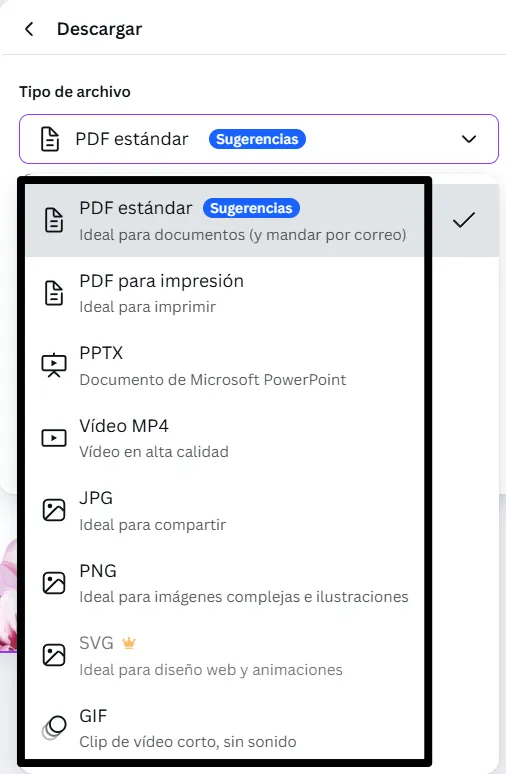
Back to School Presentation Templates and Slides – Free & Premium for PowerPoint, Canva & Google Slides
Download free back to school presentation templates for PowerPoint, Canva, and Google Slides. Icebreakers, class rules, schedules, and printable-style slides—perfect for day one and parent night ⬇️
Explore the Best Back to School PowerPoint Templates, Google Slides & Canva Back to School Themes
✨ Start the year strong with back to school presentation templates designed for day one, class routines, and parent communication. Use clean classroom layouts to introduce yourself, set expectations, and help students feel confident from the first slide.
Build your first-week deck with ready pages for class rules, daily schedules, syllabus overviews, icebreakers, seating charts, supply lists, and homework boards. Add calendars, behavior trackers, and simple checklists so students (and families) always know what’s next.
Best for:
- Day-one introductions and classroom icebreakers
- Class rules, routines, and expectations
- Syllabus, grading policy, and communication slides
- Printable-style schedules, calendars, and checklists
- Parent night / open house presentations
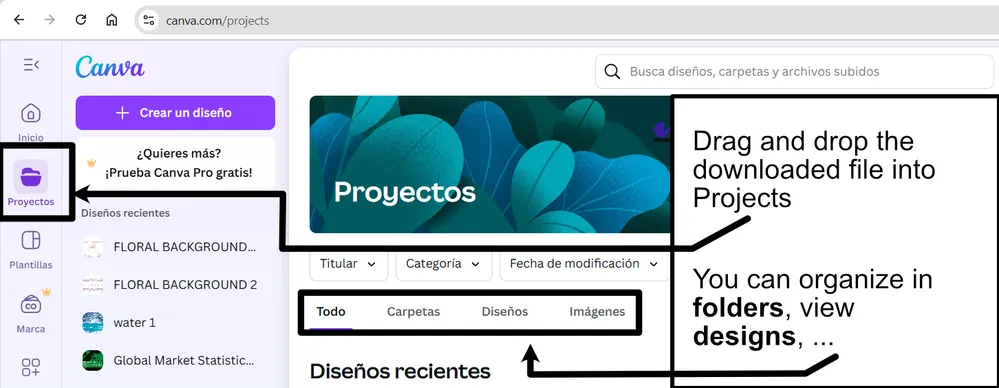
Everything is editable in PowerPoint, Google Slides, and Canva. Swap colors and fonts to match your school, add subject icons, and export to PDF for handouts or bulletin-board printables.
Explore related templates:
❓ FAQs
Are these back to school templates free to download?
Yes—this page includes free back to school presentation templates. If a template is premium, it will be clearly labeled on its template page.
What is a back to school presentation template?
It’s a ready-to-edit deck for the first days of class—introductions, rules, routines, schedules, and icebreakers—made to set expectations and build rapport.
What slides should I include on day one?
Welcome cover, about-the-teacher, class rules, materials list, daily schedule, grading basics, communication channels, and one quick icebreaker or exit ticket.
How can I keep students engaged?
Use visuals and icons, keep text short, add checklists and timers, and include participation prompts like think-pair-share, quick polls, or mini challenges.
Can I adapt these templates for different grades and subjects?
Yes. Swap icons, examples, and tone for elementary, high school, or university, and adjust slides for math, science, history, language arts, and more.
How do I use these slides as printables?
Keep layouts simple, use high contrast, export to PDF, and print schedules, rules, checklists, or homework boards as classroom handouts.
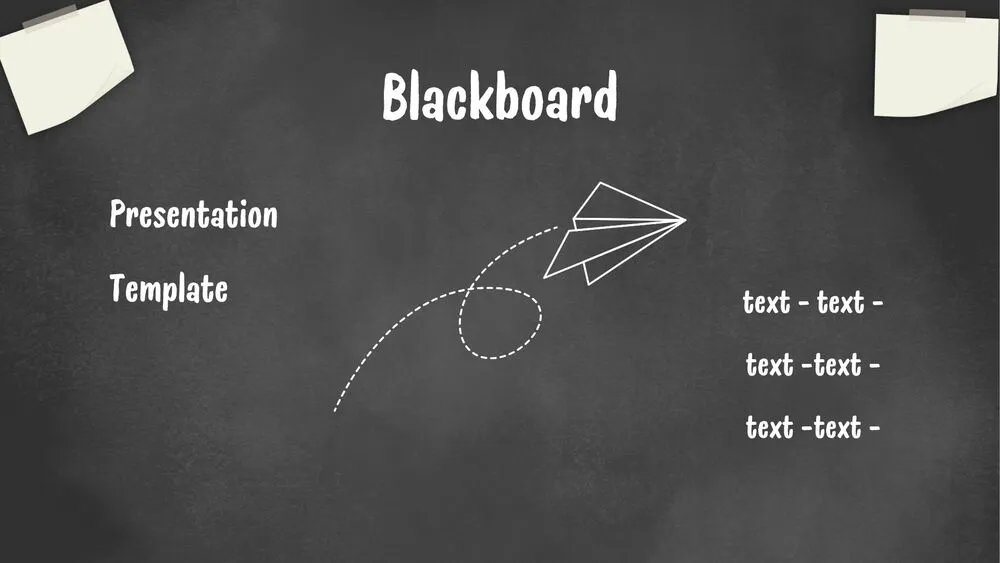
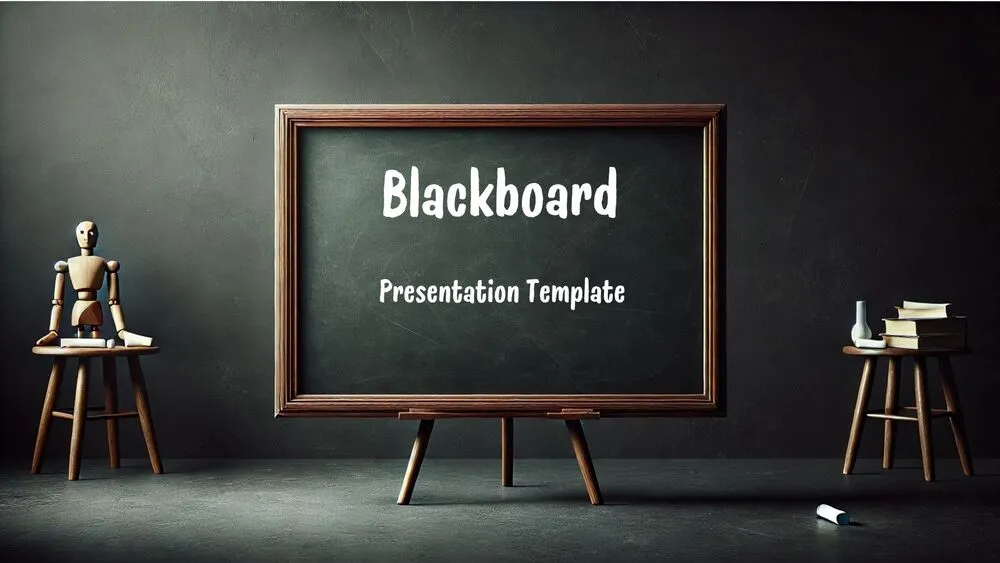
Full Blackboard Presentation Template for PowerPoint, Canva & Google Slides
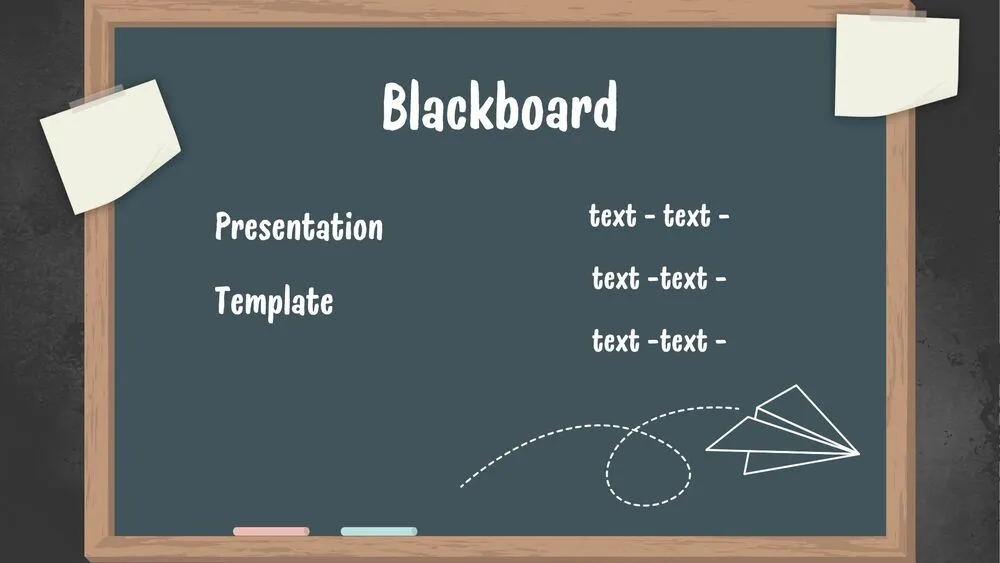
Blackboard Presentation Template for PowerPoint, Canva & Google Slides
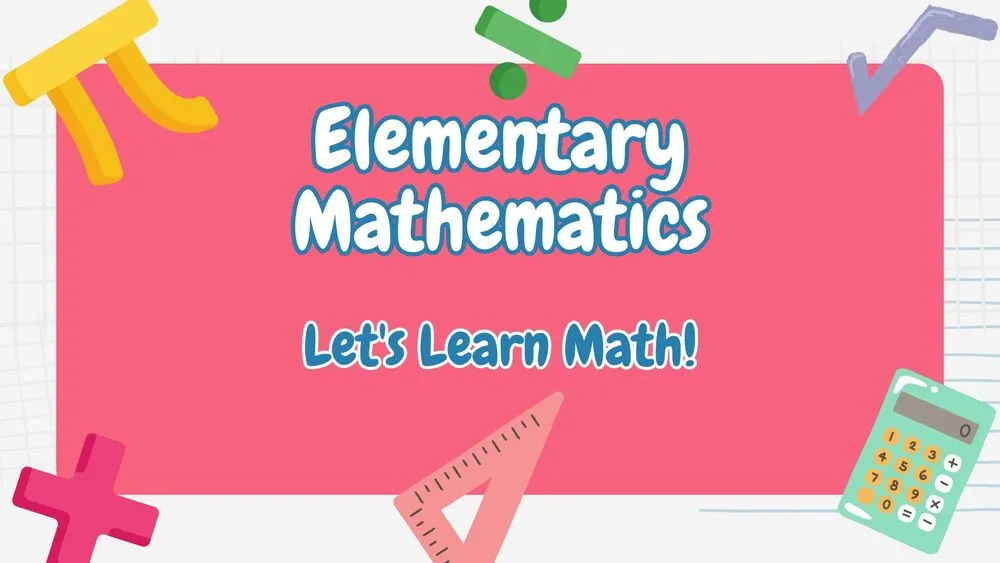
Cute Elementary Mathematics Presentation Template for PowerPoint, Canva & Google Slides