
Backgrounds Presentation Templates and Slides – Free & Premium for PowerPoint, Canva & Google Slides
Download free presentation backgrounds for PowerPoint, Canva, and Google Slides. Clean gradients, solid colors, and textures that keep text readable—perfect for covers, dividers, and data-heavy slides ⬇️
Explore the Best Backgrounds PowerPoint Templates, Google Slides & Canva Backgrounds Themes
✨ Build cleaner decks faster with presentation backgrounds designed for readability and consistent styling. Choose from soft gradients, solid color sets, subtle textures, and minimal patterns to keep your message front and center.
Use simple backdrops for charts, tables, and long-form text, and switch to bolder covers or section dividers when you want stronger visual impact. These backgrounds are made to balance contrast, spacing, and accessibility—so your slides look polished on screens and in PDFs.
Best for:
- Cover slides and section dividers
- Business reports, proposals, and pitch decks
- Education slides and classroom lessons
- Data-heavy charts, tables, and dashboards
- Clean branded decks with consistent themes
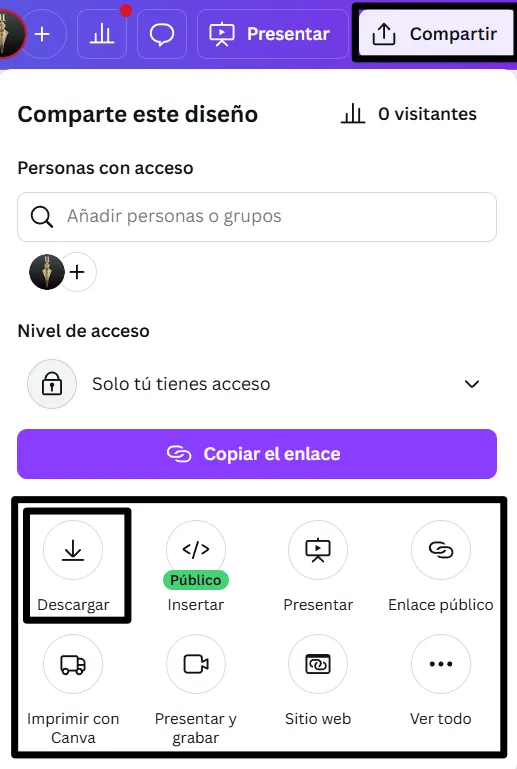
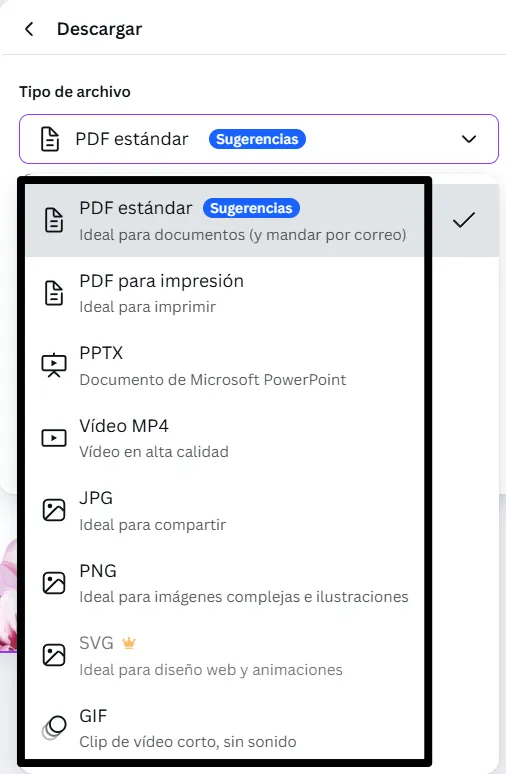
Edit everything in PowerPoint, Google Slides, and Canva—swap palettes, adjust opacity, and apply styles across your deck. Export to PDF for sharing or print-ready handouts.
Explore related templates:
❓ FAQs
Are these presentation backgrounds free to download?
Yes—this page includes free presentation backgrounds. If a template is premium, it will be clearly labeled on its template page.
What is a presentation background?
A slide backdrop—solid, gradient, textured, or patterned—designed to improve readability and visual consistency across your deck.
How do I choose a good background?
Prioritize contrast (dark text on light or vice versa), avoid busy patterns behind paragraphs, and keep a consistent palette for titles, charts, and callouts.
How do I set a background in Google Slides or PowerPoint?
In Google Slides, use Slide → Change background… or edit the theme. In PowerPoint, apply backgrounds in Design → Format Background or via Slide Master for the whole deck.
Where should I avoid using textured backgrounds?
Avoid heavy textures behind long text or small charts. Use textured slides mainly for covers, section dividers, or short headline slides to keep readability high.
Do these work in Canva, too?
Yes. You can edit and adapt these backgrounds in Canva, PowerPoint, and Google Slides—then export to PDF or present live.

Cozy Woodland Fall Presentation Template for PowerPoint, Canva & Google Slides
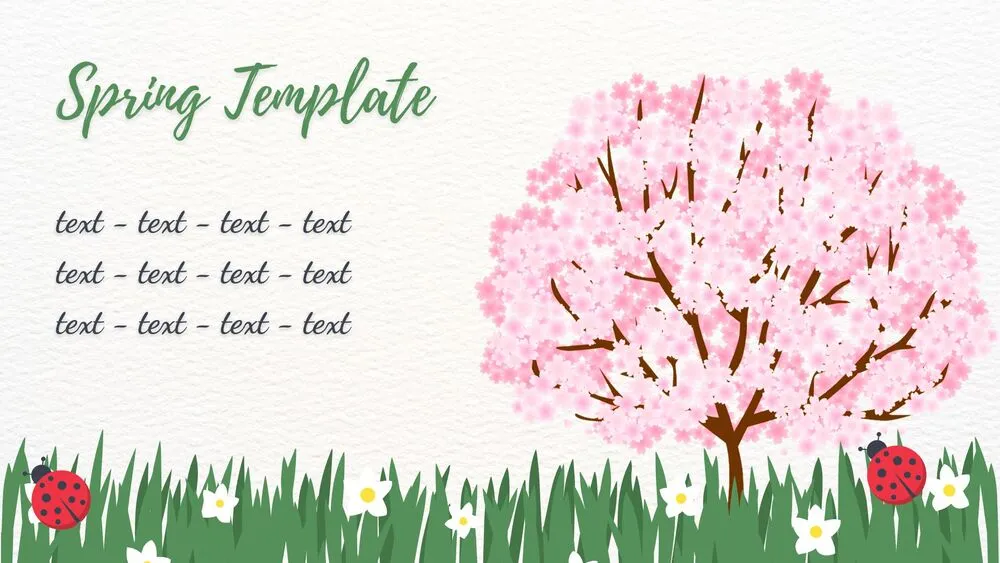
Cherry Blossom Meadow Spring Presentation Template for PowerPoint, Canva & Google Slides

Pastel Watercolor Spring Presentation Template for PowerPoint, Canva & Google Slides

Purple Graveyard Halloween Presentation Template for PowerPoint, Canva & Google Slides

Fiery Orange Halloween Presentation Template for PowerPoint, Canva & Google Slides
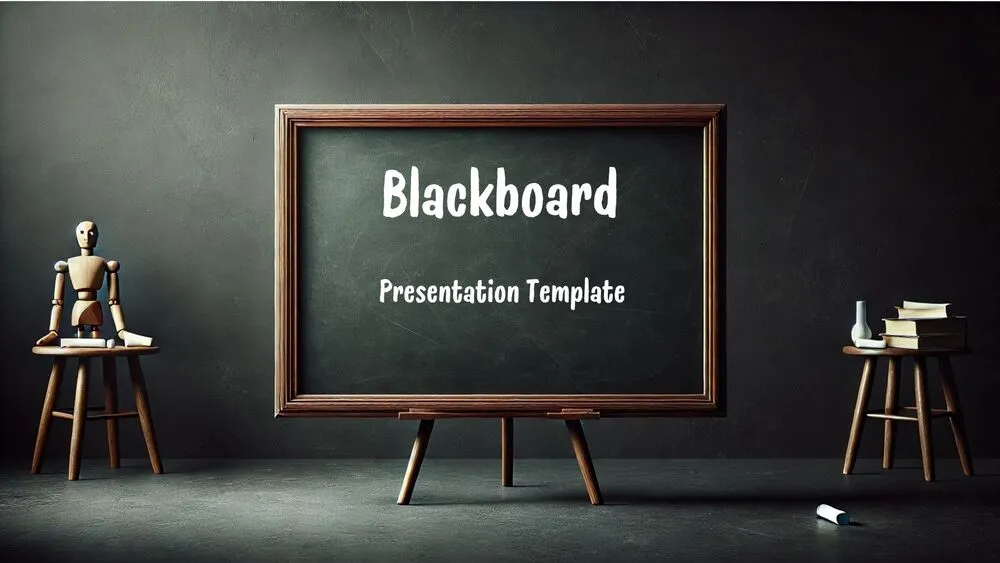
Classroom Blackboard Presentation Template for PowerPoint, Canva & Google Slides
Full Blackboard Presentation Template for PowerPoint, Canva & Google Slides
Blackboard Presentation Template for PowerPoint, Canva & Google Slides