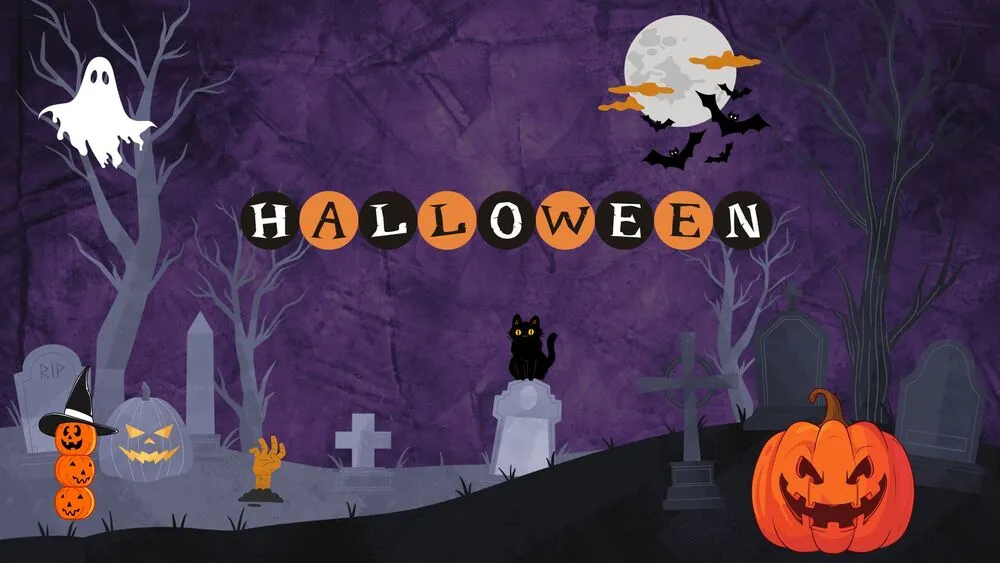
Creative Presentation Templates and Slides – Free & Premium for PowerPoint, Canva & Google Slides
Download free creative presentation templates for PowerPoint, Canva, and Google Slides. Stand out with bold type, fresh grids, and playful visuals that keep attention on your message ⬇️
Explore the Best Creative PowerPoint Templates, Google Slides & Canva Creative Themes
✨ Creative slide styles help your story feel fresh, memorable, and visually confident. Expect bold typography, expressive layouts, and modern visuals that still keep headlines, charts, and copy easy to scan.
Use these designs for portfolios, product launches, workshops, and personal branding decks. Start with a strong cover, then use section breaks, icon sets, and visual grids to guide attention from idea to proof to next steps.
Edit in PowerPoint, Canva, or Google Slides, then present live or export a clean PDF for sharing. Swap palettes, adjust type scales, and keep motion subtle so creativity supports the message instead of distracting from it.
Best for:
- Creative portfolios and case studies
- Product launches and brand storytelling
- Workshops, classes, and interactive sessions
- Agency decks and marketing presentations
- Personal branding and self-introductions
Explore related templates:
Readability tip: Keep one clean layout for data slides, and use the boldest visuals on covers and section dividers to control focus.
❓ FAQs
Are these Creative presentation templates free to download?
Yes—this tag includes free creative presentation templates. If a template is premium, it will be clearly labeled on its template page.
What is a creative presentation template?
A design-forward deck with expressive typography, color, and layouts that make ideas feel memorable while staying readable.
How do I keep it creative but professional?
Limit your palette, keep spacing consistent, and place gradients or textures behind titles or dividers, not behind paragraph text.
Are there animated creative templates?
Yes, some sets include subtle transitions and entrance effects. Keep motion light on charts and reserve stronger effects for covers and section breaks.
Do these slides work in PowerPoint, Canva, and Google Slides?
Yes, you can edit these creative layouts in PowerPoint, Canva, and Google Slides, then export to PDF for sharing.
Can I use these for resumes or posters?
Yes, many layouts resize easily in Canva or PowerPoint. Adjust typography for print and export a high-resolution PDF.

Dark Wood Gifts Christmas Presentation Template for PowerPoint, Canva & Google Slides

Rustic Wood Frame Christmas Presentation Template for PowerPoint, Canva & Google Slides

Festive Red Christmas Presentation Template for PowerPoint, Canva & Google Slides

Cute Santa Christmas Presentation Template for PowerPoint, Canva & Google Slides
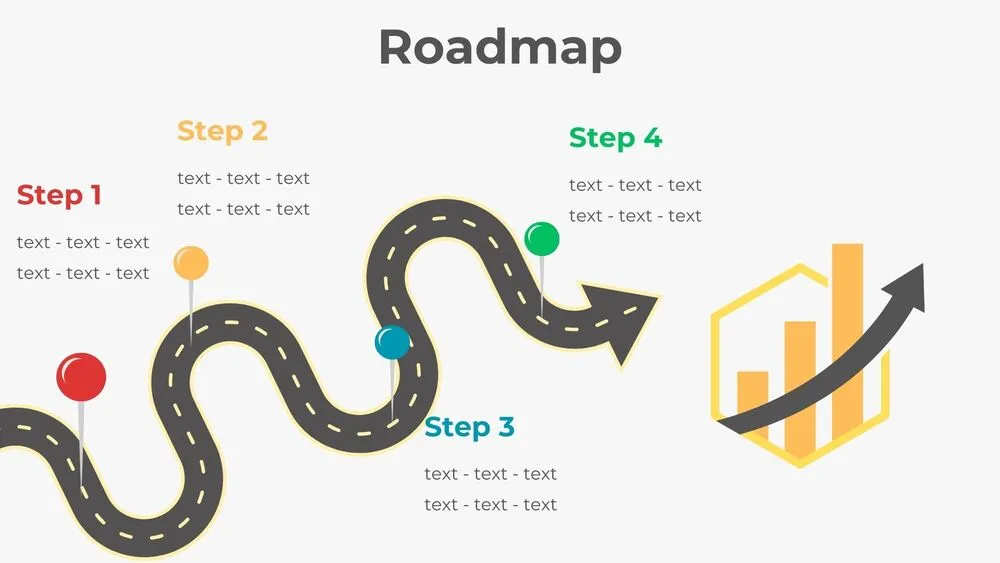
Wavy Road Four-Step Roadmap Diagram Presentation Template for PowerPoint, Canva & Google Slides
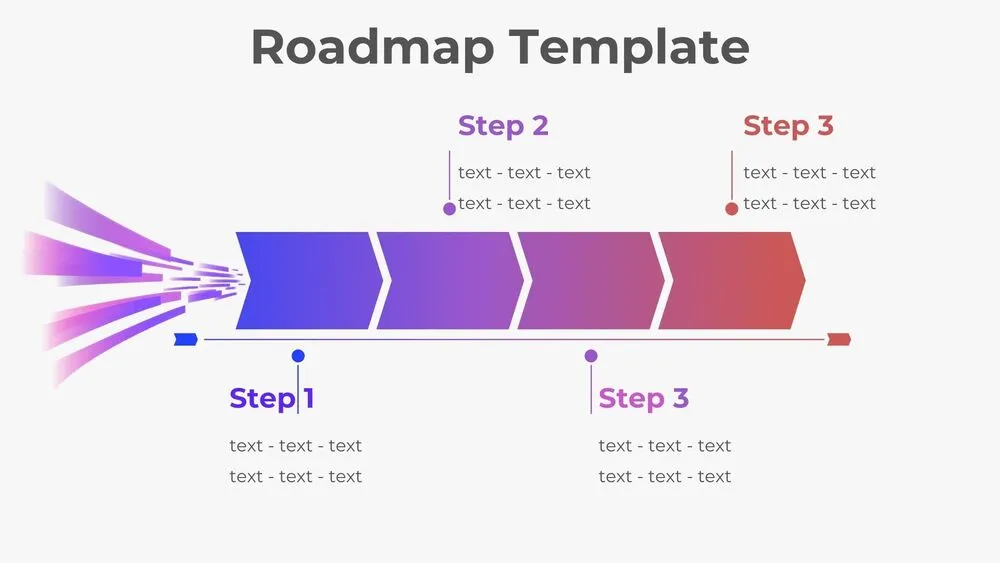
Horizontal Rocket Roadmap Diagram Presentation Template for PowerPoint, Canva & Google Slides
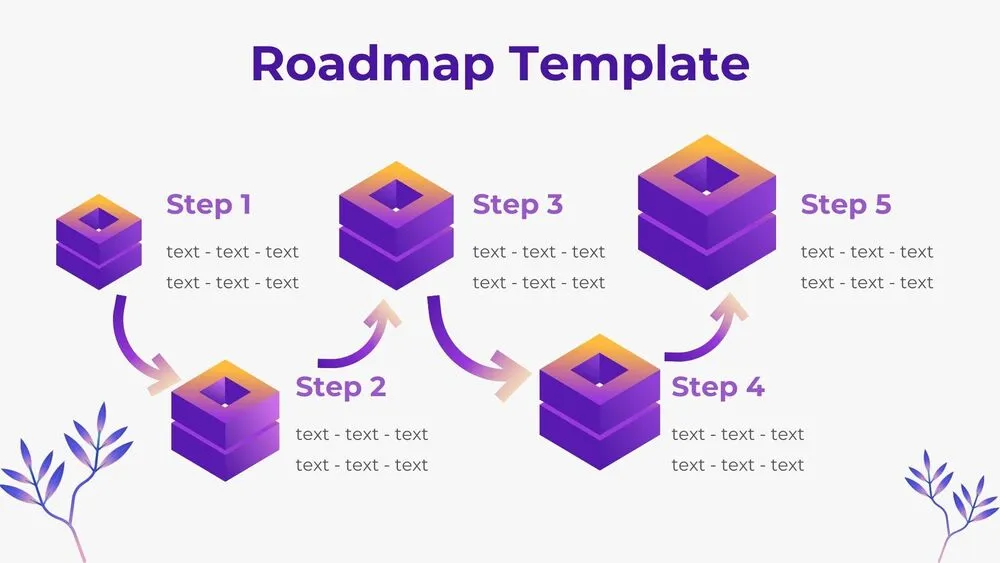
3D Cube Steps Roadmap Diagram Presentation Template for PowerPoint, Canva & Google Slides
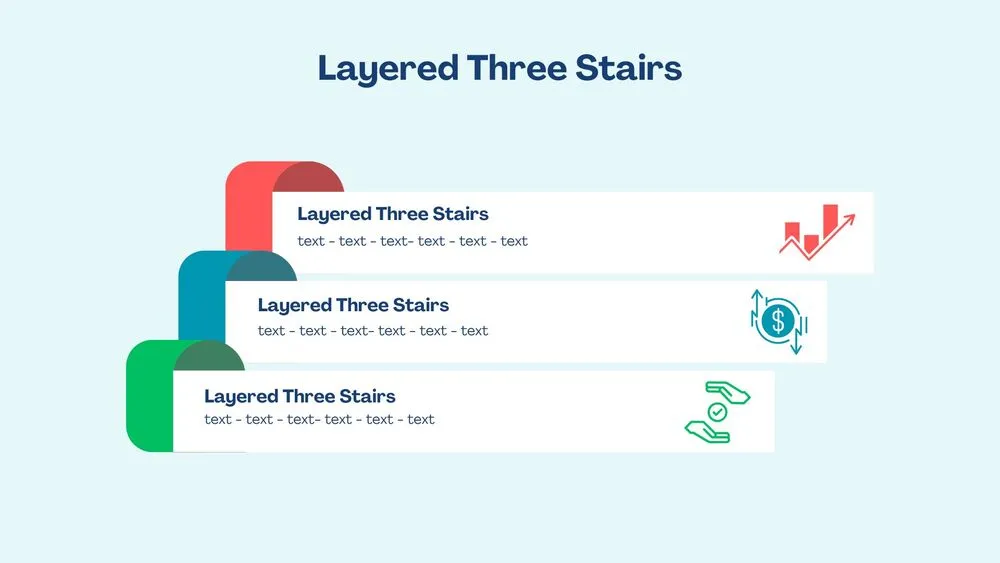
3D Layered Three Stairs Diagram Presentation Template for PowerPoint, Canva & Google Slides