
Editor’s Choice Presentation Templates and Slides – Free & Premium for PowerPoint, Canva & Google Slides
Download free editor’s choice presentation templates for PowerPoint, Canva, and Google Slides. Explore our handpicked decks with strong visuals and pro usability ⬇️
Explore the Best Editor’s Choice PowerPoint Templates, Google Slides & Canva Editor’s Choice Themes
✨ Editor’s choice decks are our most reliable starting point when you want a polished result fast. These slides are picked for clean structure, strong visuals, and layouts that work across business, education, and creative use.
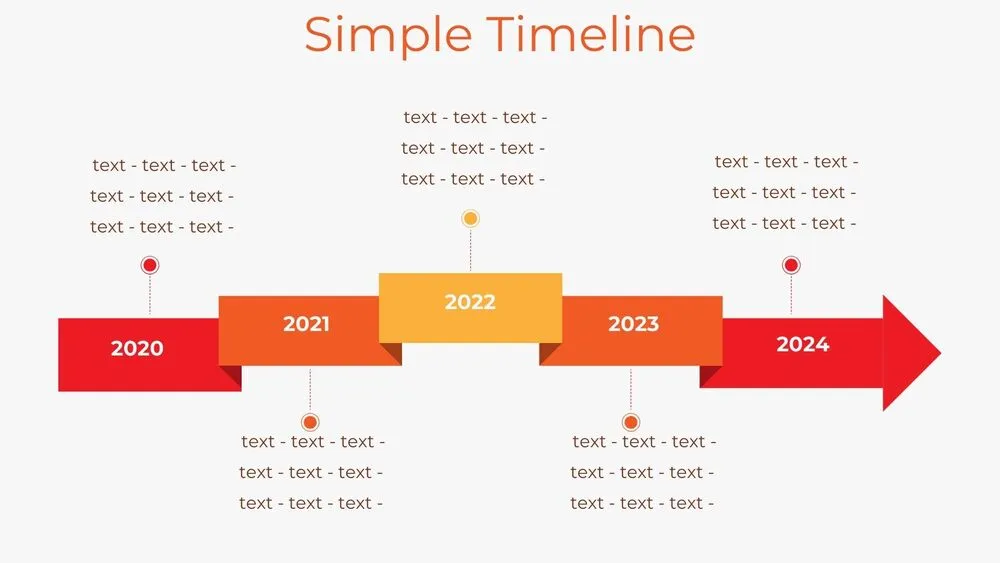
Use them for pitches, reports, timelines, and KPI updates when you need a deck that looks great with minimal editing. The designs focus on readable typography, consistent spacing, and practical slide types you can reuse in many contexts.
Edit in PowerPoint, Canva, or Google Slides, then present live or export a clean PDF for sharing. Update colors and icons quickly, paste data from spreadsheets, and keep one idea per slide so the story stays crisp.
Best for:
- Fast, high-quality decks for any topic
- Client presentations and executive updates
- Pitch decks and product storytelling
- Clean timelines, processes, and KPI slides
- Teachers and students who want readable layouts
Explore related templates:
Readability tip: Keep headings short and use the same layout rhythm across sections so the deck feels consistent from start to finish.
❓ FAQs
Are these Editor’s Choice presentation templates free to download?
Yes—this tag includes free editor’s choice presentation templates. If a template is premium, it will be clearly labeled on its template page.
What is the Editor’s Choice collection?
A handpicked set of templates chosen for design, usability, and versatility, so you can build strong decks quickly.
How do you select templates for Editor’s Choice?
We prioritize readable typography, consistent spacing, and useful slide types like timelines, charts, and summaries that work in real presentations.
Can I use these for business or education?
Yes, these decks work for executive updates, client work, and classrooms. Customize content and export to PDF when you need a shareable version.
Do these slides work in PowerPoint, Canva, and Google Slides?
Yes, you can edit editor’s choice layouts in PowerPoint, Canva, and Google Slides, then export to PDF for sharing.
How do I get the best results fast?
Pick one theme, replace text first, then update colors and images at the end. Keep each slide focused on one message.

Emerald Luxury Wedding Presentation Template for PowerPoint, Canva & Google Slides

Elegant Navy & Blush Wedding Presentation Template for PowerPoint, Canva & Google Slides

Festive Red Christmas Presentation Template for PowerPoint, Canva & Google Slides

Cute Santa Christmas Presentation Template for PowerPoint, Canva & Google Slides

Luxury Green & Gold Christmas Presentation Template for PowerPoint, Canva & Google Slides
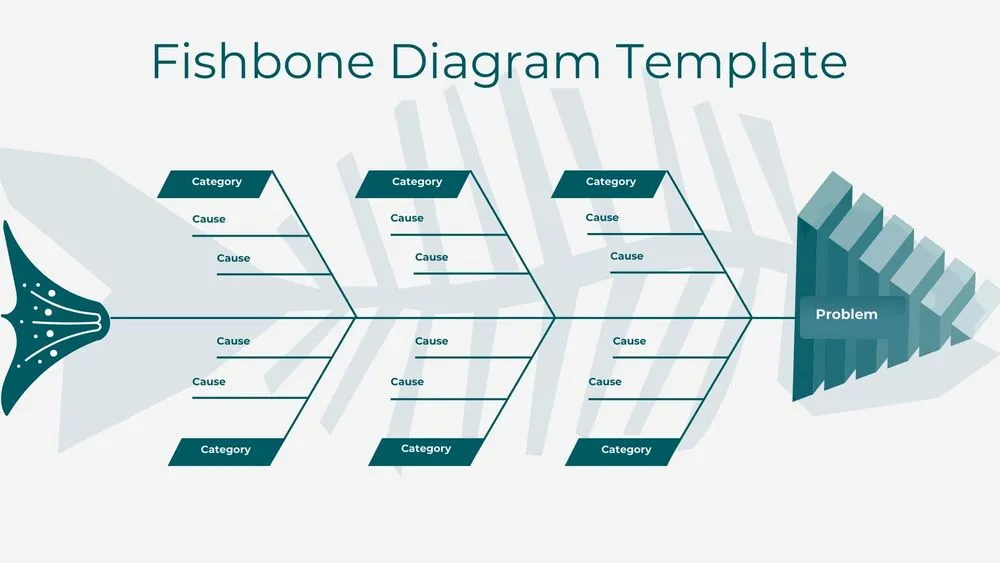
3D Green Fishbone Diagram Presentation Template for PowerPoint, Canva & Google Slides
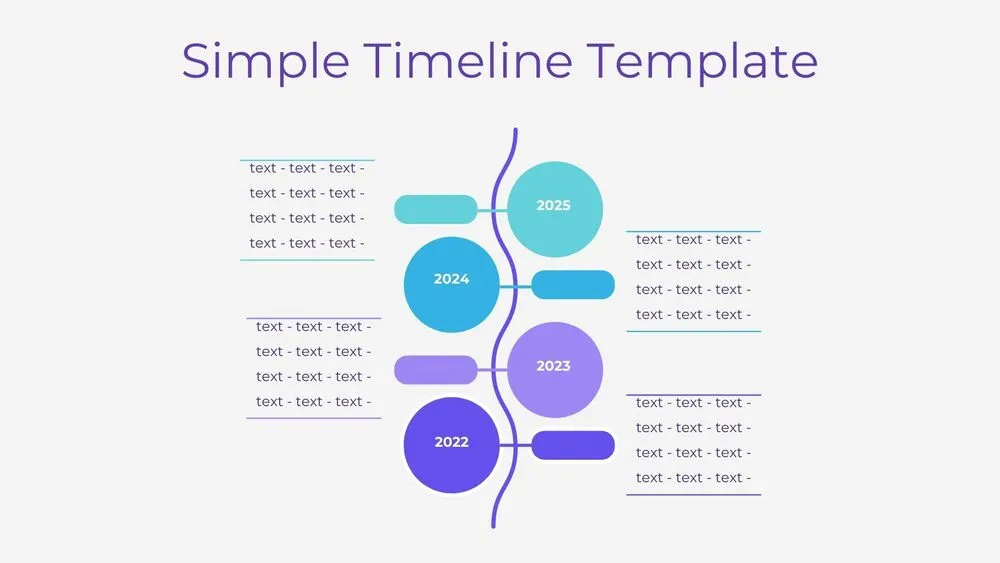
Vertical Wave Timeline Diagram Presentation Template for PowerPoint, Canva & Google Slides
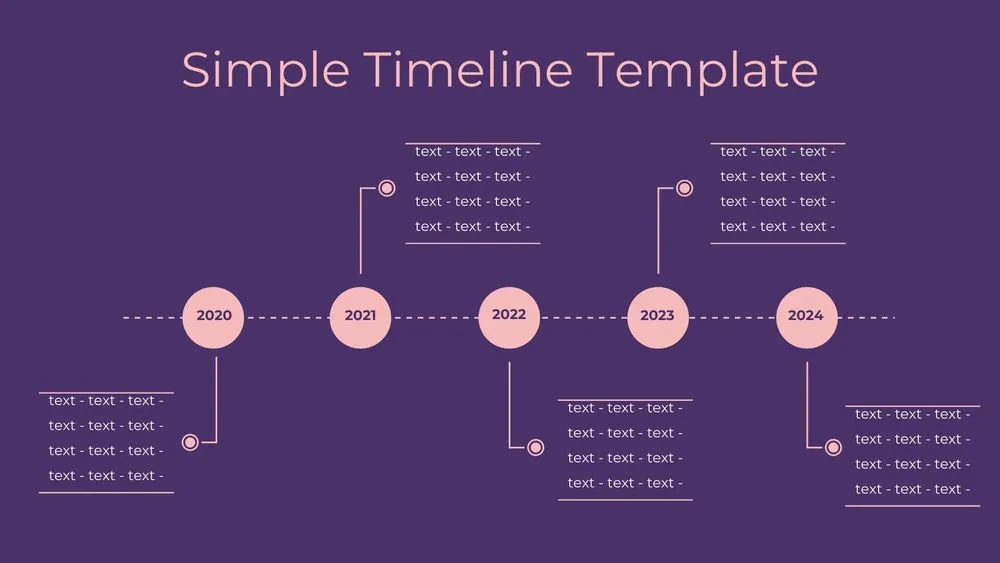
Dark Violet Pins Timeline Diagram Presentation Template for PowerPoint, Canva & Google Slides