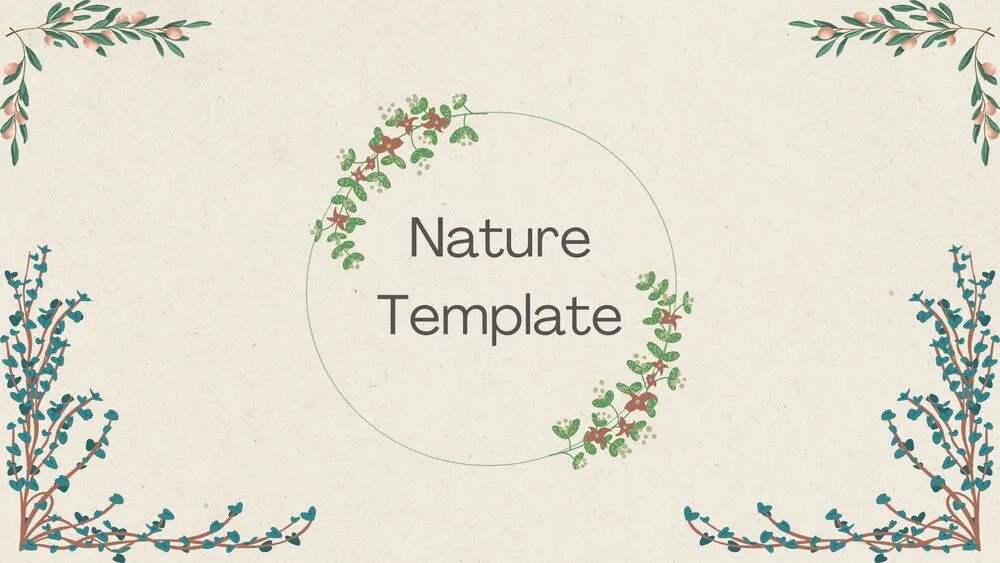

Environment Presentation Templates and Slides – Free & Premium for PowerPoint, Canva & Google Slides
Download free environment presentation templates for PowerPoint, Canva, and Google Slides. Explain sustainability goals, ecosystems, and action plans with clean, ready-to-edit slides ⬇️
Explore the Best Environment PowerPoint Templates, Google Slides & Canva Environment Themes
✨ Environment slides help you explain sustainability topics with clarity, from impact summaries to practical next steps. Use these layouts to present ecosystems, conservation efforts, and ESG goals in a way that’s easy to follow.
Best use cases include classroom lessons, NGO project updates, and internal team briefings. For example, you can map a river cleanup plan with a simple timeline, a budget snapshot, and a before/after metrics slide.
Edit everything in PowerPoint, Canva, or Google Slides, then present live with speaker notes and export a polished PDF for reports, events, or handouts.
Readability tip: keep one message per slide, use short labels on charts, and leave generous whitespace around data.
Best for:
- Sustainability and ESG updates
- Conservation and biodiversity reports
- Climate and emissions dashboards
- School and university lessons
- Community action plans
Explore related templates:
❓ FAQs
Are these environment presentation templates free to download?
Yes—this tag includes free environment presentation templates. If a template is premium, it will be clearly labeled on its template page.
What is an environment presentation template?
A themed slide deck for sustainability topics, with ready-made layouts like maps, charts, and timelines to explain impact and actions clearly.
Which slides should I include?
Start with objectives and key facts, then add an impact chart, a project timeline, and a clear action plan with owners and due dates.
Do these slides work in PowerPoint, Canva, and Google Slides?
Yes, you can edit and present the decks in PowerPoint, Canva, and Google Slides, then export to PDF when you need a shareable file.
How do I keep data readable?
Use high contrast, consistent legends, and short labels. Avoid busy backgrounds behind tables and charts.
How can I present an action plan clearly?
Use a checklist or timeline slide with owners, dates, and status, then end with a simple next-steps summary.
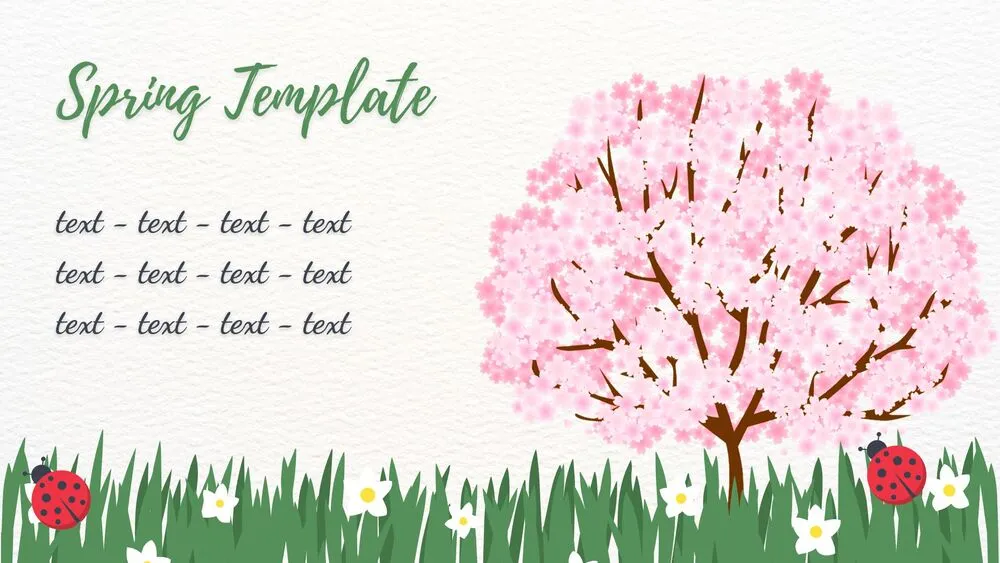
Cherry Blossom Meadow Spring Presentation Template for PowerPoint, Canva & Google Slides

Pastel Watercolor Spring Presentation Template for PowerPoint, Canva & Google Slides
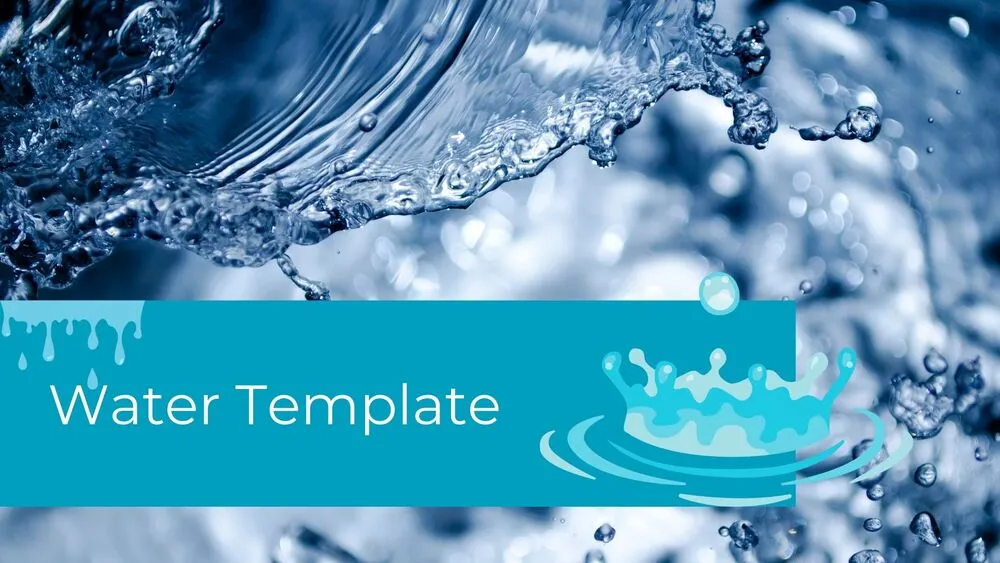
Water Sustainability Presentation Template for PowerPoint, Canva & Google Slides
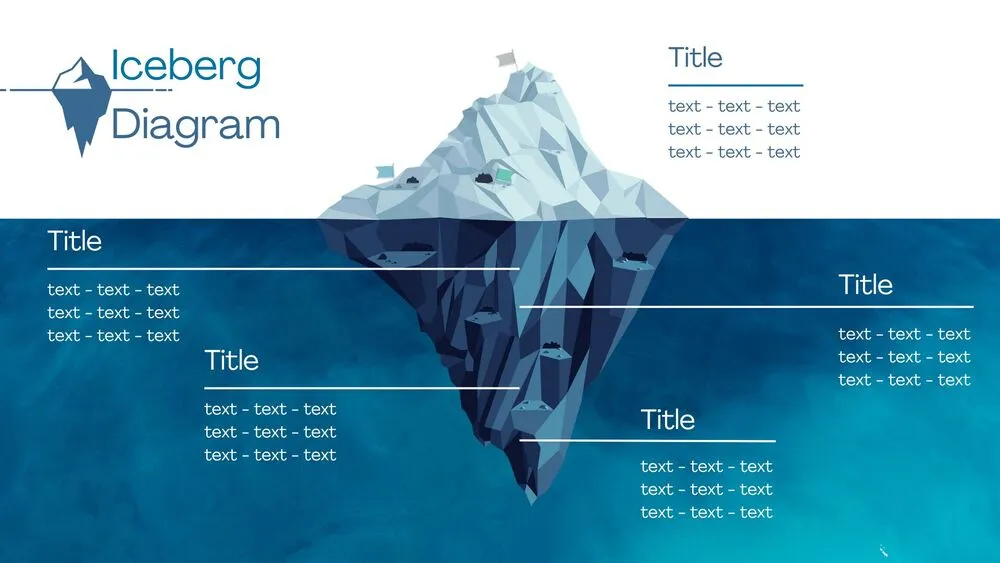
Iceberg Water Presentation Template for PowerPoint, Canva & Google Slides
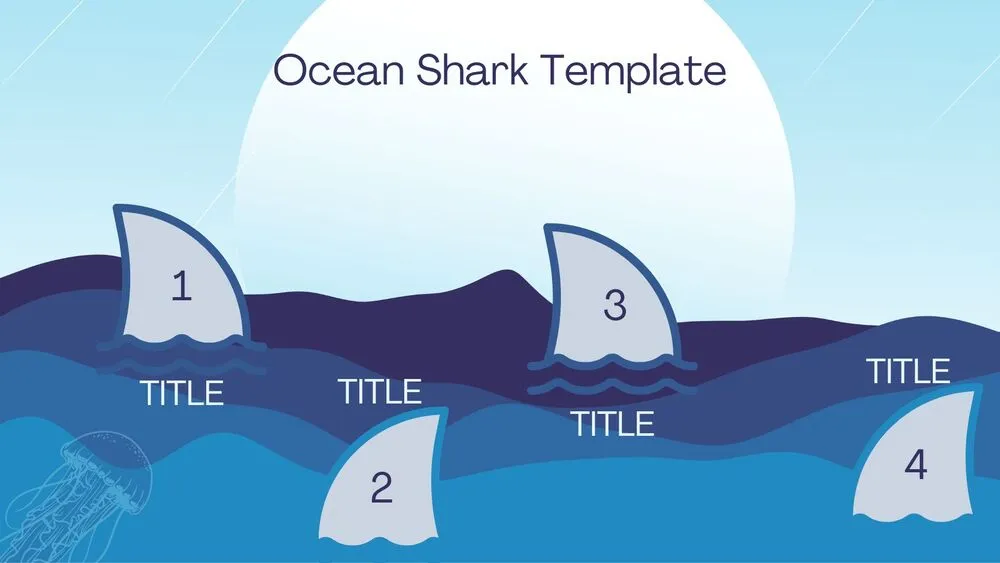
Ocean Shark Water Presentation Template for PowerPoint, Canva & Google Slides
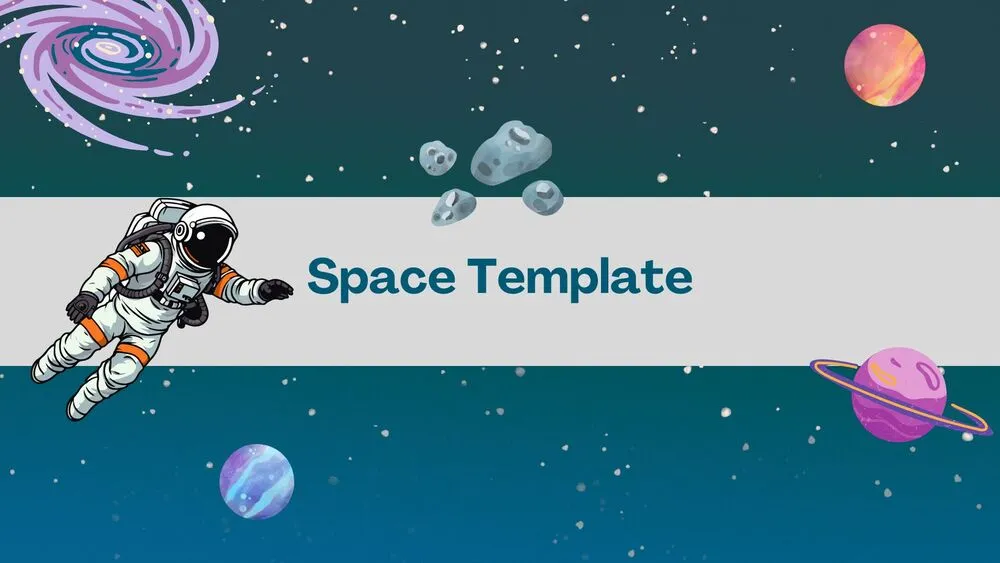
Blue Space Presentation Template for PowerPoint, Canva & Google Slides
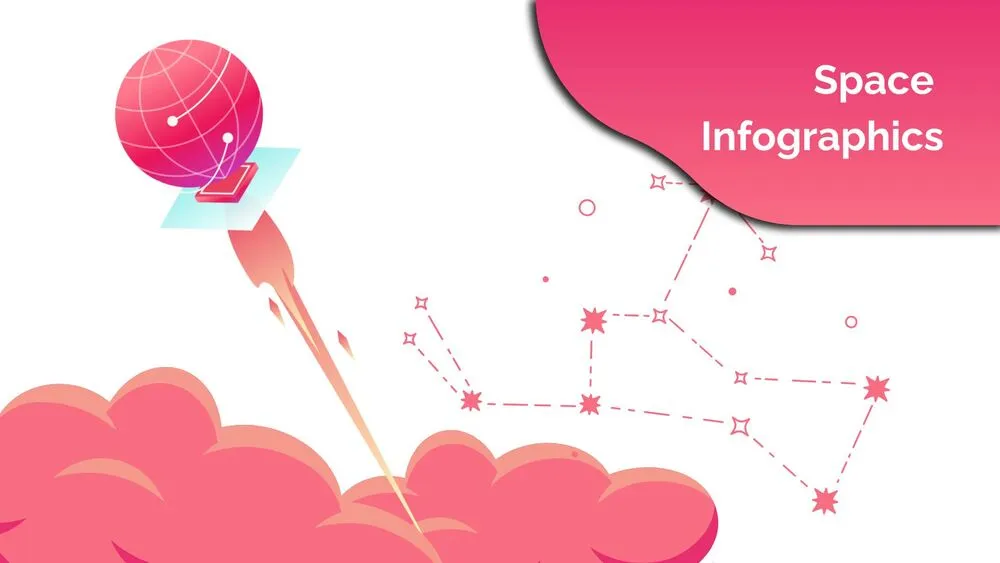
Pink Space Presentation Template for PowerPoint, Canva & Google Slides
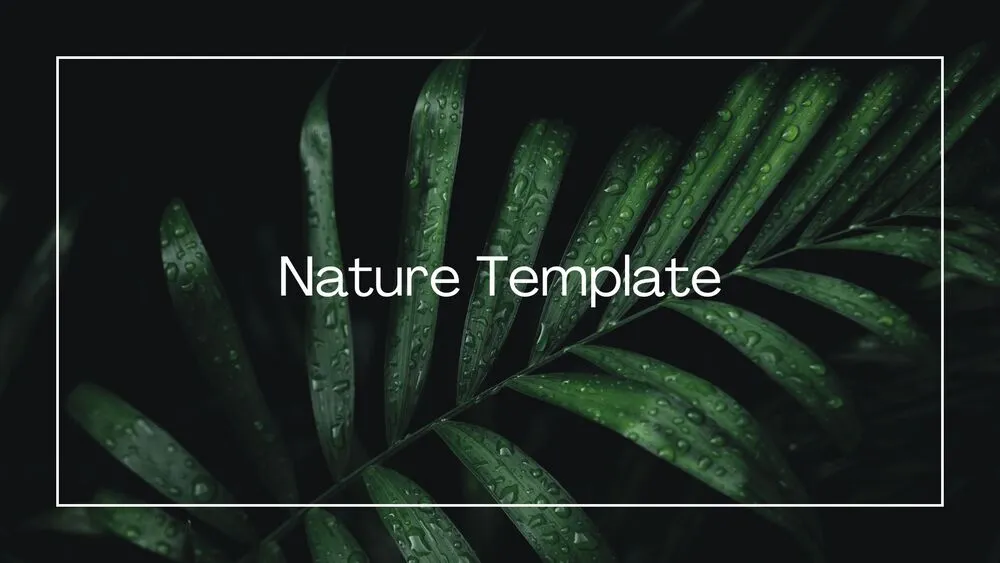
Dark Nature Presentation Template for PowerPoint, Canva & Google Slides