Flowchart Presentation Templates and Slides – Free & Premium for PowerPoint, Canva & Google Slides
Map processes end-to-end—steps, decisions, and handoffs with clean shapes, connectors, and swimlanes ⬇️
✨ Build readable process maps with Google Slides flowchart template packs, PowerPoint flow chart masters, and Canva flowchart templates. Use standard symbols (start/end, process, decision, I/O), clean connectors, and swimlanes to show roles and handoffs clearly.
Prefer collaboration? Start with a flow chart in Google Slides kit—perfect for workshops where you need a flowchart in Google Slides. Add a Google Slides process flow template for SOPs and approvals, and duplicate slides to capture exception paths. If you need starters, try a flowchart template Google Slides or slides flowchart template for quick edits.
Everything is fully editable—swap palettes and icons, adjust line weights, and export to PDF/PNG for wikis and manuals. Explore variants for cross-functional swimlanes, decision-heavy branches (yes/no), and presentation-ready presentation flow summaries that executives can scan in seconds.
Insert shapes and connectors, turn on guides, and keep spacing consistent. Or start from a google slides flow chart template and just edit labels and swimlanes.
Both terms are used. We include flow chart and flowchart variants to capture searches and keep the copy natural.
Yes—use swimlanes for teams/departments. Color-code phases, minimize line crossings, and add entry/exit points for sub-processes.
Try our process flow template Google Slides variants—SOPs, approval gates, and exception paths—plus PowerPoint masters for offline work.


Discover more free presentation templates by platform:
¿Te gustaría recibir acceso anticipado a nuevas plantillas de presentación gratuitas, consejos de diseño y novedades exclusivas? Suscríbete a nuestro boletín hoy mismo.
Canva es la forma más rápida y sencilla de personalizar tu plantilla.
Edita textos, colores, imágenes y diseños con solo unos clics, sin necesidad de instalar ningún programa.
✨ Incluye:
PASO 1. Haz clic en el botón azul “Canva” para descargar el archivo en formato .pptx.


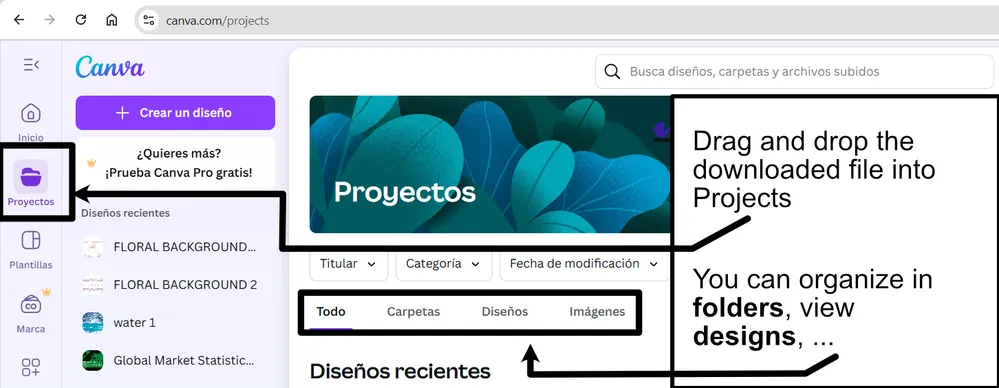
PASO 2. Arrastra y suelta el archivo descargado en la sección Proyectos de tu panel de Canva.
Dentro de Proyectos encontrarás pestañas como Carpetas, Diseños, Imágenes y una sección “Todo” que las agrupa. En la barra lateral izquierda verás además muchas herramientas útiles para editar tu presentación.
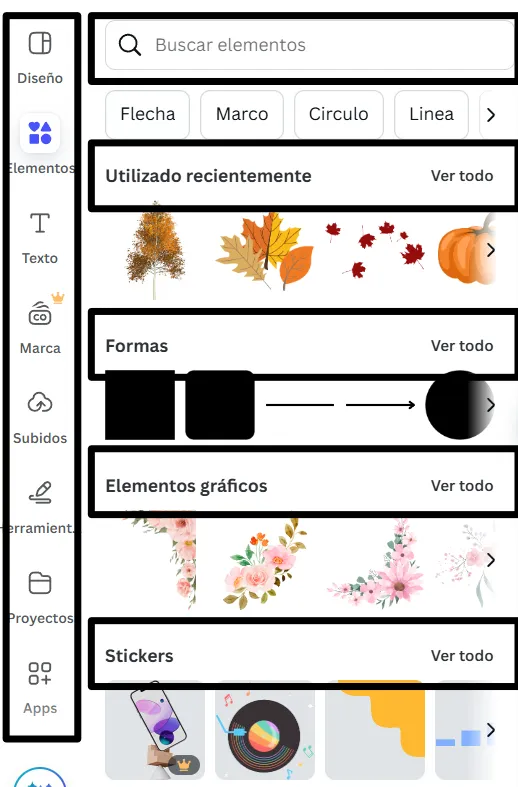
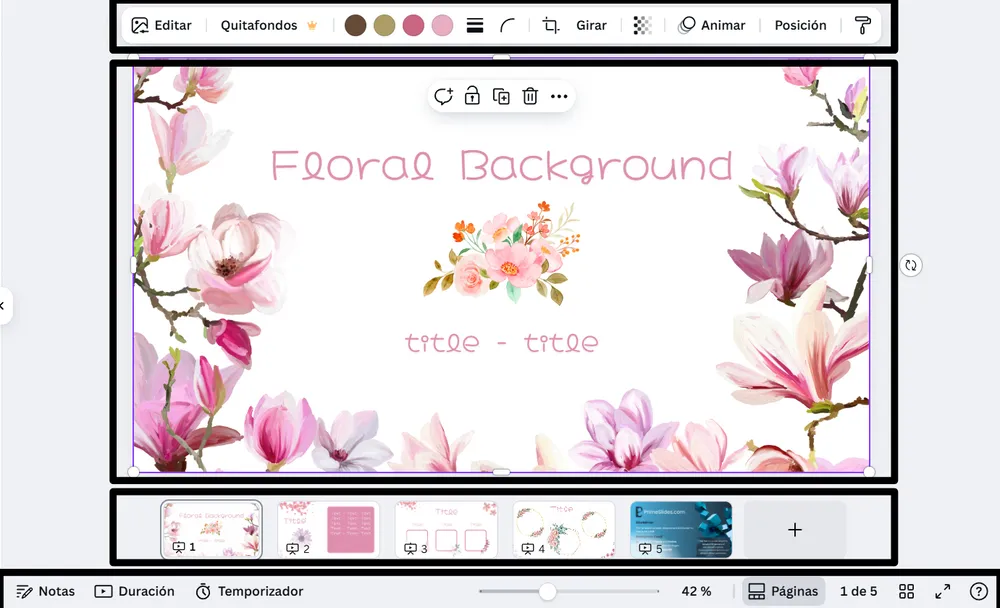
PASO 3. Al abrir la plantilla, verás en el panel izquierdo las diapositivas prediseñadas, junto con elementos como fotos gratuitas y premium, vectores, textos, archivos subidos y otras herramientas o aplicaciones disponibles en Canva.


PASO 4. En el centro de la pantalla se mostrará la diapositiva activa.
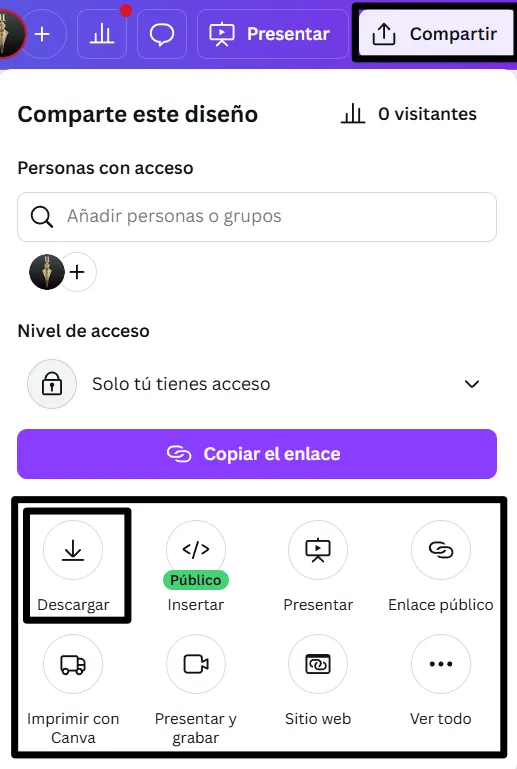
PASO 5. Cuando termines de editar, haz clic en “Compartir” para acceder a varias opciones: Descargar, Presentar, Insertar en un sitio web, Crear un enlace público, y más.

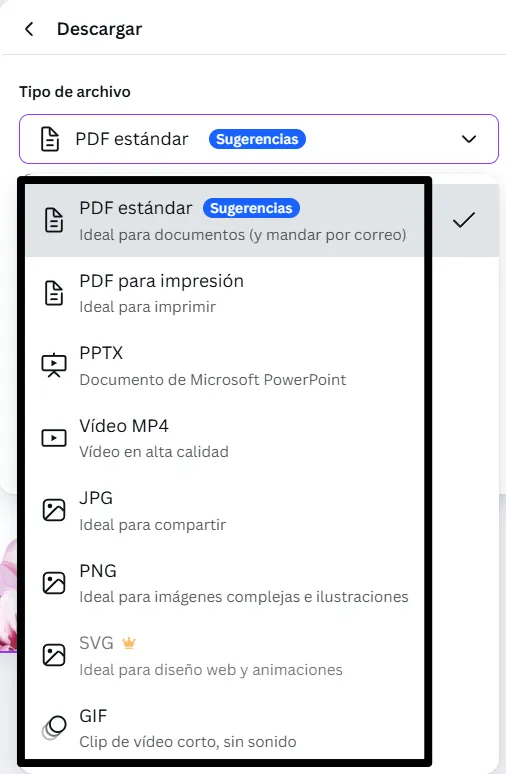
PASO 6. Puedes exportar tu presentación en varios formatos: PDF, PPTX, vídeo, JPG, PNG, entre otros.

Canva is the fastest and easiest way to personalize your template.
Edit text, colors, images, and layouts with just a few clicks — no software needed.
✨ Includes:
– STEP 1. Click the blue “Canva” button to download the .pptx file.


– STEP 2. Drag and drop the downloaded file into the Projects section of your Canva dashboard.
Inside Projects, you’ll find tabs like Folders, Designs, Images, and an “All” section that combines them. On the left sidebar, you’ll see even more useful tools.
– STEP 3. Once you open the template, you’ll find on the left, pre-designed slides, elements like free and premium photos, vectors, text, uploads, and other tools or apps available in Canva.


– STEP 4. In the center, you’ll see your active slide.
At the top, there’s a toolbar with options like Edit, Background Remover (premium), color controls for selected elements or images, and other text/image tools.
At the bottom, you’ll see a slide navigator with all pages and a “+” button to add a new slide.
At the very bottom, there’s an extra toolbar with options for Notes, Presentation Duration, Timer, etc.
– STEP 5. Download the .pptx file. When you’re done editing, click “Share” to see multiple options: Download, Present, Embed on a Website, Create a Public Link, and more.

– STEP 6. You can export your presentation in several formats: PDF, PPTX, Video, JPG, PNG, etc.

Do you want early access to new free presentation templates, design tips, and exclusive updates? Join our newsletter today.