
Health Presentation Templates and Slides – Free & Premium for PowerPoint, Canva & Google Slides
Download free health presentation templates for PowerPoint, Canva, and Google Slides. Create patient education, wellness decks, and clinical dashboards with clean, trustworthy slides ⬇️
Explore the Best Health PowerPoint Templates, Google Slides & Canva Health Themes
✨ Health slides help you present information clearly and responsibly, from patient education to internal reporting. Use a health powerpoint template when you need clean visuals, simple icons, and charts that make key points easy to understand.
Best use cases include care plans, clinic overviews, wellness programs, and training sessions. For example, build a patient education deck with symptoms, prevention steps, and a checklist slide, then add a simple KPI view for outcomes or program reach.
Edit everything in PowerPoint, Canva, or Google Slides, then present live and export a polished PDF for handouts, staff briefings, or community events. If you’re covering wellbeing topics, include a mental health powerpoint template slide with supportive resources and clear next steps.
Readability tip: keep language plain, limit each slide to one message, and use high-contrast text so content stays accessible in classrooms and clinics.
Best for:
- Patient education and care plans
- Hospital and clinic reporting
- Wellness programs and awareness talks
- Mental health resources and training
- Health dashboards and KPI updates
Explore related templates:
❓ FAQs
Are these health presentation templates free to download?
Yes—this tag includes free health presentation templates. If a template is premium, it will be clearly labeled on its template page.
What is a health presentation template?
A slide deck for healthcare and wellness topics, including patient education, care plans, dashboards, and training layouts you can edit quickly.
Do you have mental health slides too?
Yes, you can use mental health Google Slides template layouts for awareness sessions, coping tips, and resource cards, then export to PDF for sharing.
Do these slides work in PowerPoint, Canva, and Google Slides?
Yes, you can edit and present them in PowerPoint, Canva, and Google Slides, then export to PDF for handouts or reporting.
What layouts work best for clinics and hospitals?
Use service overviews, care pathways, KPI dashboards, patient journey slides, and checklists for discharge or follow-up steps.
How do I present health information responsibly?
Use clear language, avoid overcrowded slides, and include credible resources. Keep advice general and encourage viewers to consult professionals when needed.
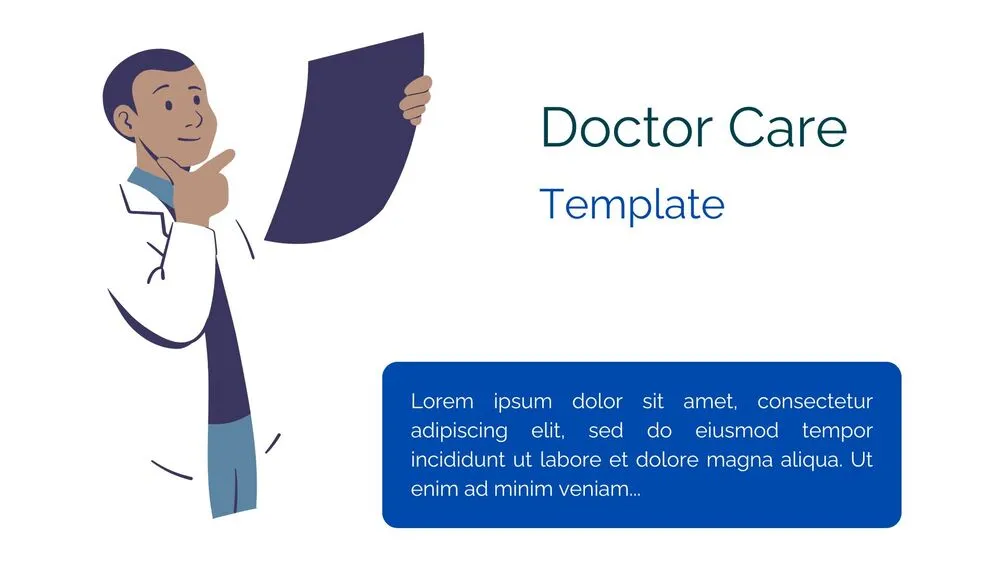
Creative Doctor Presentation Template for PowerPoint, Canva & Google Slides
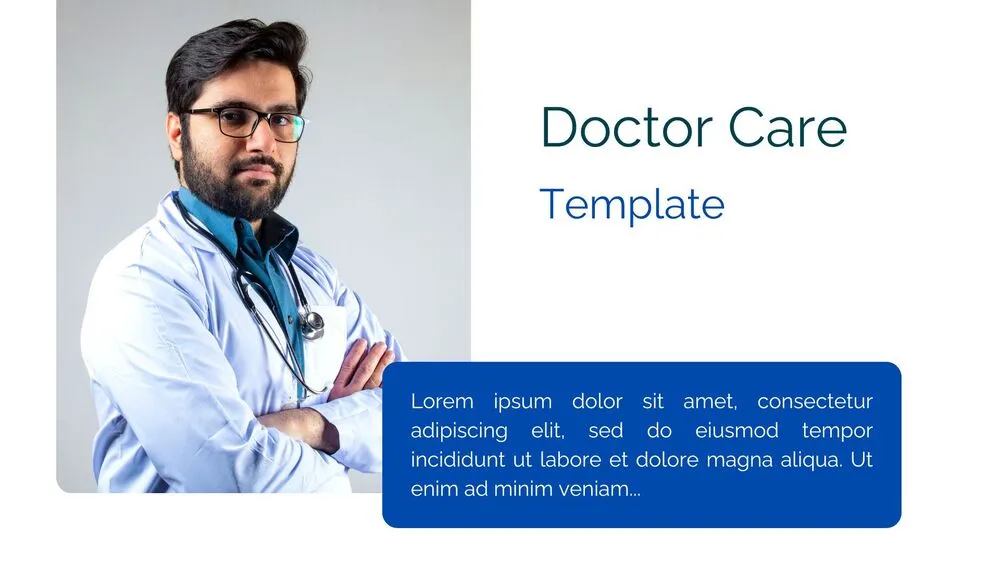
Professional Doctor Presentation Template for PowerPoint, Canva & Google Slides

Cute Blue Nursing Care Presentation Template for PowerPoint, Canva & Google Slides