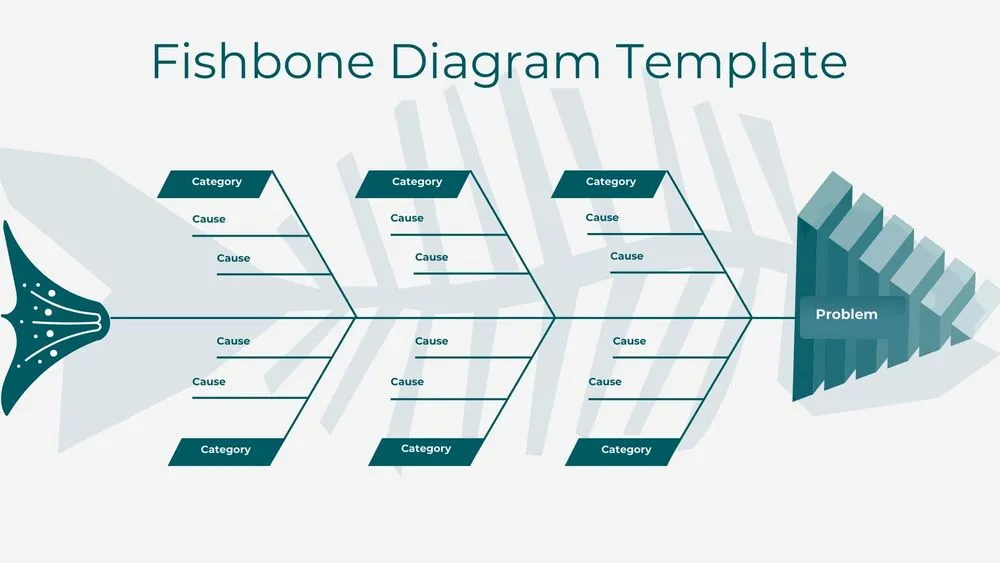
Minimalist Presentation Templates and Slides – Free & Premium for PowerPoint, Canva & Google Slides
Download minimalist presentation templates and slides for PowerPoint, Canva, and Google Slides. Discover clean, modern layouts with simple design, clear structure, and professional minimalist style ⬇️
Explore the Best Minimalist PowerPoint Templates, Minimalist Google Slides Themes & Clean Canva Slides
✨ A minimalist PowerPoint template is designed to make every idea easier to understand. With clean layouts, balanced spacing, and simple visual hierarchy, minimalist slides help your message stand out without distractions. This style works especially well when you want your presentation to look modern, elegant, and professional from the first slide to the last.
On this page, you can browse minimalist PowerPoint templates, minimalist Google Slides themes, and editable designs for Canva. These templates are ideal for business presentations, company profiles, pitch decks, portfolios, school projects, reports, and proposals. If you are searching for powerpoint templates minimalist in style, the best option is always a layout that keeps typography, structure, and content clarity as the main focus.
A strong minimalist template usually combines neutral backgrounds, clean titles, simple charts, and enough whitespace to improve readability. Instead of filling every slide with icons, shapes, and decorative effects, minimalist design helps the audience stay focused on key numbers, messages, and takeaways. That is why minimalist PowerPoint themes are often used for executive decks, startup presentations, marketing reports, and strategy updates.
If you need Google Slides themes minimalist in style, or want a ppt templates minimalist collection for quick editing, these designs give you a flexible starting point. You can customize colors, change fonts, replace images, and add your own charts while keeping the visual identity clean and consistent across all slides.
Best for:
- Minimalist presentation decks for business, startups, and corporate teams
- Clean reports, proposals, and executive summary slides
- Portfolio, CV, and case study presentations with a modern look
- Pitch decks and strategy presentations that need clarity and structure
- Simple data slides, charts, KPIs, and professional dashboards
Explore related templates:
❓ FAQs
Are these minimalist presentation templates free to download?
Yes, you can find free minimalist presentation templates on this page. Some designs may also have premium versions with more slide layouts and advanced options, but free templates are clearly available for quick download and editing.
What is a minimalist PowerPoint template?
A minimalist PowerPoint template is a clean presentation design based on simple layouts, strong typography, whitespace, and limited visual elements. It helps your content look more professional, organized, and easier to read.
Do you offer minimalist Google Slides themes too?
Yes, this tag includes minimalist Google Slides themes as well as editable templates for PowerPoint and Canva. That makes it easy to use the same clean presentation style across different platforms.
What types of presentations work best with minimalist slides?
Minimalist slides work especially well for pitch decks, business reports, portfolios, proposals, company profiles, educational presentations, and any deck where clarity, structure, and modern design matter.
How do I make minimalist slides look more engaging?
Keep one main idea per slide, use clear headings, add one strong visual or chart when needed, and rely on spacing instead of decoration. A single accent color can also help highlight important points without breaking the minimalist style.
Do these minimalist templates work in PowerPoint, Canva, and Google Slides?
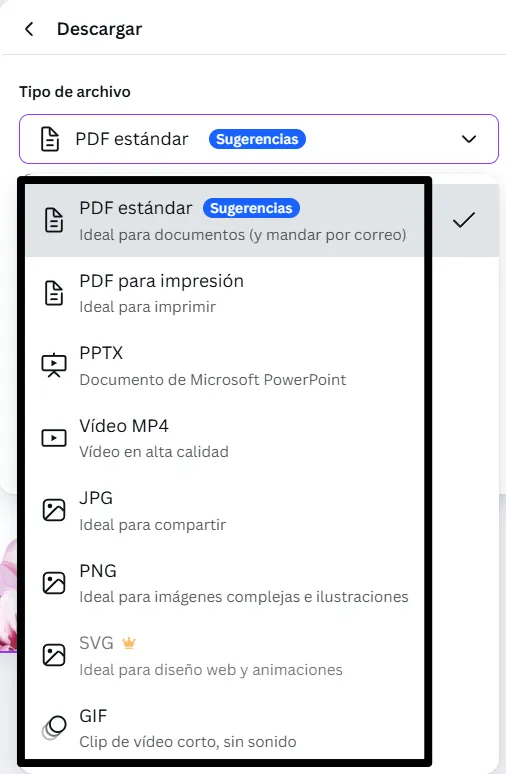
Yes. These templates are made to be edited in PowerPoint, Canva, and Google Slides, so you can customize slides easily, present online, or export them as PDF files for sharing.
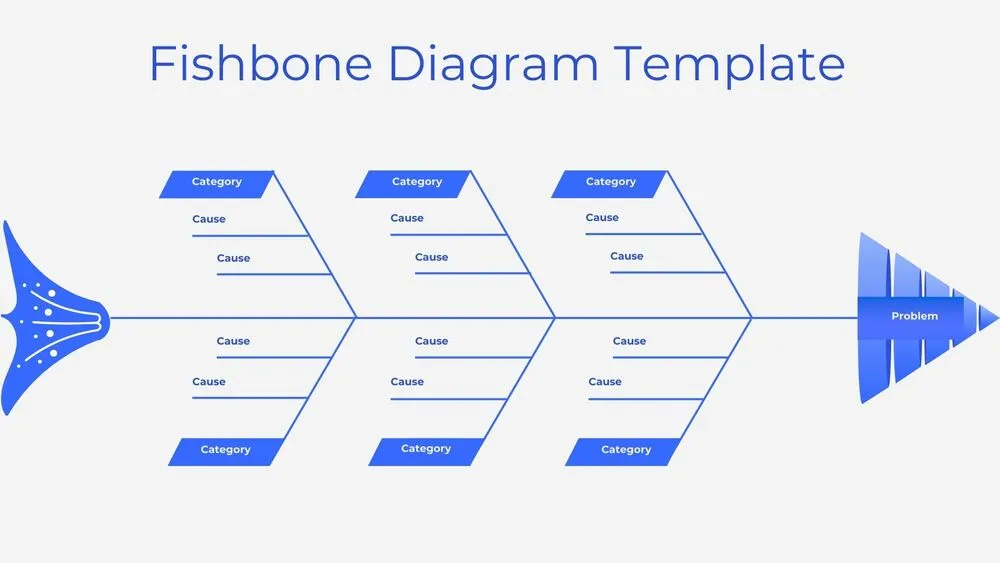
Minimalist Blue Fishbone Diagram Presentation Template for PowerPoint, Canva & Google Slides
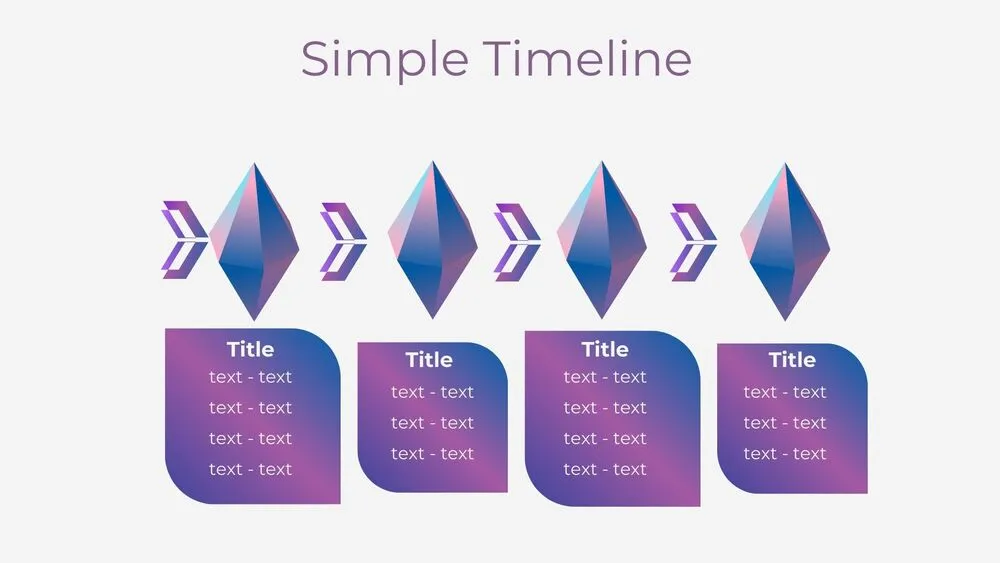
Futuristic Gems Timeline Diagram Presentation Template for PowerPoint, Canva & Google Slides
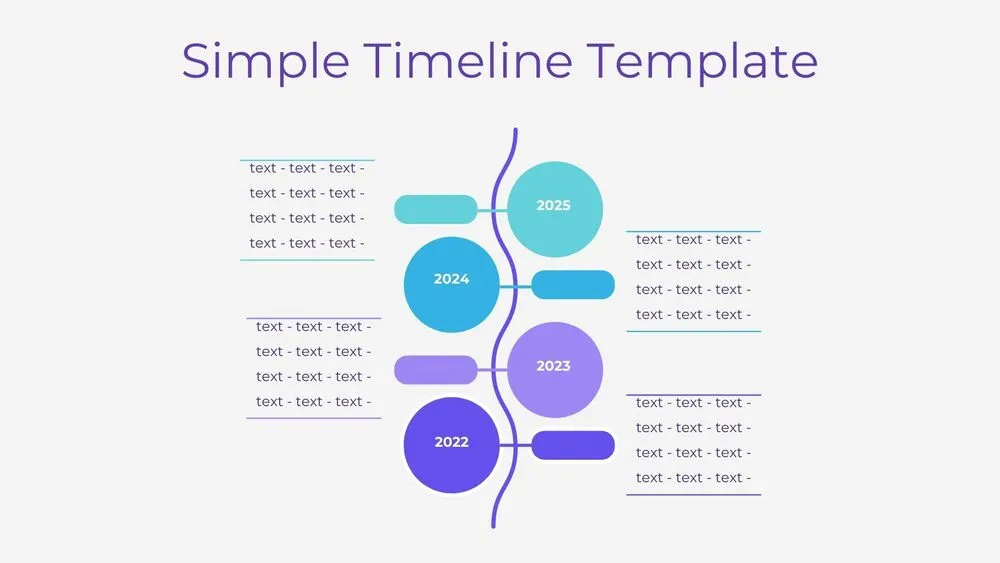
Vertical Wave Timeline Diagram Presentation Template for PowerPoint, Canva & Google Slides
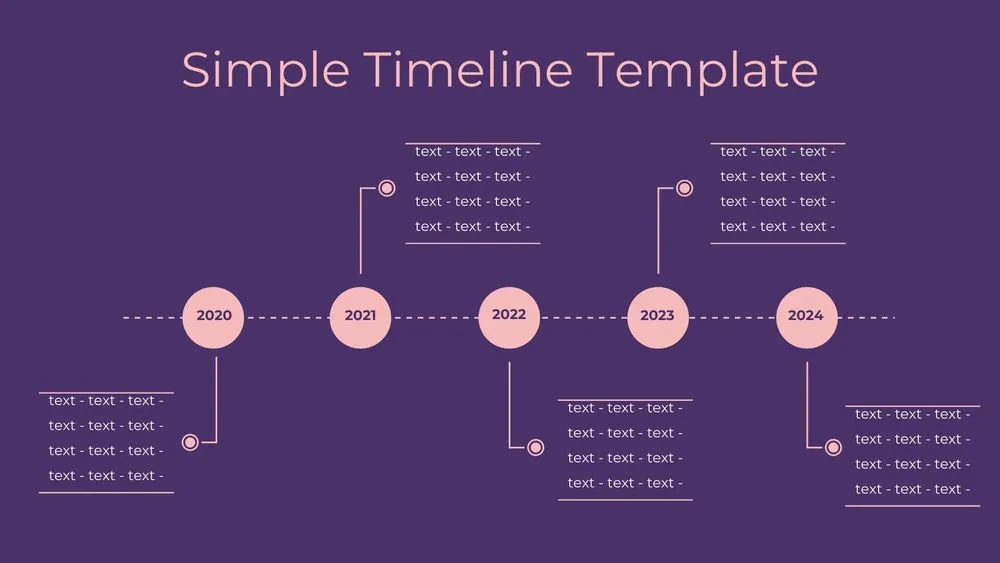
Dark Violet Pins Timeline Diagram Presentation Template for PowerPoint, Canva & Google Slides
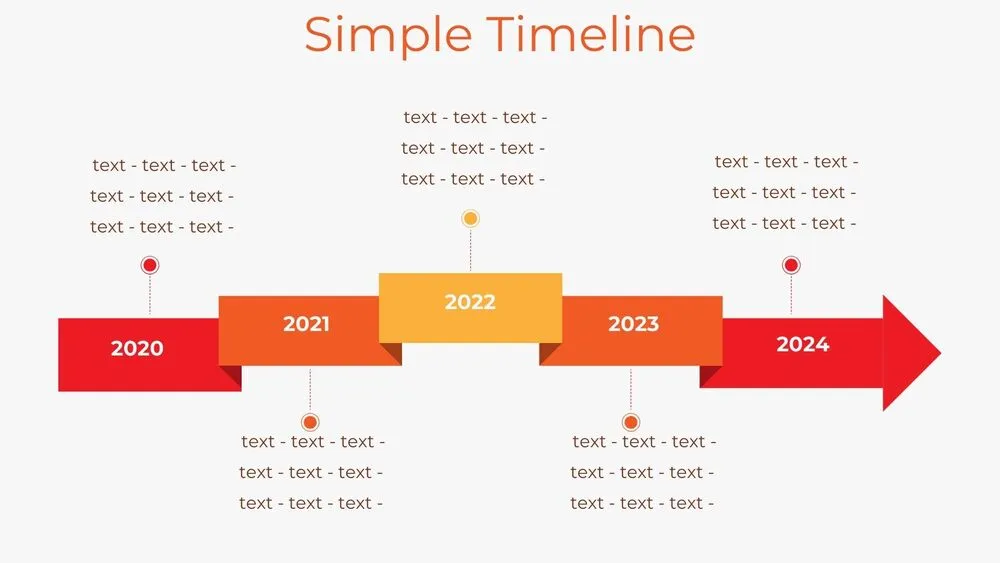
Stepped Path Timeline Diagram Presentation Template for PowerPoint, Canva & Google Slides
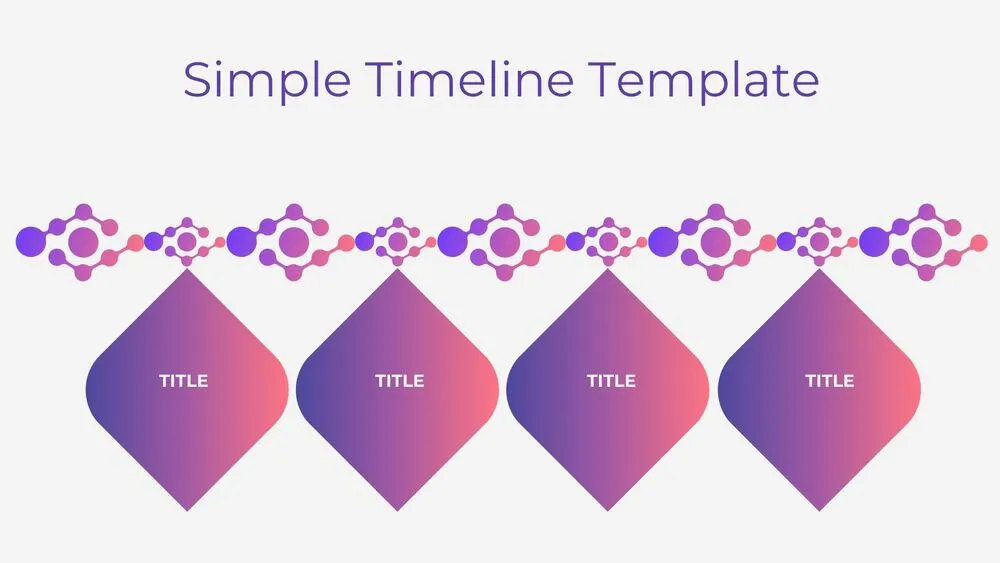
Atom Path Timeline Diagram Presentation Template for PowerPoint, Canva & Google Slides
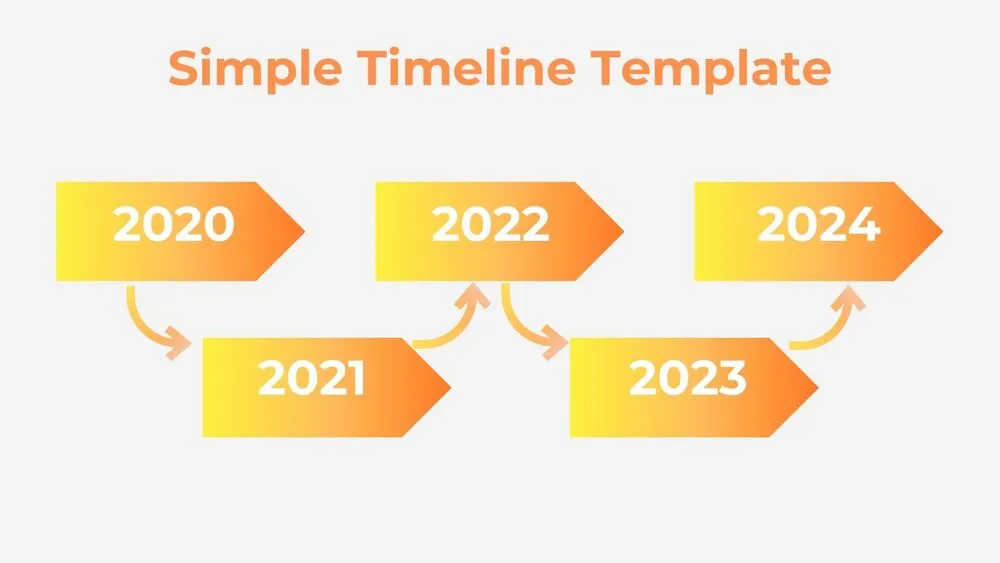
Simple Arrow Timeline Diagram Presentation Template for PowerPoint, Canva & Google Slides

Minimalist Blue Flowchart Diagram Presentation Template for PowerPoint, Canva & Google Slides