
Monochrome Presentation Templates and Slides – Free & Premium for PowerPoint, Canva & Google Slides
Download free monochrome presentation templates for PowerPoint, Canva, and Google Slides. Create crisp, high-contrast slides with timeless black and white styling ⬇️
Explore the Best Monochrome PowerPoint Templates, Google Slides & Canva Monochrome Themes
✨ Monochrome slides are built for maximum clarity, using contrast, spacing, and typography instead of heavy color. They’re ideal when you want a clean, timeless look that stays readable on screens, in print, and in fast-paced meetings.
Use them for board reports, proposals, portfolios, and data-heavy updates where you need the message to stand out. For example, present a one-page summary, follow with a chart slide that labels values directly, then close with a simple action plan slide using the same black-and-white grid.
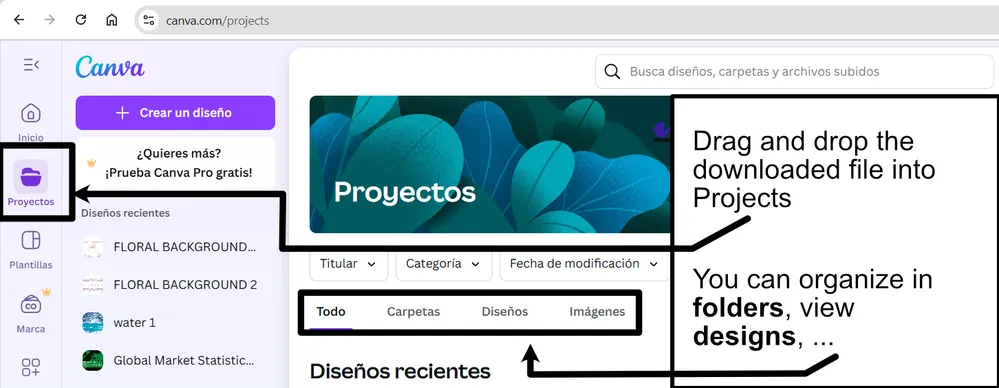
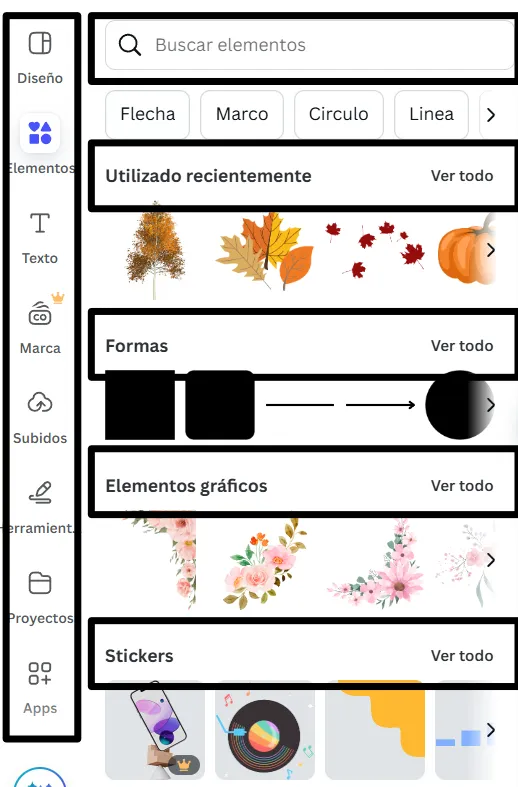
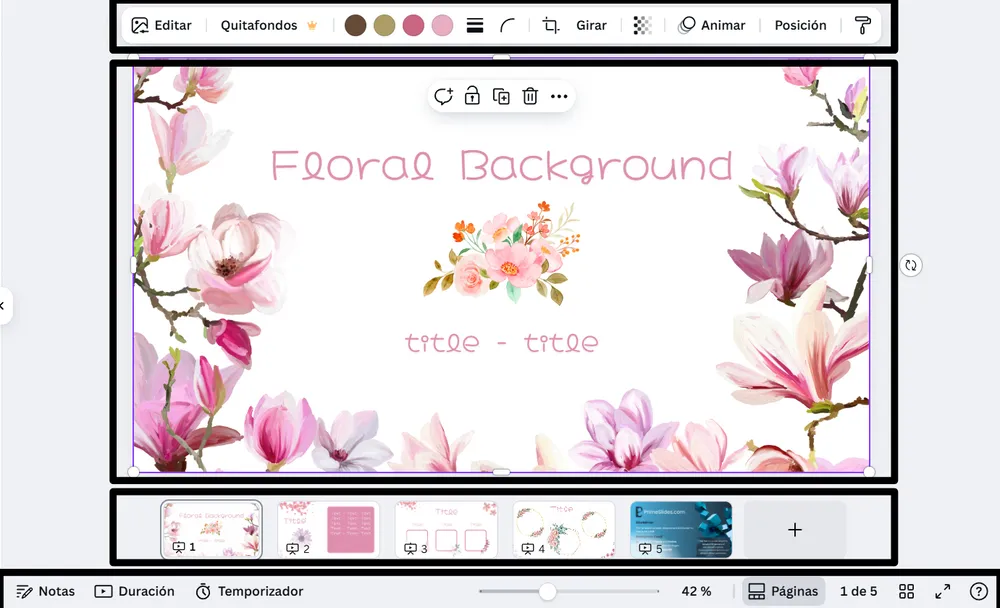
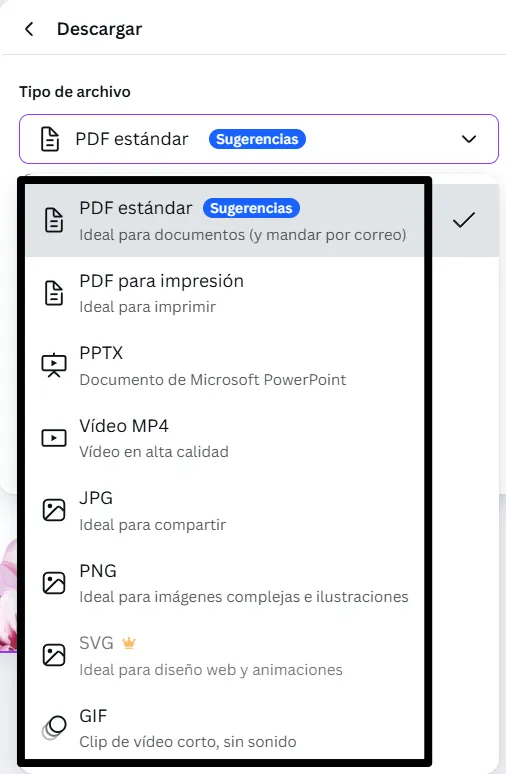
Edit these layouts in PowerPoint, Canva, and Google Slides, then present live or export to PDF for sharing. Keep icons outline-only, use consistent margins, and limit charts to a few tones so the primary insight is always obvious.
Readability tip: use bold black only for the headline and main data series, and keep secondary text in softer gray.
Best for:
- High-contrast reports and executive updates
- Proposal decks and client presentations
- Portfolios and case study storytelling
- Data-heavy charts and KPI summaries
- Print-friendly handouts and PDFs
Explore related templates:
❓ FAQs
Are these monochrome presentation templates free to download?
Yes—this tag includes free monochrome presentation templates. If a template is premium, it will be clearly labeled on its template page.
What is a monochrome presentation template?
A slide design system that uses black and white (or a single hue) with strong contrast and clean spacing to keep content readable.
When should I use monochrome over color?
Choose monochrome for formal reporting, print-friendly decks, and any presentation where you want to reduce visual noise and boost readability.
How do I style charts in monochrome?
Use 2–3 shades, label values directly, and reserve the darkest tone for the primary series so the main trend stands out.
Do these slides work in PowerPoint, Canva, and Google Slides?
Yes, you can edit the slides in PowerPoint, Canva, and Google Slides, present live, and export to PDF for sharing.
How do I keep a monochrome deck from feeling flat?
Use strong headings, clear spacing, and one subtle accent, like a thin divider or highlight box, to guide attention without adding clutter.