
Spring Presentation Templates and Slides – Free & Premium for PowerPoint, Canva & Google Slides
Download free spring presentation templates for PowerPoint, Canva, and Google Slides. Use fresh seasonal layouts with florals, greenery, and clean grids for events and lessons ⬇️
Explore spring presentation templates and slides for PowerPoint, Canva & Google Slides
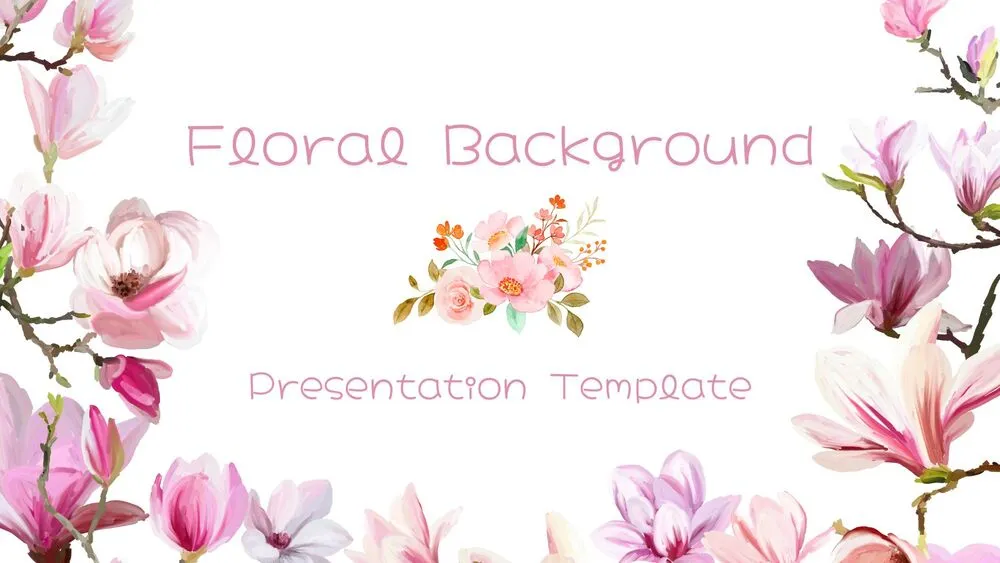
✨ Spring presentation templates are made for bright, fresh storytelling, think florals, greenery, and airy spacing that keeps content easy to read. Use a spring PowerPoint template for polished layouts, or start with a spring Google Slides template when you need quick collaboration.
Best use cases include seasonal classroom units, event announcements, newsletters, and community updates. For example, build a “spring activities” deck with a calendar slide, a checklist for supplies, a photo collage, and a simple timeline for key dates.
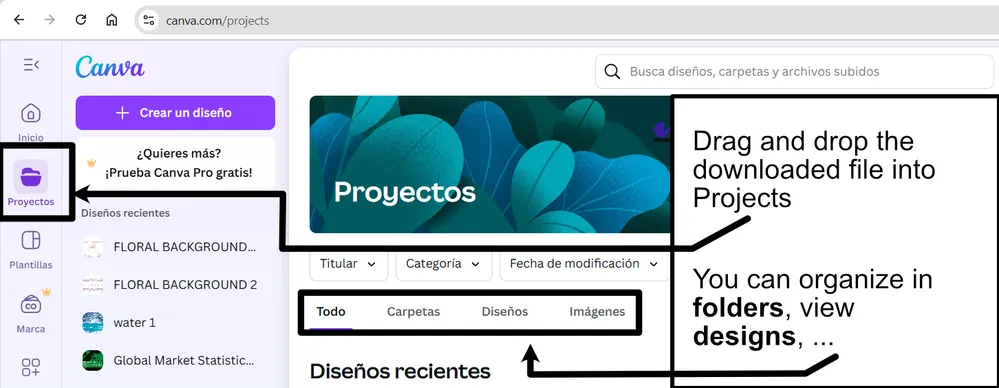
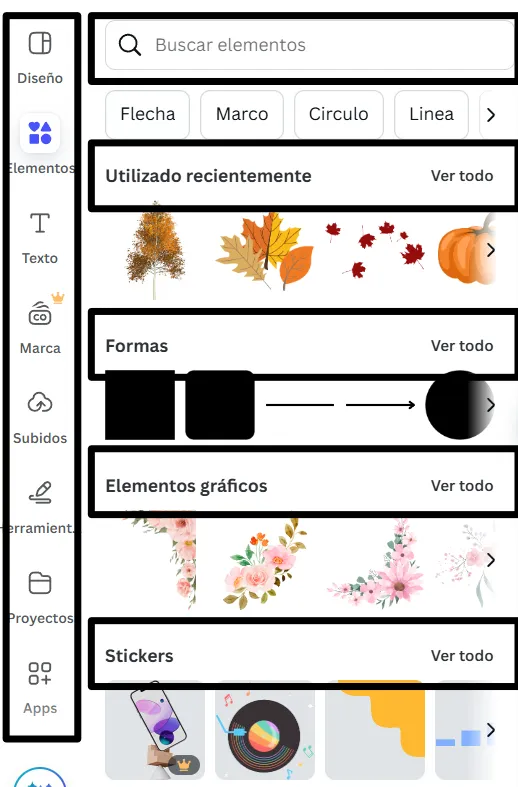
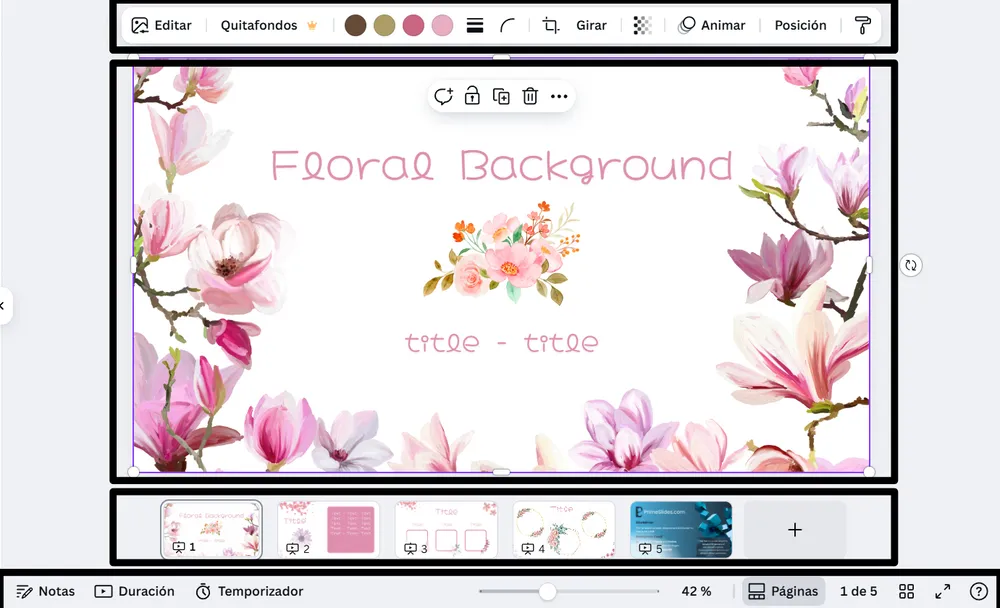
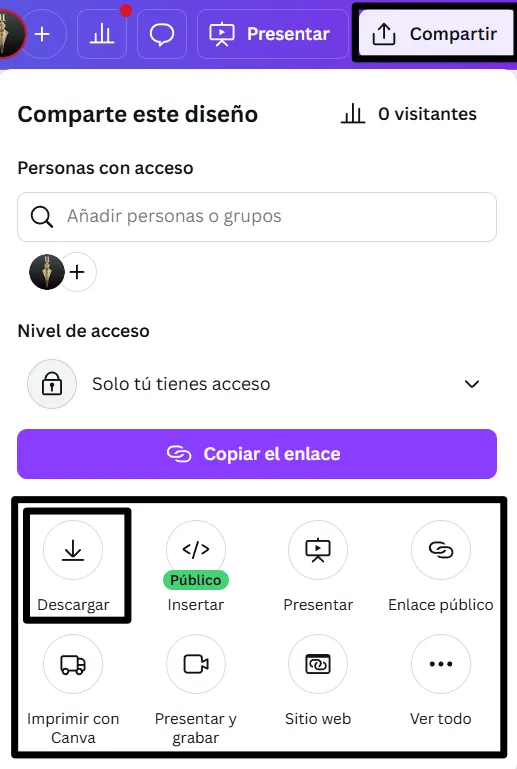
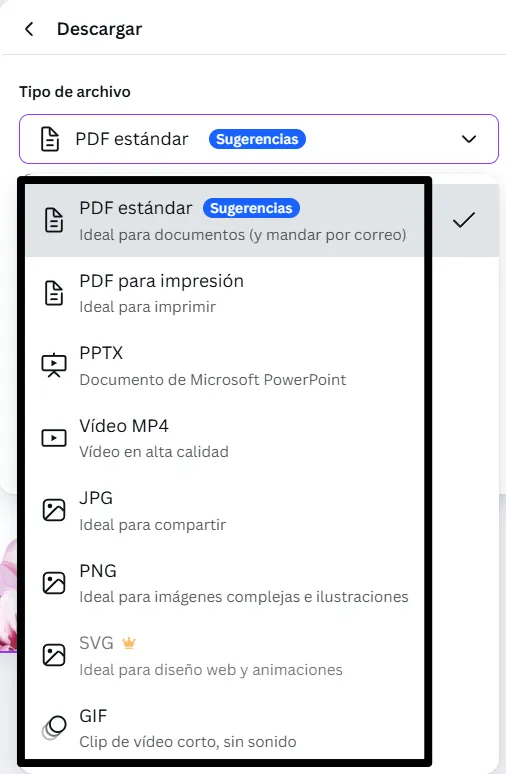
Edit in PowerPoint, Canva, or Google Slides, then present live or export to PDF for sharing and print. If you’re planning travel or school time off, a spring break Google Slides template works well for itineraries, budgets, and packing lists you can update on the go.
Readability tip: Keep decorative flowers away from text areas, use dark text on light backgrounds, and stick to one highlight color for headings and callouts.
Best for:
- Spring event announcements and invitations
- Classroom lesson decks and seasonal activities
- Spring break itineraries and planning slides
- Newsletter-style updates with photos
- Printable handouts exported to PDF
Explore related templates:
❓ FAQs
Are these spring presentation templates free to download?
Yes—this tag includes free spring presentation templates. If a template is premium, it will be clearly labeled on its template page.
What is a spring presentation template?
An editable deck with seasonal colors and floral accents, designed for spring lessons, events, and announcements.
Do these slides work in PowerPoint, Canva, and Google Slides?
Yes, you can edit and present them in PowerPoint, Canva, and Google Slides, then export to PDF for sharing.
How do I keep spring slides readable?
Use dark text on light pastels, avoid busy florals behind paragraphs, and keep spacing consistent across slides.
Can I use these for spring break planning?
Yes, a spring break deck is great for itineraries, budgets, and packing lists, especially when shared for group edits.
What should a spring event deck include?
Start with the date and location, add an agenda or schedule slide, include key details, and finish with a clear next step or RSVP.
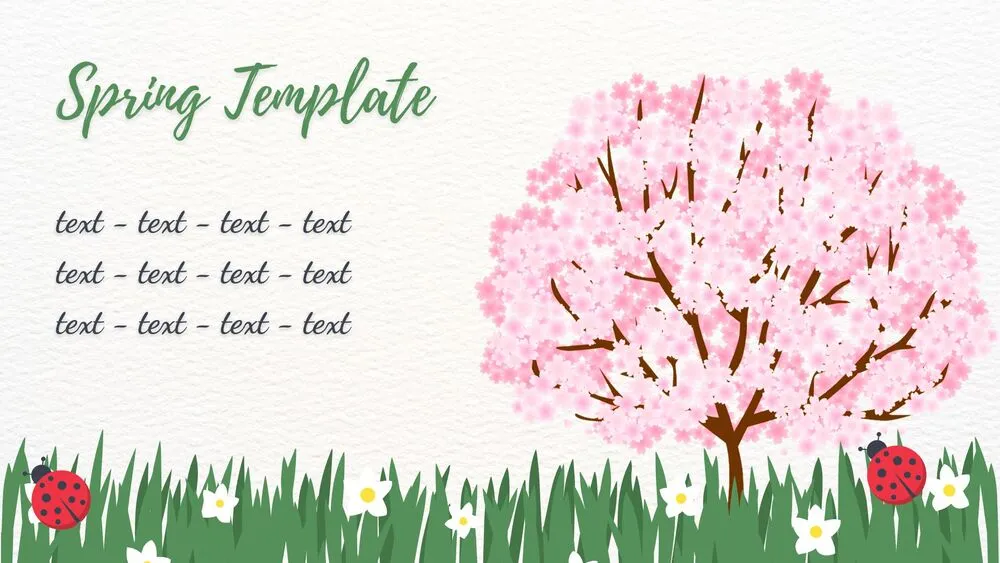
Cherry Blossom Meadow Spring Presentation Template for PowerPoint, Canva & Google Slides
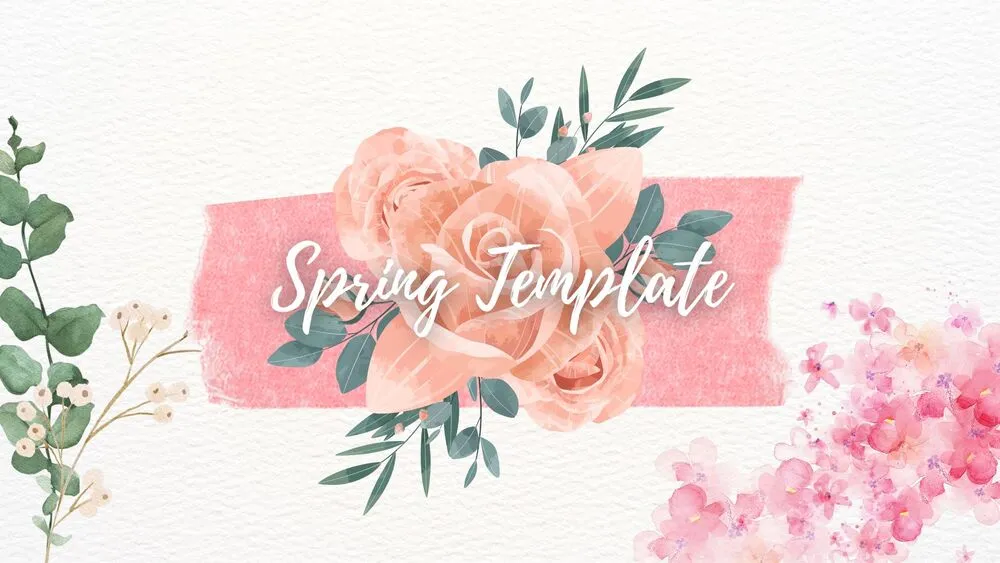
Pastel Watercolor Spring Presentation Template for PowerPoint, Canva & Google Slides

Floral Pink Presentation Template for PowerPoint, Canva & Google Slides