Wedding Presentation Templates and Slides – Free & Premium for PowerPoint, Canva & Google Slides
Download free wedding presentation templates for PowerPoint, Canva, and Google Slides. Plan ceremonies and receptions with elegant, print-ready slides, timelines, and checklists ⬇️
Explore wedding presentation templates and slides for PowerPoint, Canva & Google Slides
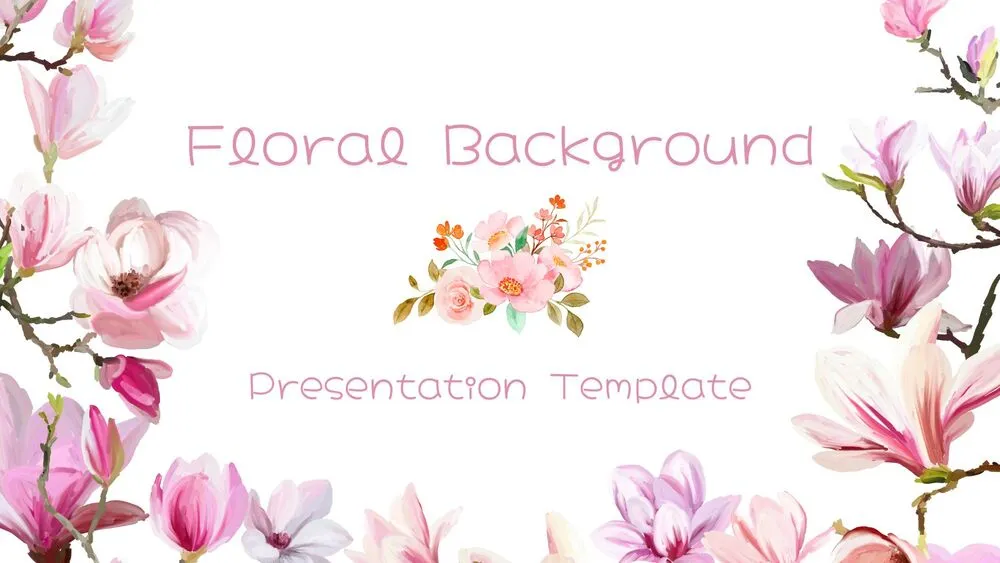
✨ Wedding presentation templates help you plan and present ceremony and reception details with elegant, printable-ready slides. Use them for timelines, seating guidance, schedules, photo slideshows, and day-of announcements that look polished on screen and on paper.
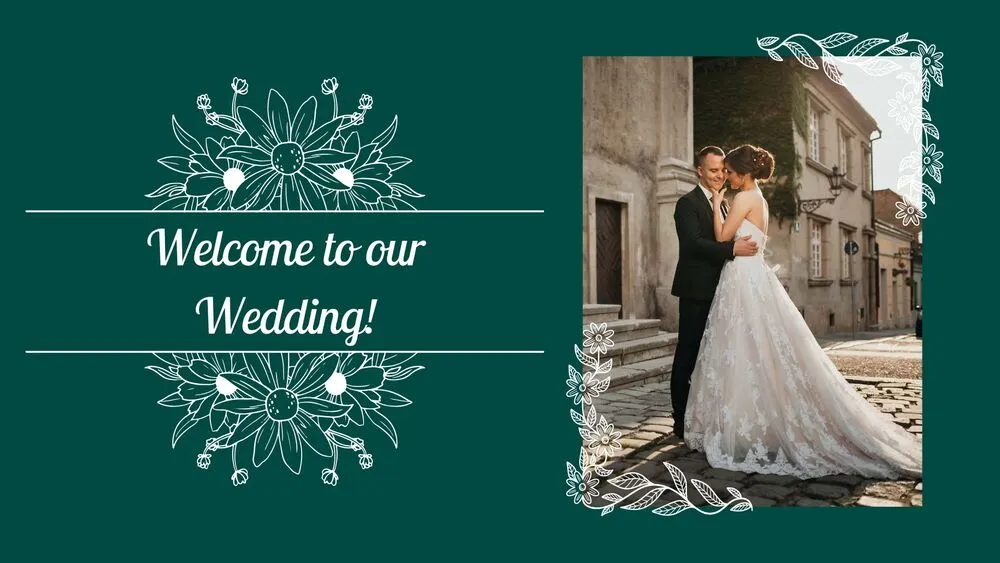
Best use cases include wedding planning decks, reception slideshows, ceremony programs, and vendor run-of-show pages. For example, create a day timeline from getting ready to the last dance, add a checklist for vendors, and include a “welcome” slide for the venue screen.
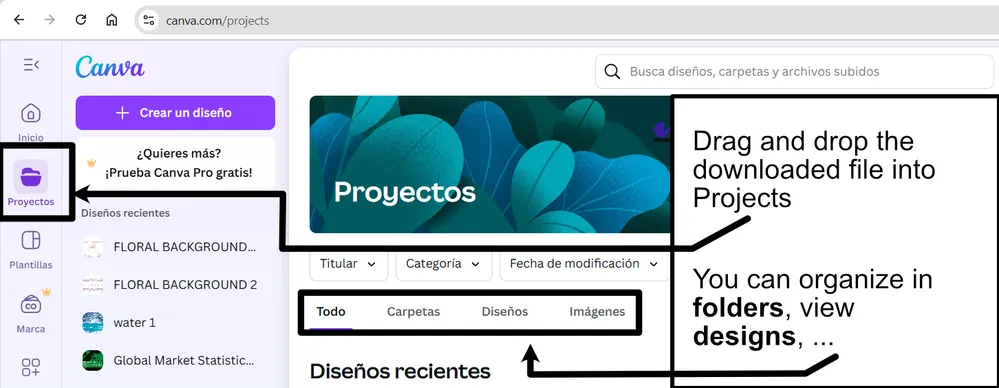
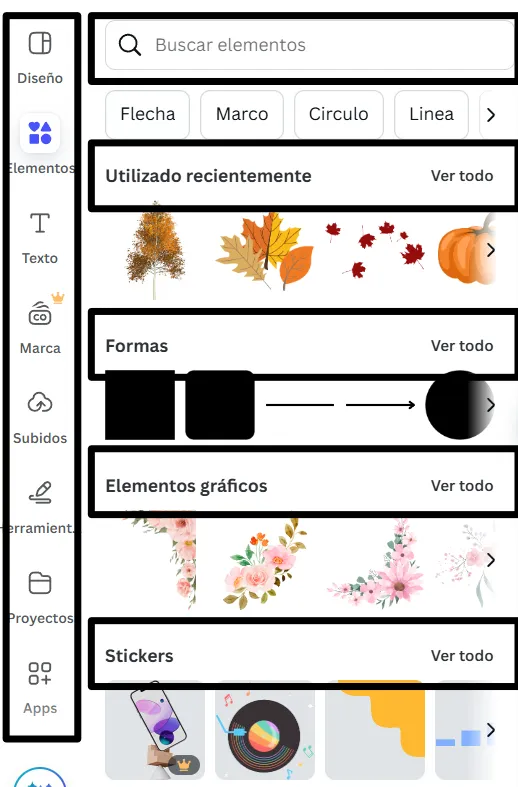
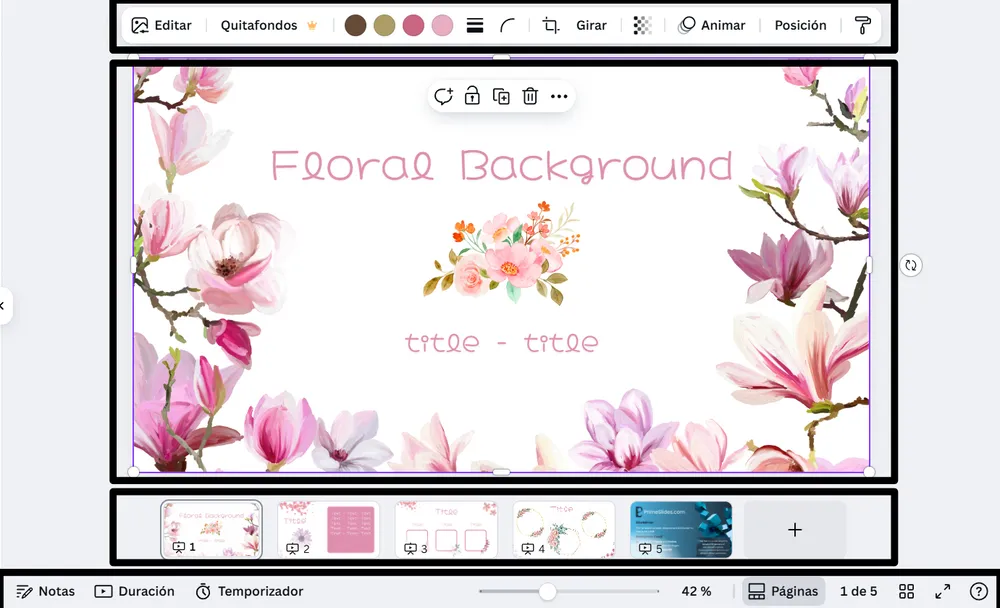
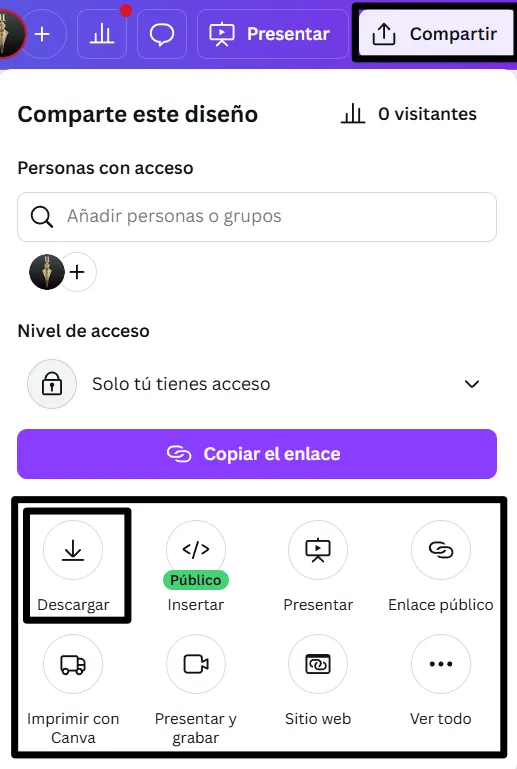
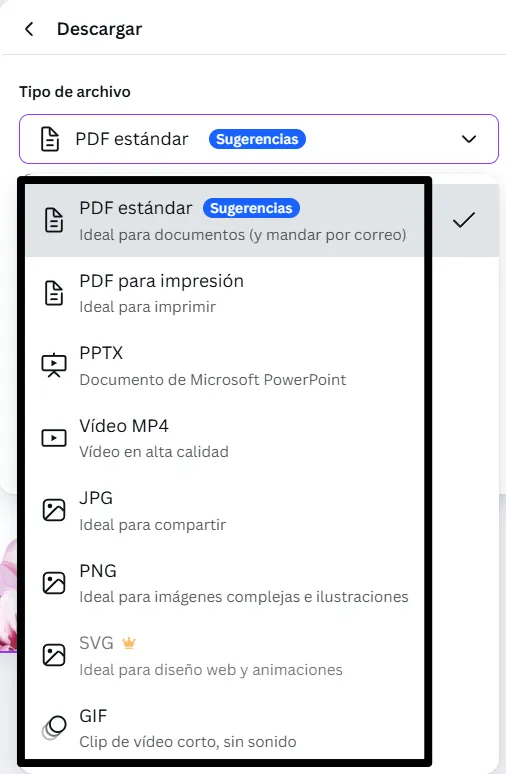
Edit in PowerPoint, Canva, or Google Slides, then present live or export to PDF for printing. Pair your deck with a canva wedding menu and a canva wedding mood board to keep fonts, colors, and floral style consistent across all wedding materials.
Readability tip: If you use photo backgrounds, place text on light panels and keep captions short so guests can read them quickly.
Best for:
- Wedding planning timelines and schedules
- Reception slideshows and photo stories
- Printable ceremony programs and signage
- Vendor checklists and run-of-show pages
- Menus and coordinated wedding stationery
Explore related templates:
❓ FAQs
Are these wedding presentation templates free to download?
Yes—this tag includes free wedding presentation templates. If a template is premium, it will be clearly labeled on its template page.
What is a wedding presentation template?
An editable slide deck for weddings, such as programs, timelines, slideshows, menus, and signage, designed for easy printing and presenting.
Do these slides work in PowerPoint, Canva, and Google Slides?
Yes, you can edit and present them in PowerPoint, Canva, and Google Slides, then export to PDF for sharing.
How do I keep photo-heavy wedding slides readable?
Add a soft overlay or a light panel behind text, use high-contrast fonts, and keep captions short and centered.
What should a wedding planning deck include?
Include the day timeline, key contacts, vendor checklist, seating notes, music cues, and a final slide with must-know reminders.
Can I print programs and signage from these templates?
Yes, export to PDF, keep margins consistent, and test-print one page to confirm colors and text size.