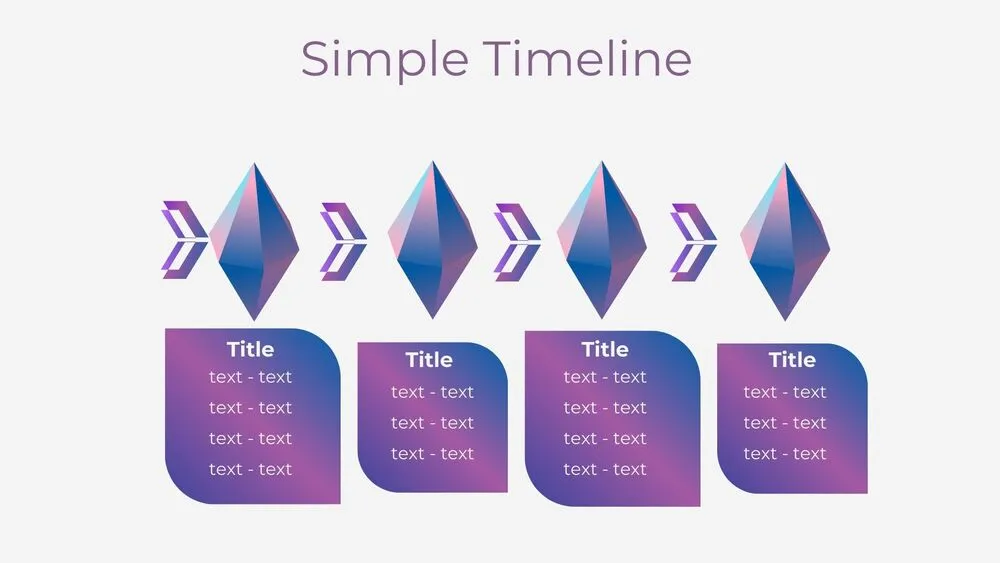
Workflow Presentation Templates and Slides – Free & Premium for PowerPoint, Canva & Google Slides
Download free workflow presentation templates for PowerPoint, Canva, and Google Slides. Standardize processes with clear stages, owners, and handoffs your audience can follow ⬇️
Explore workflow presentation templates and slides for PowerPoint, Canva & Google Slides
✨ Workflow presentation templates help you document how work moves from step to step, with clear stages, owners, and handoffs. Use them to standardize processes, onboard teammates faster, and align stakeholders on what happens next.
Best use cases include SOPs, onboarding flows, approvals, QA checklists, and cross-team handoffs. For example, map a content workflow from brief to publish, assign an owner per stage, add a review checkpoint, and include a “done” definition so the team stays consistent.
Edit in PowerPoint, Canva, or Google Slides, then present live or export to PDF for documentation and sharing. Use swimlanes when multiple teams are involved, keep labels short, and add dates or KPIs on the edges so the flow stays uncluttered.
Readability tip: Limit each workflow to 5–9 stages, and highlight the current stage with one accent color so it’s obvious where work sits.
Best for:
- Workflow diagrams and process maps
- Standard operating procedures and SOPs
- Onboarding and training walkthroughs
- Approval and review handoff flows
- Cross-team project coordination
Explore related templates:
❓ FAQs
Are these workflow presentation templates free to download?
Yes—this tag includes free workflow presentation templates. If a template is premium, it will be clearly labeled on its template page.
What is a workflow presentation template?
An editable set of slides that shows steps, owners, and checkpoints to document and present a process clearly.
Do these slides work in PowerPoint, Canva, and Google Slides?
Yes, you can edit and present them in PowerPoint, Canva, and Google Slides, then export to PDF for sharing.
How do I choose the right workflow layout?
Use a simple line for basic steps, swimlanes for cross-team work, and a loop for recurring processes like monthly reviews.
How do I keep workflows readable?
Use short labels, consistent spacing, and direct arrow labels, and place owners and dates at the edges to reduce clutter.
Should I include owners and handoff rules?
Yes, adding owners and a clear handoff rule reduces confusion and makes the workflow usable as a day-to-day reference.
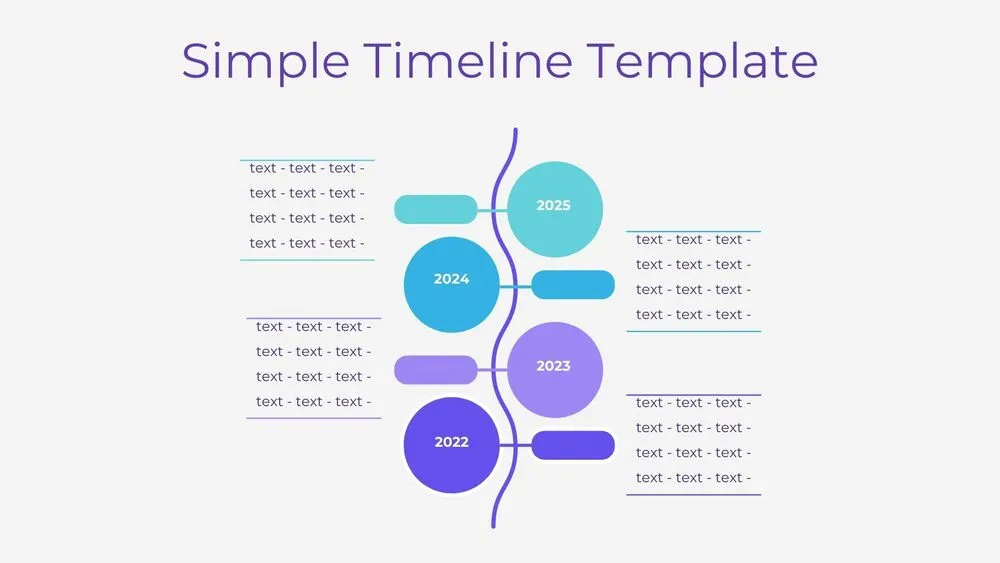
Vertical Wave Timeline Diagram Presentation Template for PowerPoint, Canva & Google Slides
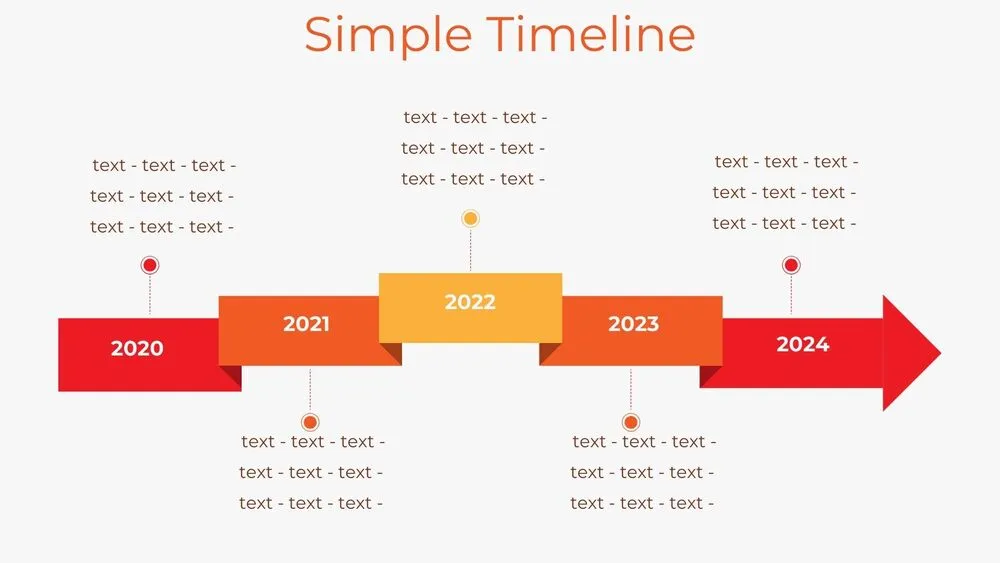
Stepped Path Timeline Diagram Presentation Template for PowerPoint, Canva & Google Slides
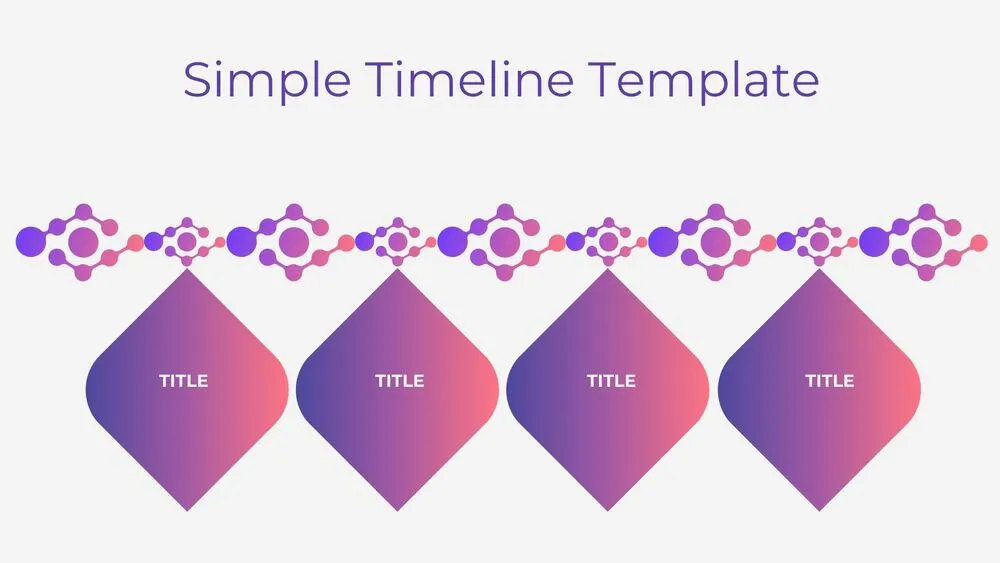
Atom Path Timeline Diagram Presentation Template for PowerPoint, Canva & Google Slides
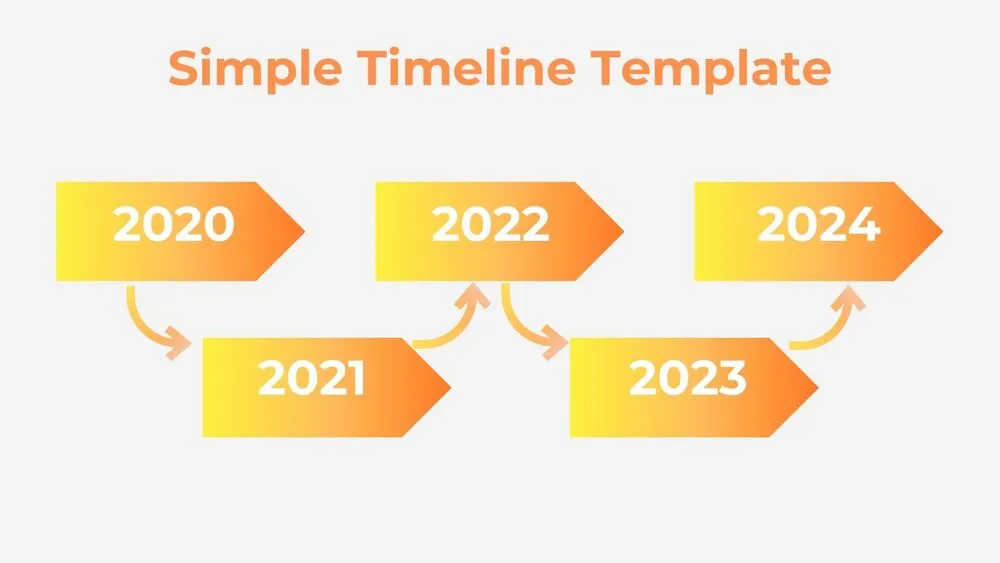
Simple Arrow Timeline Diagram Presentation Template for PowerPoint, Canva & Google Slides
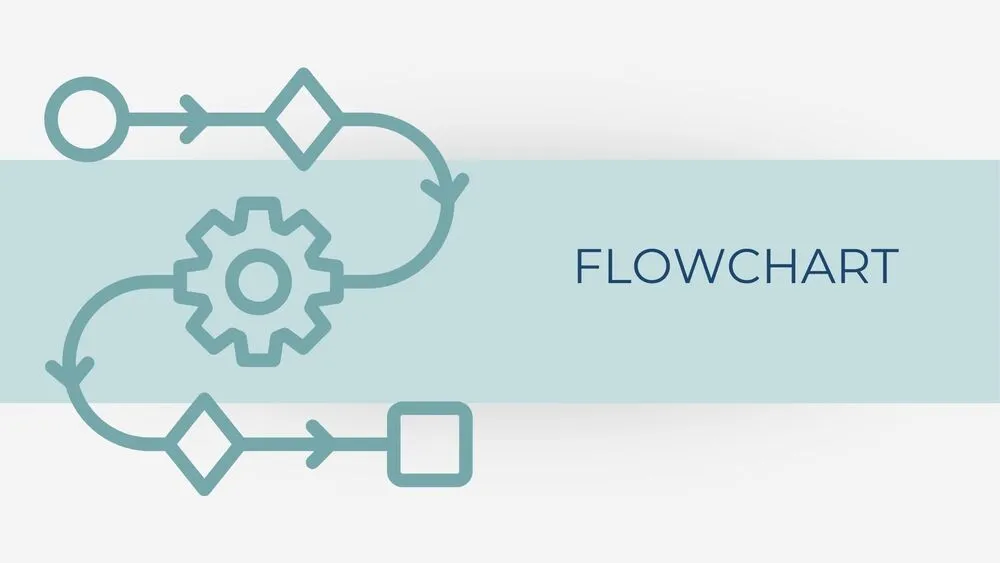
Minimalist Blue Flowchart Diagram Presentation Template for PowerPoint, Canva & Google Slides