What Is PowerPoint and What Is It Used For? Uses, Features, and Examples
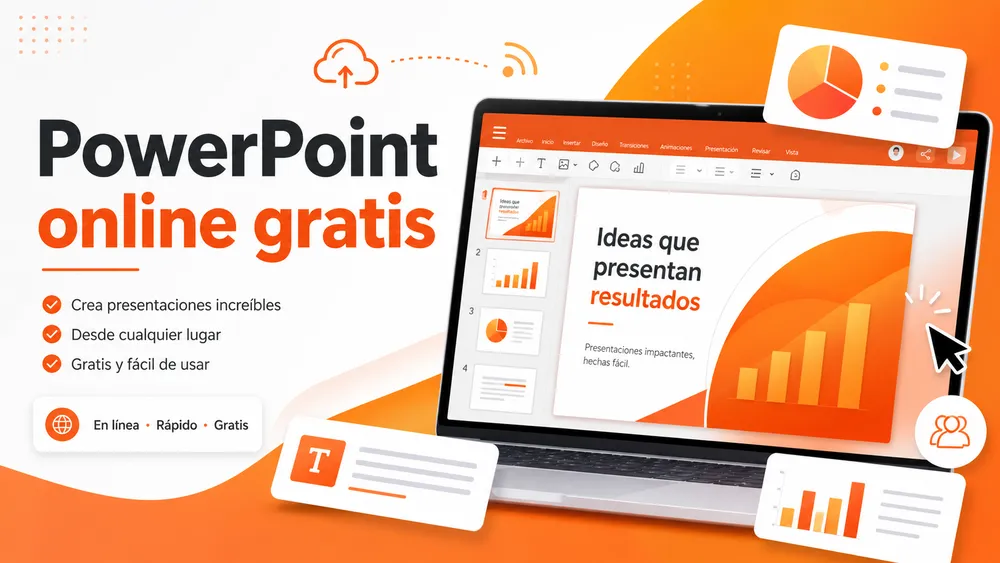
PowerPoint is a Microsoft program used to create visual presentations with slides. With it, you can combine text, images, charts, videos, tables, animations, and templates to explain an idea in a clear and organized way.
At PrimeSlides, we work with free templates for PowerPoint, Google Slides, and Canva, so we see something very often: many people know how to open a presentation, but they are not always sure what PowerPoint is, what PPT means, or what it is actually used for.
In this guide, I’ll explain what Microsoft PowerPoint is, what it is used for, what you can do with it, its advantages and disadvantages, and how it differs from Google Slides and Canva.

What Is PowerPoint?
PowerPoint is a presentation tool created by Microsoft. It is part of the Microsoft Office and Microsoft 365 ecosystem, and it is used to create digital presentations organized into slides. Microsoft presents it as an app for creating presentations from scratch or using templates, adding text, images, charts, and videos, applying transitions, and sharing the final result.
Put simply, PowerPoint is used to turn information into a visual presentation. Instead of explaining an idea only with text, you can support it with images, diagrams, icons, charts, and designs that make it easier to understand.
For example, you can use PowerPoint to prepare a class presentation, present a business report, show results, explain a project, create training material, or pitch an idea to a client.
In my experience working with presentation templates, PowerPoint works best when it is not used like a text-heavy document, but as a visual support tool. A presentation should help you communicate, not replace everything you are going to say.
What Does PPT Mean and What Is a PPT or PPTX File?
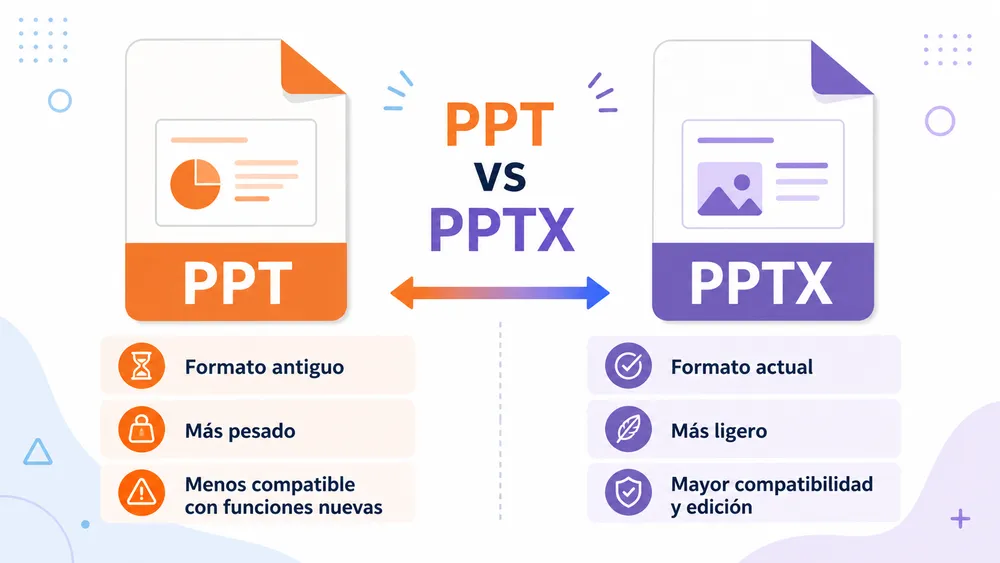
PPT is the classic file extension used for files created with PowerPoint. For example: presentation.ppt
Today, the most common format is PPTX, which is the modern PowerPoint file format: presentation.pptx
In practice, many people use “PPT” as a quick way to refer to a presentation, even when the actual file is a PPTX. So when someone says “I’ll send you the PPT,” they usually mean “I’ll send you the PowerPoint presentation.”
What Is a PowerPoint Presentation?
A PowerPoint presentation is a set of slides arranged to explain a topic, present an idea, or display information.
Each slide works like a visual page. It can include a title, short text, images, charts, icons, tables, videos, or animated elements.
A basic presentation might have this structure:
| Section | What it is used for |
|---|---|
| Cover slide | Introduce the topic |
| Introduction | Explain the context |
| Main content | Organize the key ideas |
| Data or examples | Support the message |
| Conclusion | Close the presentation |
| Questions | Open the discussion with the audience |
The key is that each slide should have a clear purpose. If a slide has too much text, too many elements, or too many ideas, it becomes harder to understand.
What Is PowerPoint Used For?
PowerPoint is used to create visual presentations that help explain, teach, sell, summarize, or communicate information more clearly.
Unlike a text document, a PowerPoint presentation organizes content into visual blocks. This helps the audience follow the message and remember the main ideas.
Main Uses of PowerPoint
Instead of separating “what PowerPoint is used for” and “main uses of PowerPoint,” it makes more sense to combine them. Users searching for what PowerPoint is used for usually also want to know the main uses of PowerPoint.
| PowerPoint use | Practical example |
|---|---|
| Education | Present an assignment, explain a lesson, or prepare class material |
| Business | Present reports, results, processes, or internal meetings |
| Marketing and sales | Create sales proposals, pitch decks, or product presentations |
| Training | Design courses, tutorials, guides, or process explanations |
| Research | Show data, conclusions, charts, or study results |
| Personal projects | Create portfolios, visual albums, invitations, or downloadable content |
PowerPoint is widely used because it helps turn complex information into something more visual. For example, explaining a marketing strategy in a long text is not the same as showing it in a presentation divided into goals, actions, timeline, and results.
At PrimeSlides, we see this especially with templates: people who start from scratch often spend too much time on design, while a well-structured template helps them focus on the message sooner.
What Is PowerPoint Used For in Education?
In education, PowerPoint is used to present assignments, explain topics, create visual lessons, and organize content in a simple way.
Students, teachers, trainers, and educational centers use it because it helps summarize concepts, add images, create diagrams, and support an oral explanation.
For example, a history presentation can include a timeline; a biology presentation can use diagrams; and an economics presentation can show charts or tables.
What Is PowerPoint Used For in Business?
In business, PowerPoint is used for meetings, reports, proposals, internal training, sales presentations, and performance analysis.
It is useful because it helps organize professional information and present it in a more visual way. A company can use PowerPoint to explain a strategy, present quarterly figures, train a team, or prepare a proposal for a client.
It is also common for companies to use corporate templates to keep a consistent visual identity across all their presentations.
What Is PowerPoint Used For in Marketing and Sales?
In marketing and sales, PowerPoint is used to present products, services, campaigns, sales proposals, results, and action plans.
A sales team can use it to explain the benefits of a product. A marketing team can use it to show a strategy or analyze a campaign. An entrepreneur can use it to prepare a pitch deck and present a project.
In these cases, design matters because the presentation also communicates professionalism. A clear, modern, and well-organized template can make the proposal easier to understand.
What Can You Do With PowerPoint?
With PowerPoint, you can create presentations from scratch or use pre-designed templates. You can also add text, images, videos, charts, tables, icons, shapes, animations, and transitions.
I won’t go into the full step-by-step process here because that fits better in a specific guide about how to make a PowerPoint presentation. But it is useful to understand its basic features.
| Feature | What it is used for |
|---|---|
| Slides | Organize the presentation into sections |
| Text | Add titles, key ideas, and short explanations |
| Images | Make the content more visual |
| Charts | Show data in a simple way |
| Tables | Compare information |
| Videos | Add multimedia content |
| Templates | Create a presentation without starting from scratch |
| Animations | Reveal elements progressively |
| Transitions | Define how one slide changes to the next |
| Export options | Save the presentation as PPTX, PDF, or video |
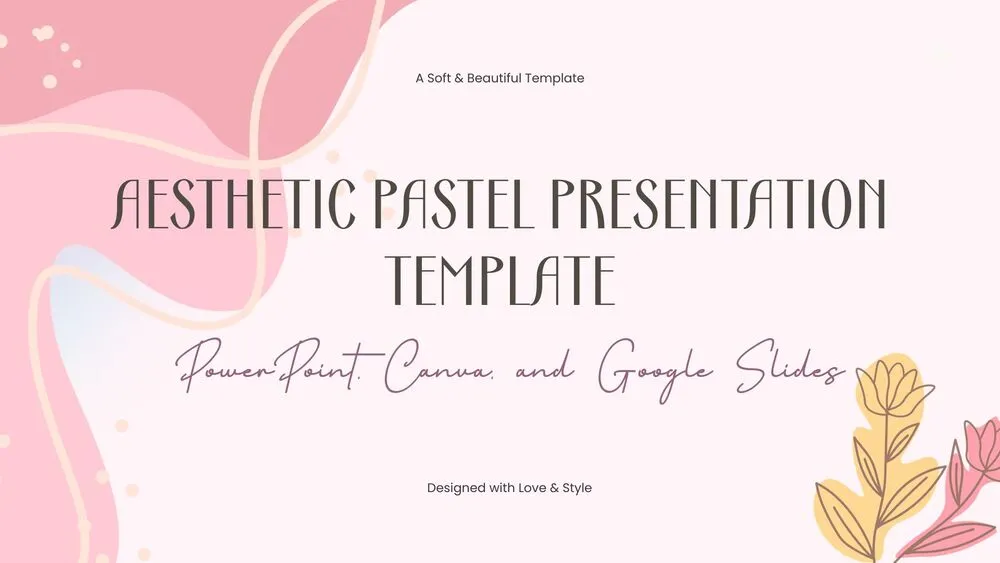
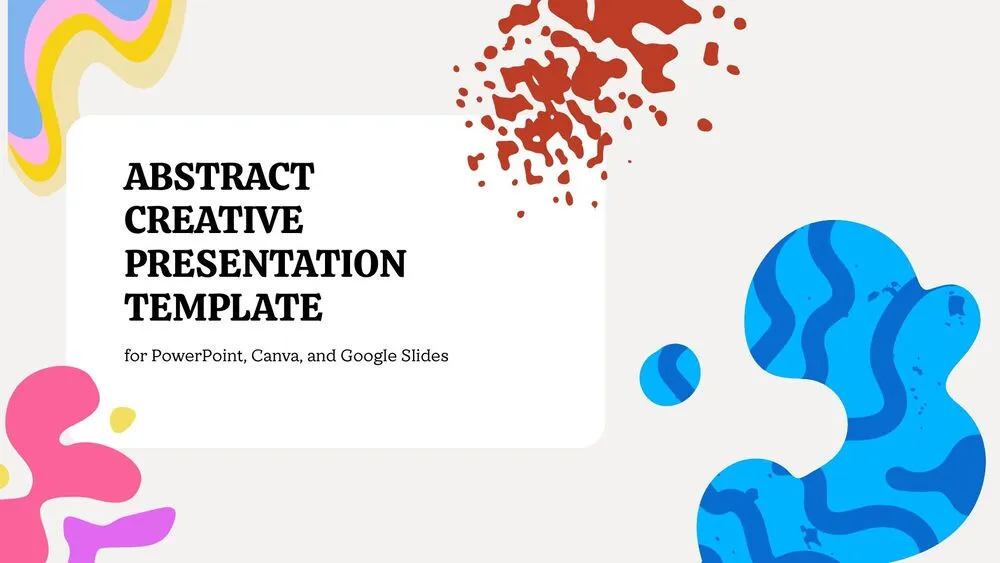
One of the most useful features is the use of templates. A PowerPoint template already includes ready-made designs for cover slides, indexes, sections, charts, tables, or content slides. You only need to change the text, colors, images, and data.
That is why, if you want to create a presentation quickly and with a professional look, using a template is usually much more efficient than starting with a blank slide.
Advantages and Disadvantages of PowerPoint
PowerPoint has many advantages, but it also has some limitations. It is not the perfect tool for everything, although it is one of the most complete options for creating presentations.
| Advantages of PowerPoint | Disadvantages of PowerPoint |
|---|---|
| Easy to use for beginners | Can create boring presentations if too much text is used |
| Allows you to create professional presentations | Some advanced features require practice |
| Offers many design options | Too many animations can be distracting |
| Works well with editable templates | Formatting issues may appear between versions or devices |
| Lets you add images, charts, videos, and tables | The full version usually requires a license or subscription |
| Can be exported as PDF or video | Not always the most convenient option for online collaboration |
| Widely used in education and business | A poor template can make the design look unprofessional |
The main advantage of PowerPoint is its balance between ease of use and powerful features. You can create something basic in just a few minutes, but you can also build very complete presentations if you know how to use its tools well.
The main disadvantage is that many people use it as if it were a text document. A presentation full of long paragraphs usually does not work well. The ideal approach is to use short sentences, images, visual hierarchy, and a clear structure.
PowerPoint, Google Slides, and Canva: Basic Differences
PowerPoint, Google Slides, and Canva can all be used to create presentations, but each tool has a different approach.
| Tool | Best for | Main strength | Main limitation |
|---|---|---|---|
| PowerPoint | Professional, educational, and corporate presentations | Many features and strong design control | The full version usually depends on Microsoft 365 |
| Google Slides | Online collaborative work | Easy editing and sharing with others | Fewer advanced design options than PowerPoint |
| Canva | Fast and highly visual presentations | Modern designs and easy editing | Less technical control over complex PPTX files |
PowerPoint
PowerPoint is the best option when you need a complete, professional presentation with strong control over the design. It is very useful for companies, classes, reports, training sessions, sales proposals, and presentations with charts or data.
It is also a good choice if you are going to work with PPTX files or if you need editable templates with a more advanced structure.
Google Slides
Google Slides is ideal when several people need to collaborate on the same presentation. It works in the browser, saves files in Google Drive, and allows you to share the presentation with a link.
It is very practical for teamwork, classes, online projects, and presentations that need feedback or editing from multiple people.
Canva
Canva stands out for how easy it is to create visual designs. It is a good option if you want a modern, attractive, and quick presentation, especially for marketing, social media, portfolios, or visual proposals.
Its main strength is that it helps you create good-looking designs without previous graphic design experience.
At PrimeSlides, we work with templates for PowerPoint, Google Slides, and Canva because there is not always one single “right” tool. What matters is choosing the one that best fits the way you work and the type of presentation you need to create.
So, What Is PowerPoint and What Is It Used For?
PowerPoint is a Microsoft program used to create visual presentations with slides. It helps you explain ideas, present assignments, show data, sell products or services, create training materials, and communicate information more clearly.
It also lets you use templates, insert images, charts, videos, tables, animations, and export your presentation in different formats.
If you only need the quick explanation, remember this: PowerPoint is used to turn information into an easy-to-follow visual presentation.
And if you want to save time, a template can help you start with a professional structure instead of designing from scratch. At PrimeSlides, you can find free templates for PowerPoint, Google Slides, and Canva designed to help you create clearer, more visual, and easier-to-edit presentations.
❔ Frequently Asked Questions
PowerPoint is a Microsoft program used to create digital presentations with slides. You can add text, images, charts, videos, tables, animations, and other visual elements.
Microsoft PowerPoint is used to create visual presentations. It is commonly used for class presentations, meetings, reports, sales proposals, training sessions, projects, and data presentations.
PPT is the old file extension for PowerPoint files. Today, PPTX is more common, although many people still say “PPT” when referring to any PowerPoint presentation.
A PPTX file is the modern format for a PowerPoint presentation. It can include slides with text, images, charts, videos, tables, animations, and custom designs.
A slide is one of the pages that make up a PowerPoint presentation. Each slide can include titles, text, images, charts, videos, or any other visual element.
PowerPoint is part of Microsoft 365, which usually requires a license or subscription. There is also an online version with more limited features. If you are looking for alternatives, you can use Google Slides or Canva.
PowerPoint offers more advanced design and editing features. Google Slides stands out for online collaboration and easy sharing through Google Drive.
PowerPoint is more focused on professional presentations and PPTX files. Canva is more focused on quick visual design, modern templates, and a very simple editing interface.
You can find free PowerPoint templates on PrimeSlides. There are also templates compatible with Google Slides and Canva, so you can choose the tool you prefer.