Creative Cover Presentation Template for PowerPoint, Canva, and Google Slides
Download the template for PowerPoint, Google Slides or Canva with just one click
Creative Cover Presentation Template and Slides for Artistic Openings, School Projects, and Visual Presentations
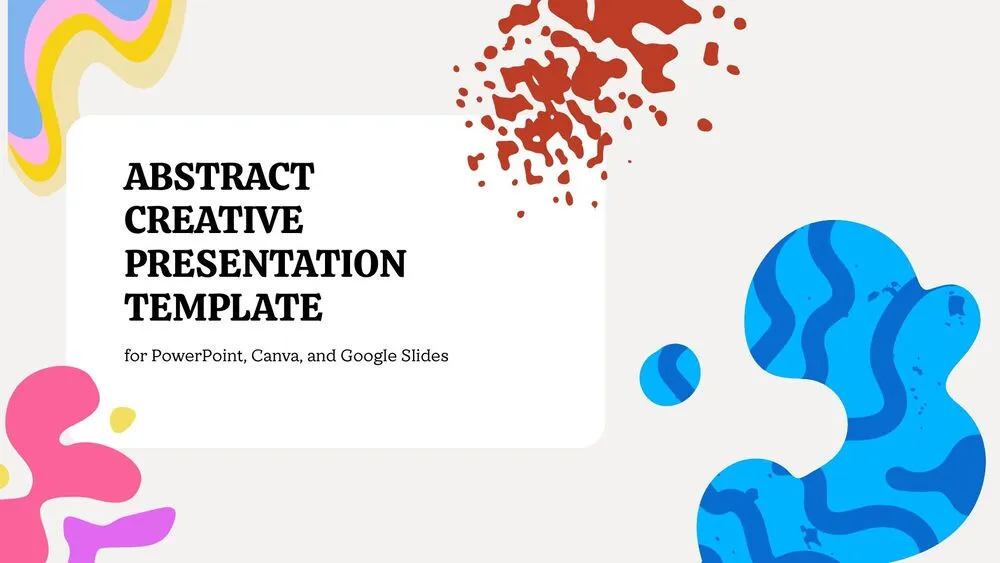
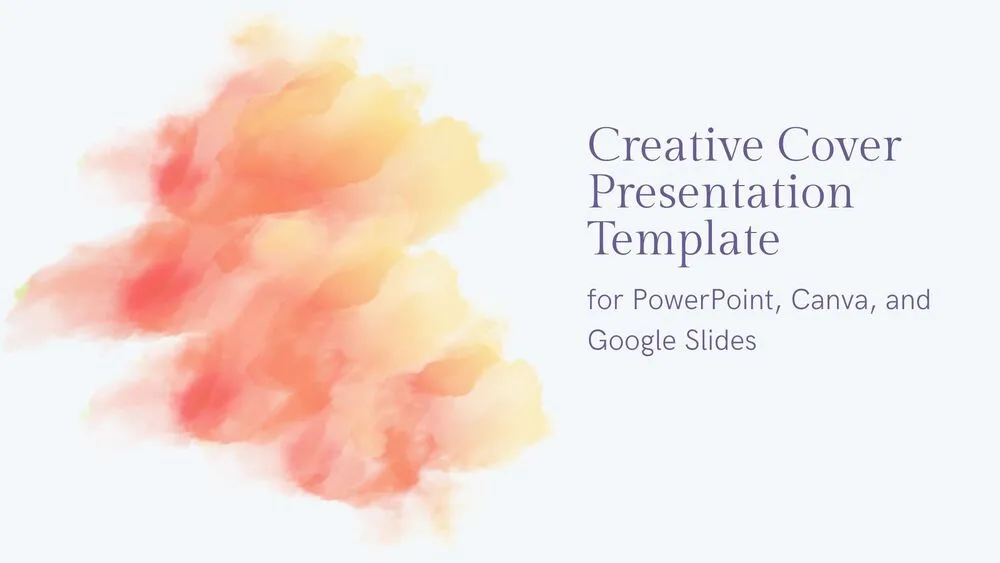
This creative cover presentation template is designed for users who want an artistic and memorable opening slide for their presentations. It features soft gray backgrounds, watercolor-style paint splashes, expressive brush textures, and a clean layout that keeps the design creative without losing clarity. The slide set includes a stylish title cover, a second artistic headline slide, a content layout with a laptop visual and message-driven text, and a warm closing slide for final thanks or contact details.
Orange, yellow, blue, and purple accents create a fresh visual identity that feels simple, modern, and imaginative. It is a strong choice for school presentations, creative projects, portfolios, and anyone looking for a beautiful editable cover to present ideas with personality.
- 🎨 Artistic cover design with watercolor-style splashes and soft brush textures
- 🖌️ Creative composition in orange, yellow, blue, and purple for a fresh visual look
- 📄 Includes 4 editable slides for opening, content, message support, and closing
- 💡 Ideal for presentations, school projects, portfolios, and creative speaking topics
- 💻 Includes a slide with laptop illustration and text layout for storytelling or idea presentation
- ✨ Simple and elegant structure that keeps slides visually expressive but easy to read
- 🌐 Fully editable in PowerPoint, Canva, and Google Slides
- 🙌 Final thank-you slide with space for title, contact details, and a polished ending
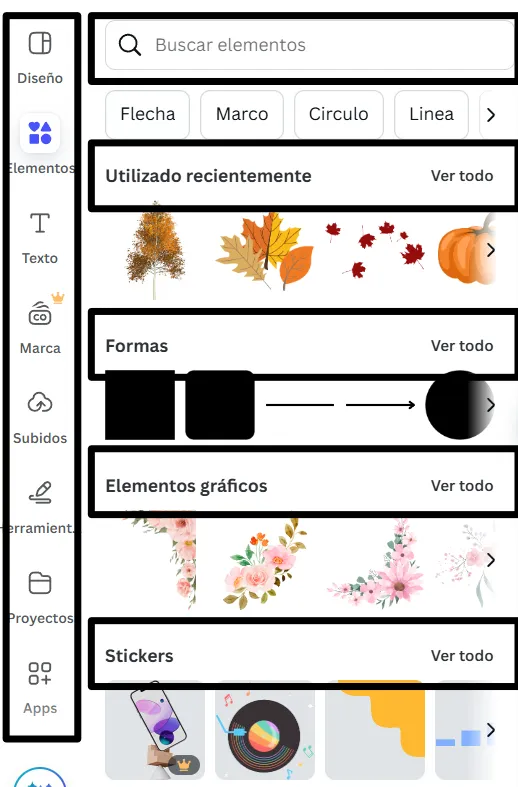
Edit fonts, colors, and images effortlessly using Canva’s drag-and-drop editor. Access free elements, illustrations, and fonts to personalize each slide your way.
📌 Frequently Asked Questions
Click on the Google Slides button, then select “Make a copy” when prompted. This will create a copy of the template in your Google Drive, ready to edit and use in Google Slides.
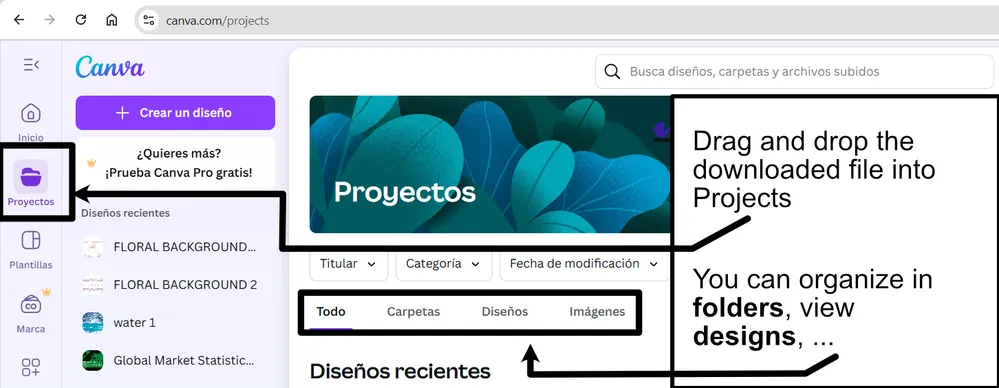
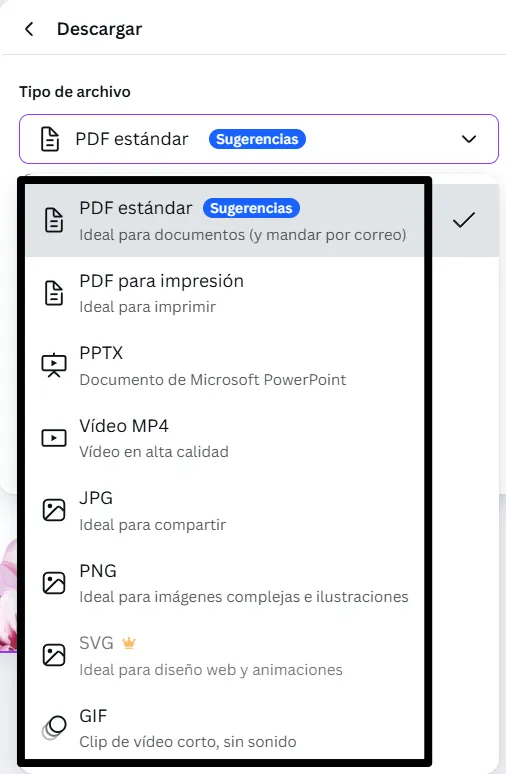
Simply download the file, then open Canva and drag the downloaded file into your desired folder. Once uploaded, it’s ready to be edited just like any other Canva project.