Skip to content
Menu
  • By Platform
    • Google Slides
    • PowerPoint
    • Canva
  • By Color
    • Yellow
    • White
    • Blue
    • Brown
    • Green
    • Red
    • Orange
    • Grey
    • Grey
    • Black
    • Pink
    • Purple
  • By Style
    • Infographic
    • Minimalist
    • Modern
    • Creative
    • 3D
    • Simple
    • Professional
    • Elegant
    • Luxury
    • Cool
    • Aesthetic
  • Business
    • Business Strategy
    • Competitive Analysis
    • Pitch Deck
    • Proposal
    • Project Management
    • Timeline
    • Roadmap
    • Executive Summary
  • Marketing
    • Marketing Campaign
    • Marketing Mix
    • SWOT Analysis
    • Market Analysis
    • Market Research
    • Sales
    • Sales Pitch
    • Growth
    • Funnel
  • English
    • English
Prime Slides
PrimeSlides
  • By Platform
    • Google Slides
    • PowerPoint
    • Canva
  • By Color
    • Yellow
    • White
    • Blue
    • Brown
    • Green
    • Red
    • Orange
    • Grey
    • Grey
    • Black
    • Pink
    • Purple
  • By Style
    • Infographic
    • Minimalist
    • Modern
    • Creative
    • 3D
    • Simple
    • Professional
    • Elegant
    • Luxury
    • Cool
    • Aesthetic
  • Business
    • Business Strategy
    • Competitive Analysis
    • Pitch Deck
    • Proposal
    • Project Management
    • Timeline
    • Roadmap
    • Executive Summary
  • Marketing
    • Marketing Campaign
    • Marketing Mix
    • SWOT Analysis
    • Market Analysis
    • Market Research
    • Sales
    • Sales Pitch
    • Growth
    • Funnel
  • English
    • English
Prime Slides
PrimeSlides
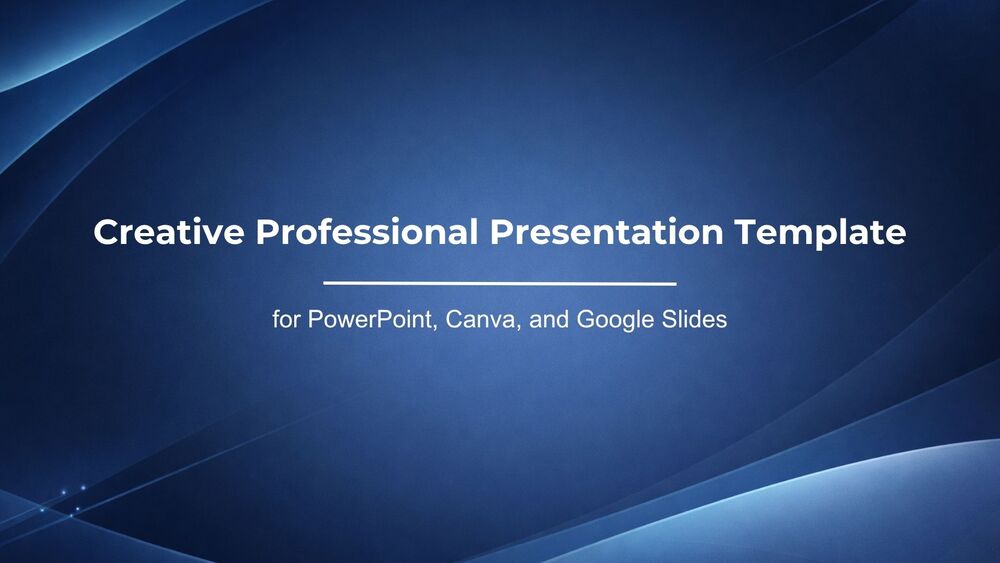
Creative Professional Presentation Template for PowerPoint, Canva, and Google Slides

Creative Professional Presentation Template for PowerPoint, Canva, and Google Slides

  • Free Presentation Template
  • BlueBusinessChartCorporateCreativeExecutiveexecutive-summaryGrowthInfographicModernPerformancepitch-deckProfessionalStrategy

Discover more free presentation templates by platform:

PowerPoint
Canva
Google Slides
  • Privacy Policy
  • Cookie Policy
  • Legal Notice
  • Terms of Use
  • About me
Instagram YouTube LinkedIn

© 2026 AshotMB · All rights reserved

Website created by AshotMB.com

🛠️ How to Download and Edit Your Template in Canva?

Canva is the fastest and easiest way to personalize your template.
Edit text, colors, images, and layouts with just a few clicks — no software needed.

✨ Includes:

  • Free icons, elements, and animated graphics
  • Built-in fonts, palettes, and design tools
  • Uploads, audio, video, and real-time collaboration

✅ Follow These Steps to Customize in Canva

 – STEP 1. Click the blue “Canva” button to download the .pptx file.
Step 1
Step 1

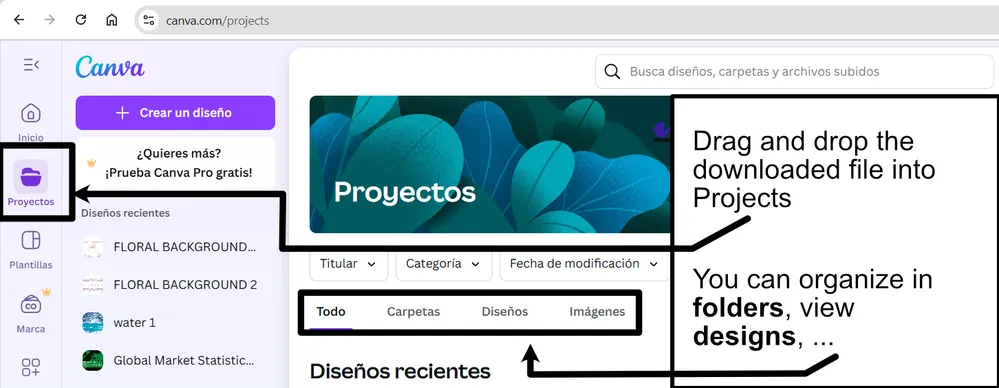
 – STEP 2. Drag and drop the downloaded file into the Projects section of your Canva dashboard.
Inside Projects, you’ll find tabs like Folders, Designs, Images, and an “All” section that combines them. On the left sidebar, you’ll see even more useful tools.

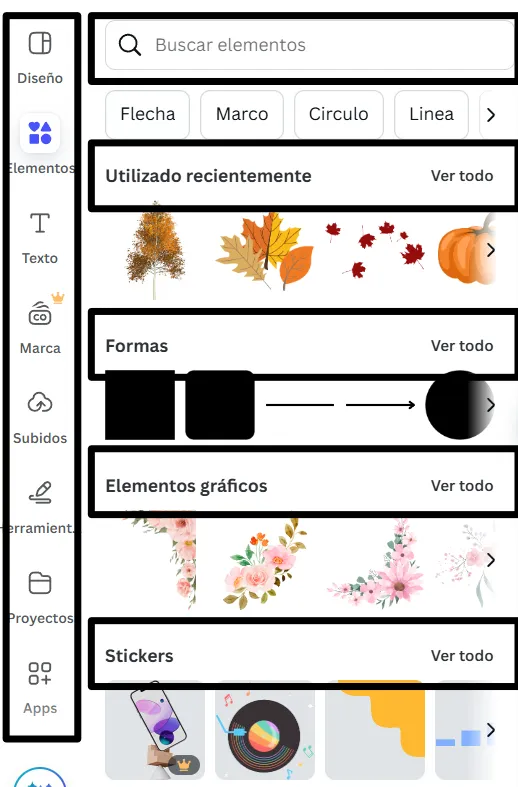
– STEP 3. Once you open the template, you’ll find on the left, pre-designed slides, elements like free and premium photos, vectors, text, uploads, and other tools or apps available in Canva.
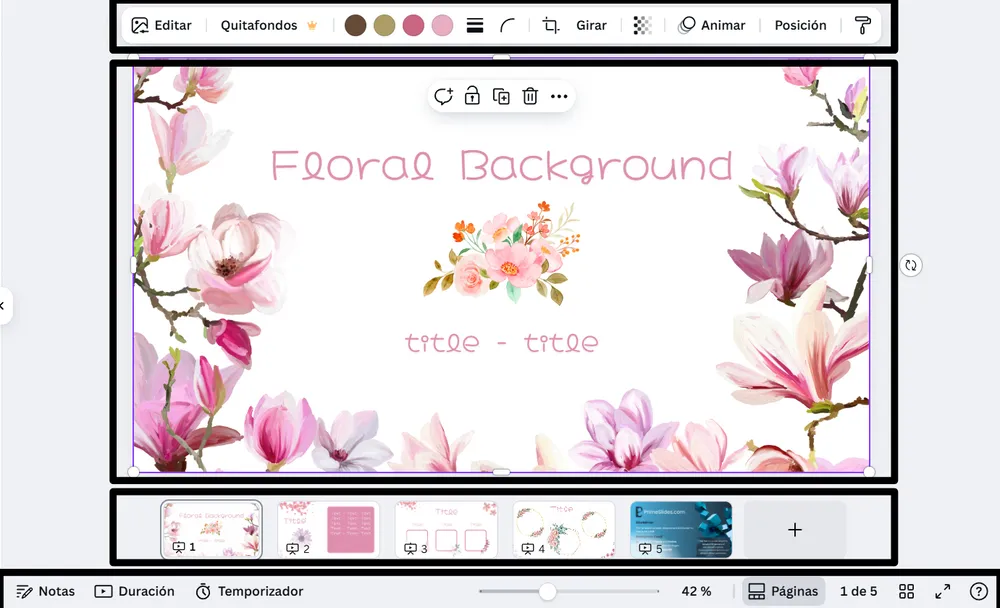
– STEP 4. In the center, you’ll see your active slide.
At the top, there’s a toolbar with options like Edit, Background Remover (premium), color controls for selected elements or images, and other text/image tools.
At the bottom, you’ll see a slide navigator with all pages and a “+” button to add a new slide.
At the very bottom, there’s an extra toolbar with options for Notes, Presentation Duration, Timer, etc.

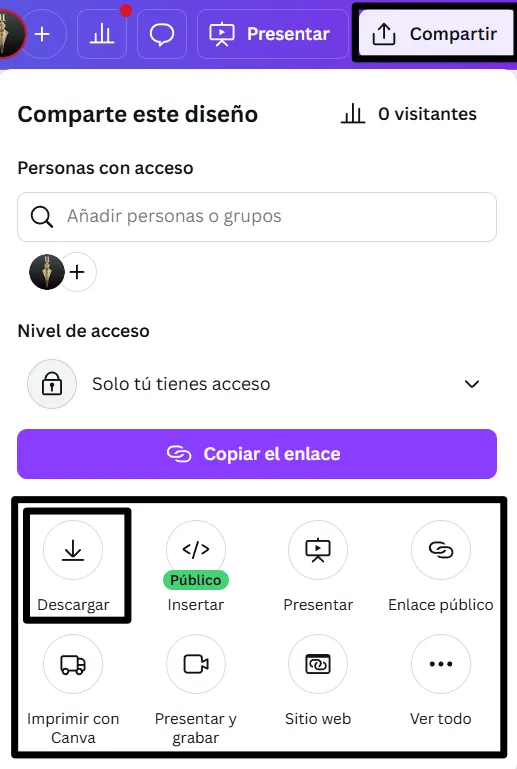
 – STEP 5. Download the .pptx file. When you’re done editing, click “Share” to see multiple options: Download, Present, Embed on a Website, Create a Public Link, and more.
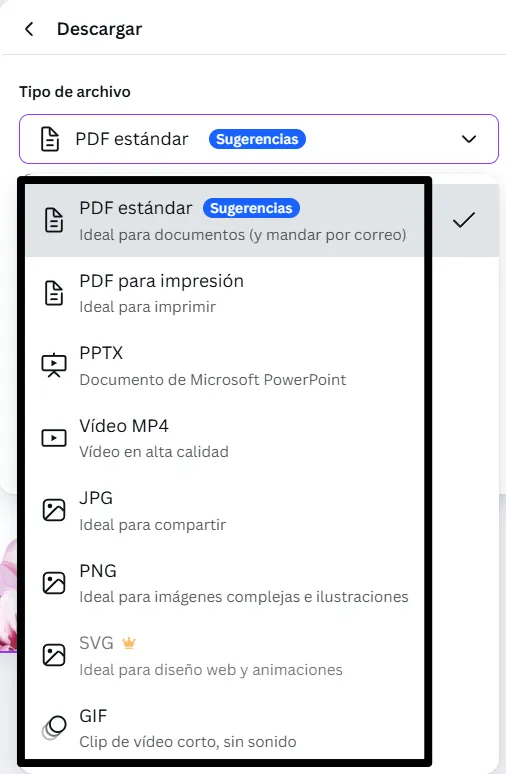
 – STEP 6. You can export your presentation in several formats: PDF, PPTX, Video, JPG, PNG, etc.
Step 1

🎉 Thanks for downloading!

Do you want early access to new free presentation templates, design tips, and exclusive updates? Join our newsletter today.