How to Create a PowerPoint Online for Free and View PPT/PPTX Files Without Installing Anything
Creating a PowerPoint online for free is possible without installing Microsoft Office or downloading any software. You can do it directly from your browser with PowerPoint for the Web, open PPT or PPTX files, edit them, and download them later as a presentation or PDF.
In this guide, I’ll show you how to create a PowerPoint online for free, how to view PPT/PPTX files without installing anything, and which alternatives you can use, such as Canva or Google Slides. Plus, if you don’t want to start from a blank slide, you can use a PrimeSlides template as a base and customize it in just a few minutes.
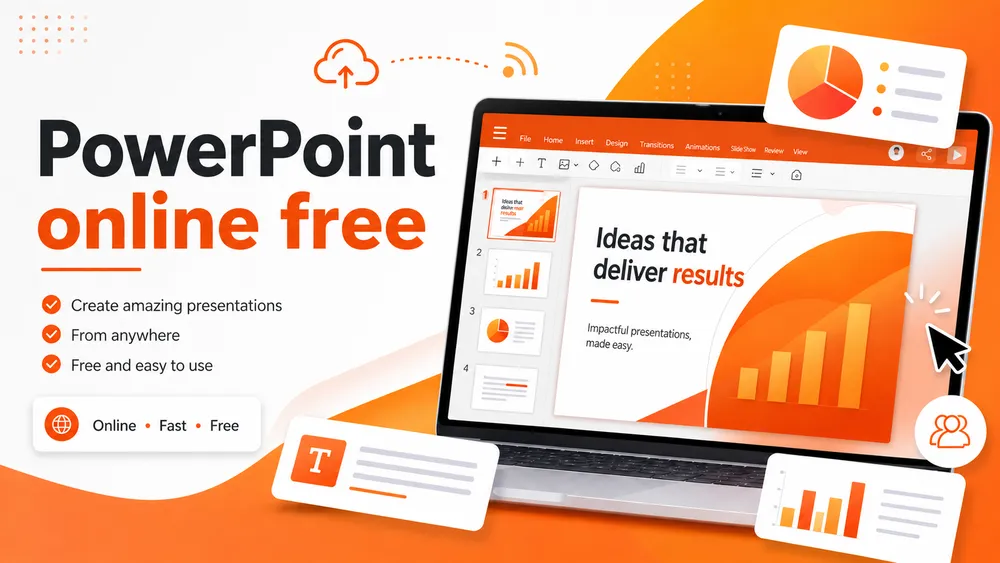
What You Need to Create a PowerPoint Online for Free
To make a PowerPoint online, you only need a few basic things: an internet connection and a Microsoft account. The most important thing is deciding whether you want to create a presentation from scratch, edit a template, or simply open a PPT/PPTX file.
An Account and Browser Access
The most direct option is to use PowerPoint for the Web: https://powerpoint.cloud.microsoft/en-us/
With a Microsoft account, you can create a blank presentation, open recent files, use a template, and save your changes online while you work.
This is especially useful if you don’t have PowerPoint installed, you’re using someone else’s computer, or you want to edit a presentation from any device.
A Template So You Don’t Start From Scratch
You can create a blank presentation, of course. But if you want to save time, the most practical option is to start with a template. That way, you already have a cover slide, sections, styles, colors, and slide layouts ready to use.
In my case, when I need to create a presentation quickly, I prefer to choose a template first and then adapt it to the content. On PrimeSlides, you can find many templates ready to use.
Un archivo PPT o PPTX si solo quieres verlo o editarlo
You can also use PowerPoint Online to open a presentation you already have. The most common formats are:
- PPT: the older PowerPoint format.
- PPTX: the current and most common PowerPoint format.
- PDF: ideal for sharing or presenting without the design moving around.
If someone has sent you a presentation or you have downloaded a template, you can upload it to PowerPoint Online or open it from OneDrive to view and edit it directly from your browser.
How to Create a PowerPoint Online for Free with PowerPoint for the Web
PowerPoint.cloud is the most logical option if you want to create a PPT online for free and keep good compatibility with PowerPoint files. Since it is Microsoft’s official tool, it usually preserves the original format of PPTX files better than other alternatives.
1. Go to PowerPoint Online
The first step is to open PowerPoint.cloud in your browser and sign in with your Microsoft account. You don’t need to install the desktop version to get started.
Once inside, you’ll see options to create a blank presentation, open recent documents, or start from a template. Microsoft also offers an online presentation maker with editable templates, colors, animations, and AI features in PowerPoint.
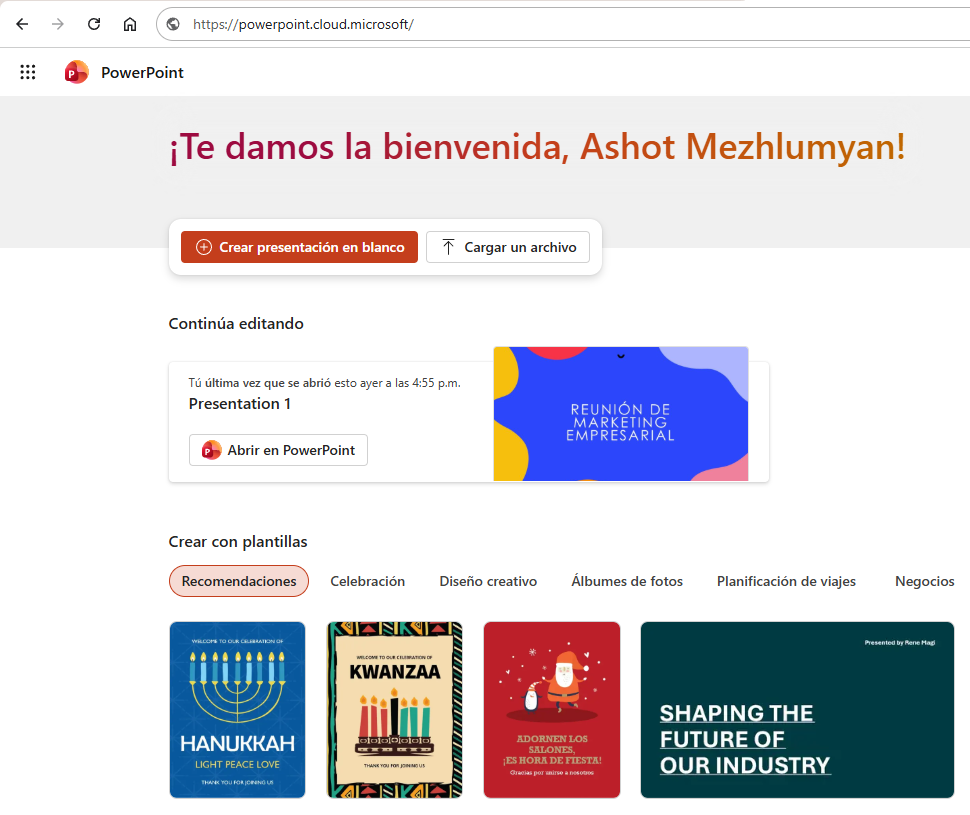
2. Choose a Blank Presentation or Upload a Template
Here you have two options.
The first one is to create a blank presentation. This is useful if you already know the structure, text, and design you want.
The second option, and the one I recommend for most cases, is to use a template. You can download a presentation template from PrimeSlides and then open or upload it to PowerPoint Online to customize it.
This saves you from having to design everything from scratch, including: cover slide, table of contents, section dividers, content slides, charts, tables, timelines, conclusions, final slide.
3. Edit Texts, Images, Colors, and Slides
Once the presentation is open, you can start adapting it. Change the titles, replace sample text, add your own images, adjust colors, and delete the slides you don’t need.
The best approach is to work in blocks.
First, define the main message. Then organize the sections. Next, complete each slide one by one. Finally, review the visual side: text sizes, alignment, colors, images, and consistency.
Don’t try to make every slide perfect from the beginning. It’s faster to build the content first and polish the design later.
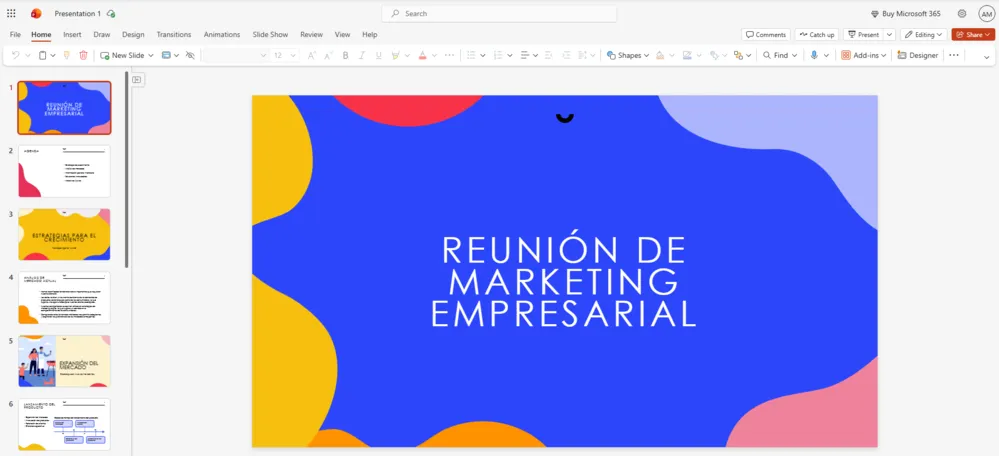
PowerPoint for the Web saves automatically while you work, as long as you’re online. It also lets you export or download a copy, for example as a PDF.
When you finish, you can:
- share the presentation with a link;
- collaborate with other people;
- download a copy;
- export it as a PDF;
- present it directly from your browser.
My advice: before presenting, always download a PDF copy. That way, you have a stable version in case the computer, internet connection, or file compatibility fails at the last minute.
How to View PPT and PPTX Files Online for Free
Creating presentations online is great, but sometimes the real need is much simpler: you have a PPT or PPTX file and you just want to open it to view it. The good news is that you can also do that online.
View a PPT or PPTX with PowerPoint Online
If the file is a PPTX, PowerPoint Online is usually the safest option. You can upload the file to OneDrive or open it from the PowerPoint website. Since it is designed to work with PowerPoint presentations, it normally preserves fonts, layouts, animations, and slide structure better than other viewers.
This method is ideal when:
- someone has sent you a presentation by email;
- you have downloaded a template;
- you want to review a file without installing Office;
- you need to edit a small detail quickly;
- you want to share the file with someone else.
Open a PowerPoint from OneDrive
Another easy way to view a PowerPoint online for free is to upload it to OneDrive. Once uploaded, you can open it directly in the browser with PowerPoint.
The process is simple:
- Go to OneDrive.
- Upload your PPT or PPTX file.
- Click on the file.
- Open it with PowerPoint for the Web.
- Review it, edit it, or share it.
If you work with several presentations, keeping them in OneDrive helps you access them from different devices without depending on one specific computer.
What to Do If the File Doesn’t Look Right
Sometimes a PPT or PPTX file opens, but it doesn’t look exactly the same as it did on the original computer. This can happen for several reasons:
- the font used is not available;
- there are embedded videos or audio files;
- the file comes from an older version of PowerPoint;
- there are very complex animations;
- the design depends on external elements.
In that case, try these solutions:
- open the file with PowerPoint Online;
- download a copy as a PDF;
- replace unusual fonts with standard fonts;
- review the slides one by one;
- if it is a template, use a version compatible with PowerPoint, Canva, or Google Slides.
How to Create a PPT Online with a PrimeSlides Template
This is the fastest way to go from “I need to make a presentation” to “I already have a professional base ready to edit.”
Download a Compatible Template
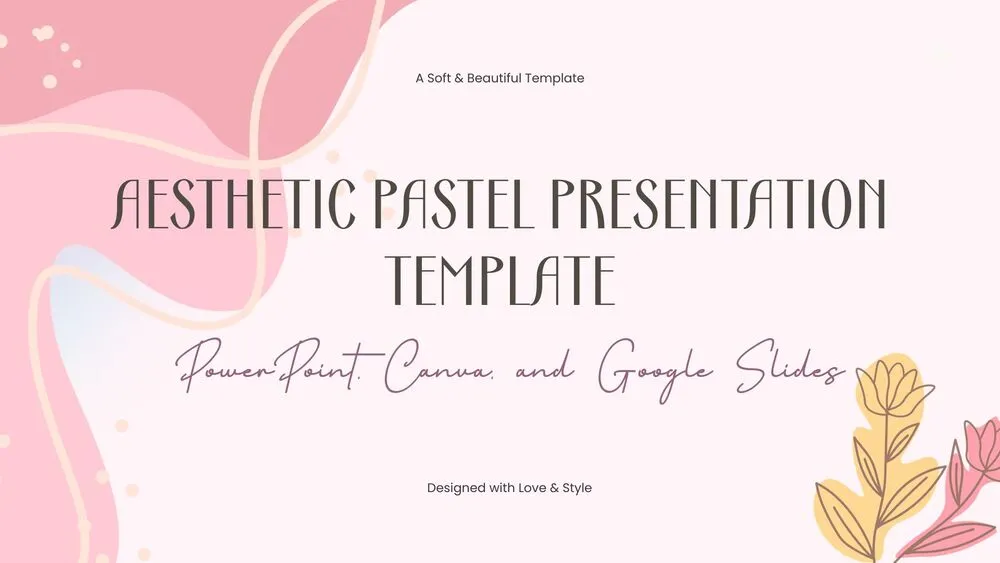
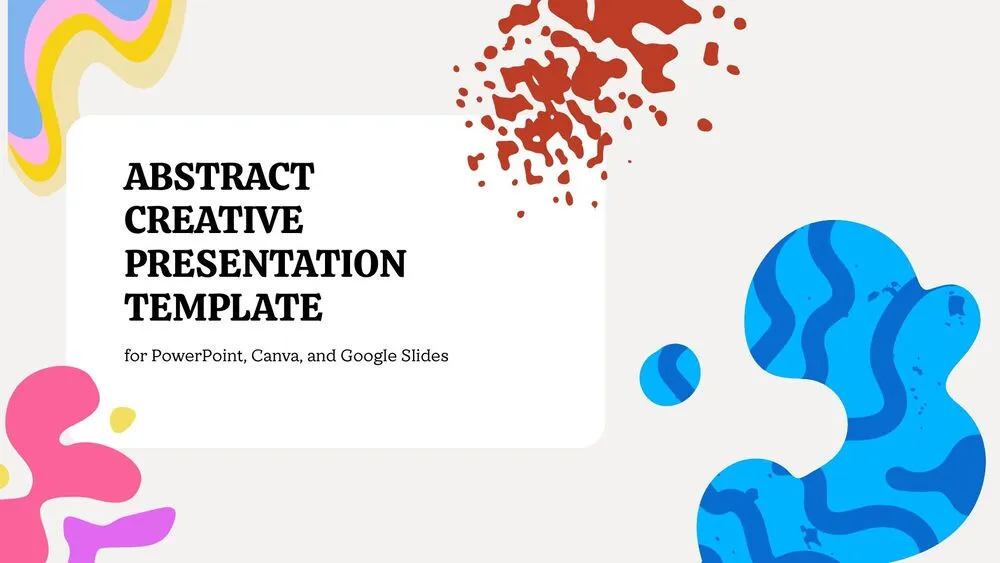
First, go to PrimeSlides and choose a template that fits your presentation. On PrimeSlides, you can find free templates for PowerPoint, Canva, and Google Slides, with professional, creative, and visual designs for business, education, marketing, and other uses.
You can start from the general free presentation templates category or go directly to the platform you want to use:
Upload It to PowerPoint Online, Canva, or Google Slides
Once you have the template, you can open it in the tool you prefer. If your priority is working with the PPTX format, use PowerPoint Online. If you want a more visual and simple editing experience, Canva may be more comfortable. If you already work with Google Drive and need quick collaboration, Google Slides is a great alternative.
The advantage of using templates compatible with several platforms is that you are not locked into a single tool. You can prepare your presentation in PowerPoint Online, adjust it in Canva, or share it in Google Slides depending on what you need.
Customize the Design with Your Content
Once the template is open, don’t just replace the text. Adapt it to your message.
Start with these parts:
- change the cover slide;
- adjust the titles;
- delete slides you don’t need;
- duplicate the slides that are useful;
- add your own images;
- adapt the colors to your brand;
- review the conclusion;
- prepare a clear final slide.
In my case, what works best is using the template as a structure, not as a cage. In other words, I take advantage of the base design but reorganize the slides according to what I want to communicate. That way, the presentation doesn’t feel like a generic template, but like a custom-made presentation.
Export the Presentation as PPTX or PDF
When you’re done, save your file in the format that suits you best.
Use PPTX if you want to keep editing the presentation later. Use PDF if you want to send it, print it, or present it without the design moving around. And if you’re sharing it with a team, you can use an online link so other people can comment or edit.
Alternatives to Make Presentations Online for Free
PowerPoint Online is not the only option. You can also create online presentations for free with Canva or Google Slides. Each tool has its own advantages, so it’s worth choosing based on your goal.
Canva: The Most Visual and Simple Option
Canva is a very popular alternative for making online presentations with a visual approach. It is designed to make browser-based design simple, with templates, graphic elements, and quick editing options.
It’s a good choice if you want to:
- create a visual presentation quickly;
- use lots of graphic resources;
- design without experience;
- prepare presentations for social media, classes, or creative proposals;
- work with a very intuitive interface.
The downside is that if you are coming from a complex PPTX file, some elements may not behave exactly the same as in PowerPoint. That’s why, for pure PowerPoint compatibility, I still prefer PowerPoint Online.
Google Slides: Ideal for Collaboration and Working from Drive
Google Slides is a very convenient alternative if you already use Google Drive. It lets you create, edit, and share presentations from your browser, collaborate with other people, and keep everything saved in the cloud.
It’s recommended if:
- you work with a team;
- you use Google Drive daily;
- you want to share links easily;
- you need comments and collaborative editing;
- you prefer a light and simple tool.
It’s also a good option for students, teachers, marketing teams, or anyone who needs to work in a group without complications.
PowerPoint Online: The Best Option for PPTX Compatibility
If your file is a PPTX or you want to preserve the PowerPoint format as much as possible, PowerPoint Online is usually the best option.
Use it if:
- you already have a PowerPoint file;
- you have downloaded a PPTX template;
- you need to open a PowerPoint without installing anything;
- you want to export it later as a PDF;
- you want to collaborate without leaving the Microsoft environment.
PowerPoint Online also lets you share presentations, collaborate in real time, and download or share files for free as a PDF or through a OneDrive link.
PowerPoint Online vs Canva vs Google Slides: Which One Should You Choose?
There is no perfect tool for everything. The best option depends on what you need to do.
| Tool | Best for | Main advantage | When to choose it |
|---|---|---|---|
| PowerPoint Online | Creating, opening, and editing PPT/PPTX files | PowerPoint compatibility | If you work with PPTX files |
| Canva | Designing visual presentations | Easy design | If you want something beautiful quickly |
| Google Slides | Online collaboration | Teamwork and Google Drive | If you share presentations with several people |
If You Want Maximum Compatibility
Choose PowerPoint Online. It is the most logical option for opening PPTX files, editing PowerPoint online for free, and keeping the original presentation structure.
If You Want to Design Quickly
Choose Canva. It is comfortable, visual, and easy to use, especially if designing from scratch is difficult for you.
If You Want to Collaborate with a Team
Choose Google Slides. If your team already works with Google Drive, sharing and editing a presentation will be very simple.
Tips to Make Your Online Presentation Look Professional
Creating an online presentation for free doesn’t mean it has to look basic. With a few adjustments, you can get a much cleaner and more professional result.
Don’t Start from a Blank Slide
This is the most important tip. A blank slide forces you to make too many decisions: colors, structure, cover design, fonts, visual hierarchy, icons, images…
A template solves a big part of that work. So if you want to create a presentation quickly and make it look good, start from a pre-designed base.
You can find a template on PrimeSlides and adapt it to your topic instead of building everything from scratch.
Use a Clear Structure
A presentation is not a document full of text. It is a visual guide to communicate an idea. Before designing, define the structure:
- Cover slide.
- Context.
- Problem or main idea.
- Development.
- Data, examples, or arguments.
- Conclusion.
- Closing slide or call to action.
If the presentation is for class, add objectives and a summary. If it is for business, add the problem, solution, proposal, and next steps. If it is for marketing, add diagnosis, strategy, actions, and metrics.
Take Care of the Cover, Fonts, and Colors
The cover slide creates the first impression. It doesn’t need to be overloaded, but it should look clear and polished.
Also check that:
- titles are large enough;
- text is not too small;
- colors have enough contrast;
- images are not distorted;
- all slides keep the same style.
A common mistake is mixing too many fonts, colors, or styles. The more consistent the presentation is, the more professional it will look.
Export a PDF Copy Before Presenting
Even if you work in PowerPoint Online, Canva, or Google Slides, save a final PDF copy. This helps avoid compatibility issues, font changes, or broken layouts.
I would always keep:
- an editable copy in PPTX or in the online tool;
- a final PDF copy;
- a cloud backup for safety.
Conclusion
Creating a PowerPoint online for free is a perfect solution if you want to make a presentation from your browser, without installing software or making things complicated. PowerPoint Online is the best option if you work with PPT or PPTX files, Canva is ideal if you want to design quickly, and Google Slides works very well if you need to collaborate with other people.
My advice is to start with a template. Instead of wasting time designing from scratch, you can download a PrimeSlides template, open it in PowerPoint Online, Canva, or Google Slides, customize it with your content, and export it when it’s ready.
That way, you can create, view, and edit online presentations for free with a much more professional visual base from the very beginning.
❔ Frequently Asked Questions
Yes. You can use PowerPoint for the Web from your browser with a Microsoft account. You can also use alternatives like Canva or Google Slides to create online presentations for free.
Yes. You can upload the file to OneDrive and open it with PowerPoint Online from your browser. It is one of the easiest ways to view or edit a PPTX file without installing the desktop program.
Yes. If you open the file with PowerPoint for the Web, you can edit text, images, slides, and other basic elements. PowerPoint for the Web also lets you create presentations with images, videos, transitions, and animations.
Yes. You can use PrimeSlides templates as a starting point to create presentations in PowerPoint, Canva, or Google Slides. The website offers free templates for these platforms and organizes them by style, topic, and design type.
It depends. PowerPoint Online is better for PPTX compatibility, Canva is more comfortable for quick visual design, and Google Slides is very practical for collaborating from Google Drive.
If you want to keep editing, download it as PPTX. If you want to present, send, or print it without the design moving around, also download a PDF copy.
You can upload it to OneDrive and open it with PowerPoint Online. If the file is old or has complex elements, review it carefully before presenting.
Not necessarily. You can use PowerPoint for the Web from your browser. You can also create online presentations with Canva or Google Slides.