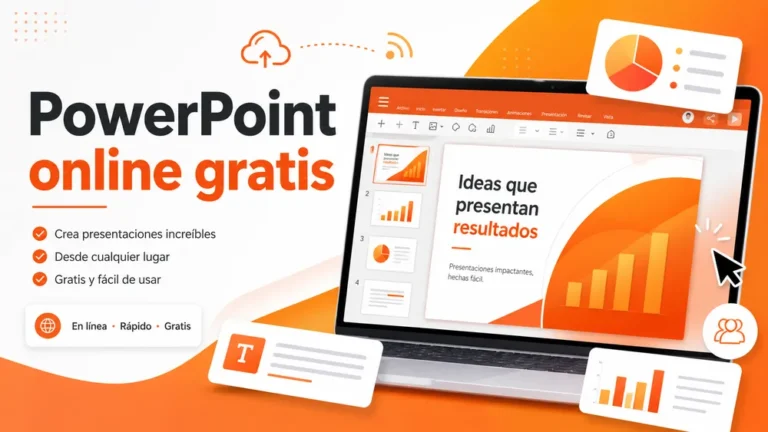
What Is PowerPoint and What Is It Used For? Uses, Features, and Examples PowerPoint is a Microsoft program used to create visual presentations with slides. With it, you can combine text, images, charts, videos, tables, animations, and templates to explain…
How to Create a PowerPoint Online for Free and View PPT/PPTX Files Without Installing Anything Creating a PowerPoint online for free is possible without installing Microsoft Office or downloading any software. You can do it directly from your browser with…
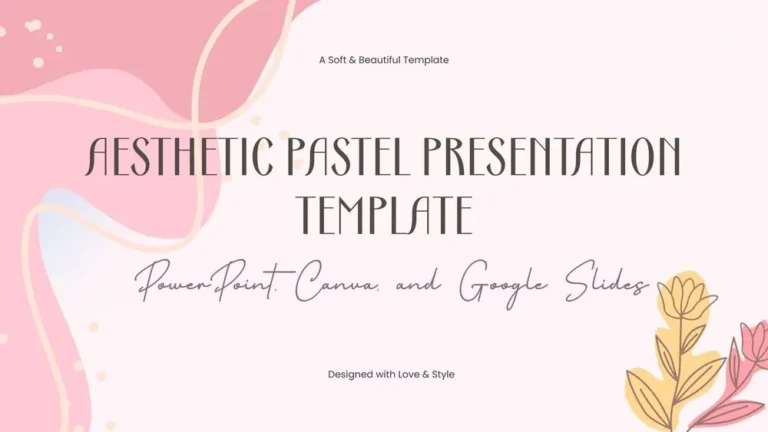
👇🏻Preview the presentation👇🏻 Dreamy Aesthetic Pastel Presentation Template for PowerPoint, Canva, and Google Slides Download the template for PowerPoint, Google Slides or Canva with just one click PowerPoint Canva Google Slides Download & Edit in Canva Aesthetic Pastel Presentation Template…
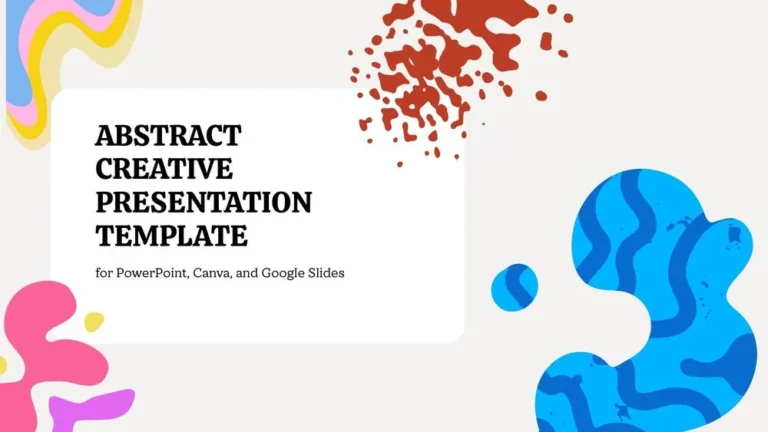
👇🏻Preview the presentation👇🏻 Abstract Creative Presentation Template for PowerPoint, Canva, and Google Slides Download the template for PowerPoint, Google Slides or Canva with just one click PowerPoint Canva Google Slides Download & Edit in Canva Abstract Creative Presentation Template and…
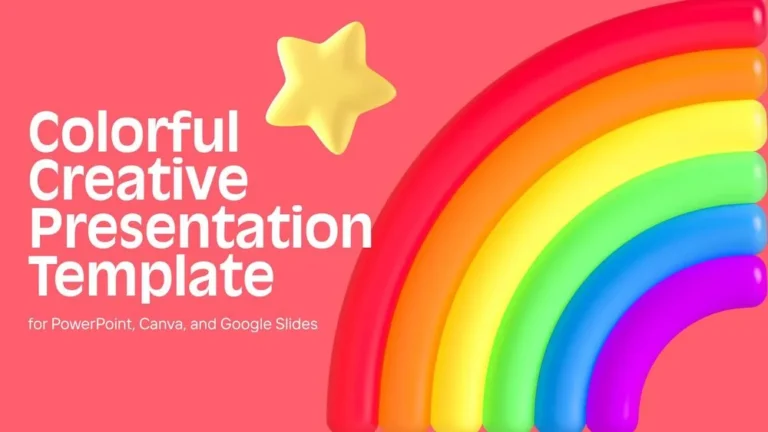
👇🏻Preview the presentation👇🏻 Colorful Creative Presentation Template for PowerPoint, Canva, and Google Slides Download the template for PowerPoint, Google Slides or Canva with just one click PowerPoint Canva Google Slides Download & Edit in Canva Colorful Creative Presentation Template and…
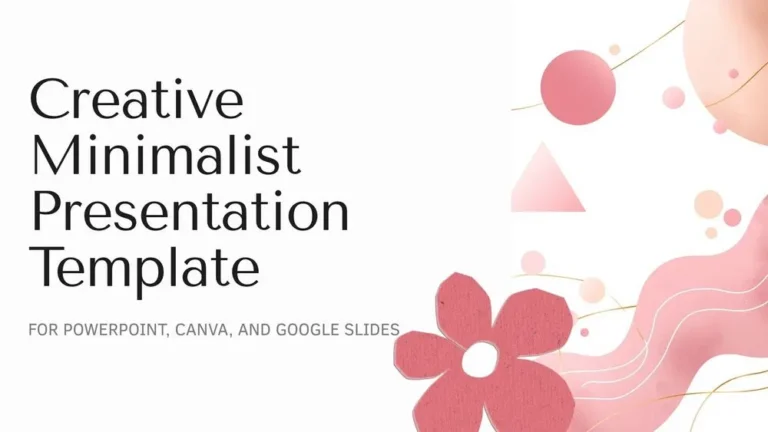
👇🏻Preview the presentation👇🏻 Creative Minimalist Presentation Template for PowerPoint, Canva, and Google Slides Download the template for PowerPoint, Google Slides or Canva with just one click PowerPoint Canva Google Slides Download & Edit in Canva Creative Minimalist Presentation Template and…
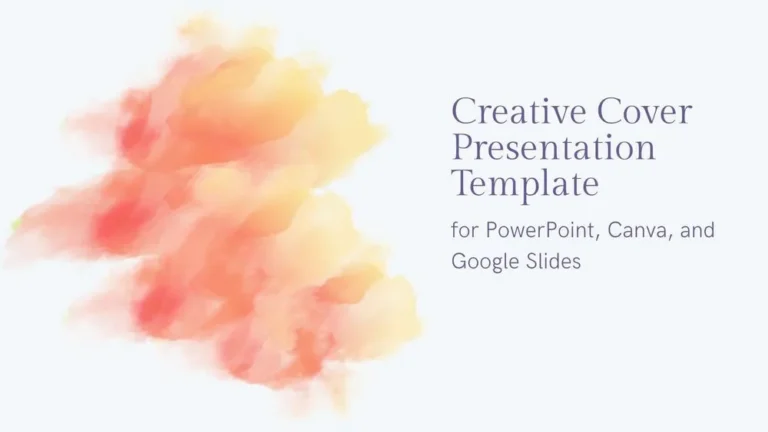
👇🏻Preview the presentation👇🏻 Creative Cover Presentation Template for PowerPoint, Canva, and Google Slides Download the template for PowerPoint, Google Slides or Canva with just one click PowerPoint Canva Google Slides Download & Edit in Canva Creative Cover Presentation Template and…
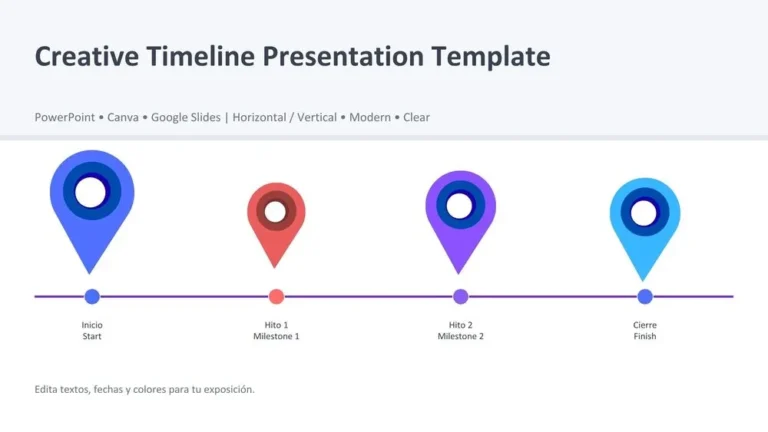
👇🏻Preview the presentation👇🏻 Creative Timeline Roadmap Presentation Template for PowerPoint, Canva, and Google Slides Download the template for PowerPoint, Google Slides or Canva with just one click PowerPoint Canva Google Slides Download & Edit in Canva Creative Timeline Presentation Template…
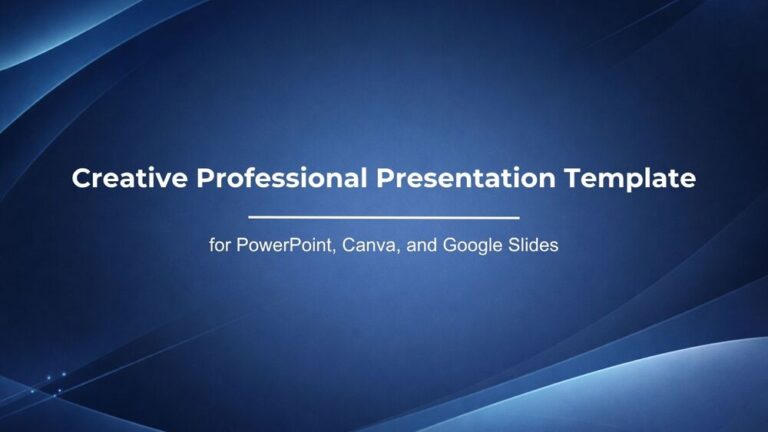
👇🏻Preview the presentation👇🏻 Creative Professional Presentation Template for PowerPoint, Canva, and Google Slides Download the template for PowerPoint, Google Slides or Canva with just one click PowerPoint Canva Google Slides Download & Edit in Canva Creative Professional Presentation Template and…
👇🏻Preview the presentation👇🏻 Creative Modern Presentation Template for PowerPoint, Canva, and Google Slides Download the template for PowerPoint, Google Slides or Canva with just one click PowerPoint Canva Google Slides Download & Edit in Canva Creative Modern Presentation Template and…
🛠️ How to Download and Edit Your Template in Canva?
Canva is the fastest and easiest way to personalize your template. Edit text, colors, images, and layouts with just a few clicks — no software needed.
✨ Includes:
Free icons, elements, and animated graphics
Built-in fonts, palettes, and design tools
Uploads, audio, video, and real-time collaboration
✅ Follow These Steps to Customize in Canva
– STEP 1. Click the blue “Canva” button to download the .pptx file.
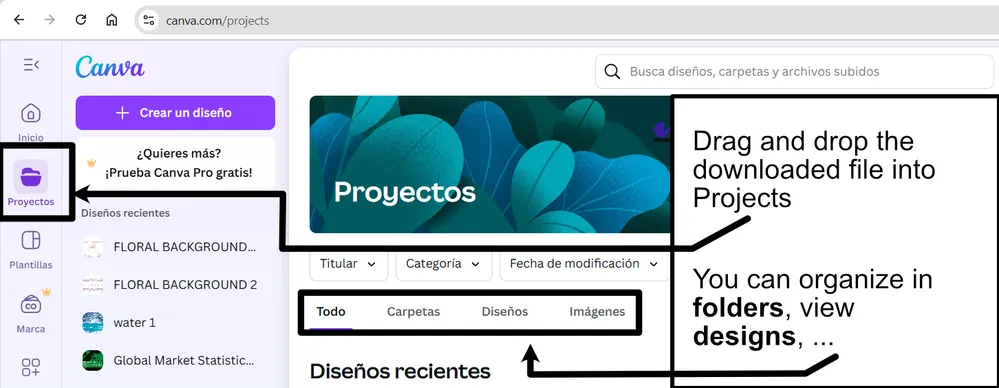
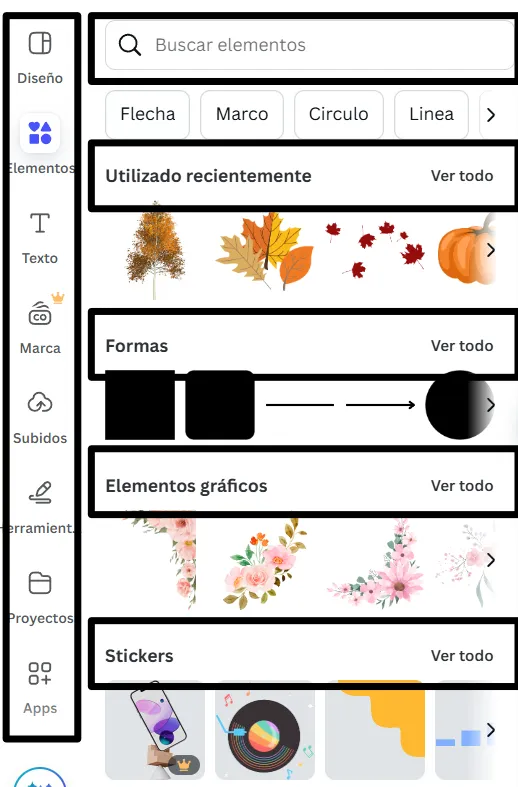
– STEP 2. Drag and drop the downloaded file into the Projects section of your Canva dashboard. Inside Projects, you’ll find tabs like Folders, Designs, Images, and an “All” section that combines them. On the left sidebar, you’ll see even more useful tools.
– STEP 3. Once you open the template, you’ll find on the left, pre-designed slides, elements like free and premium photos, vectors, text, uploads, and other tools or apps available in Canva.
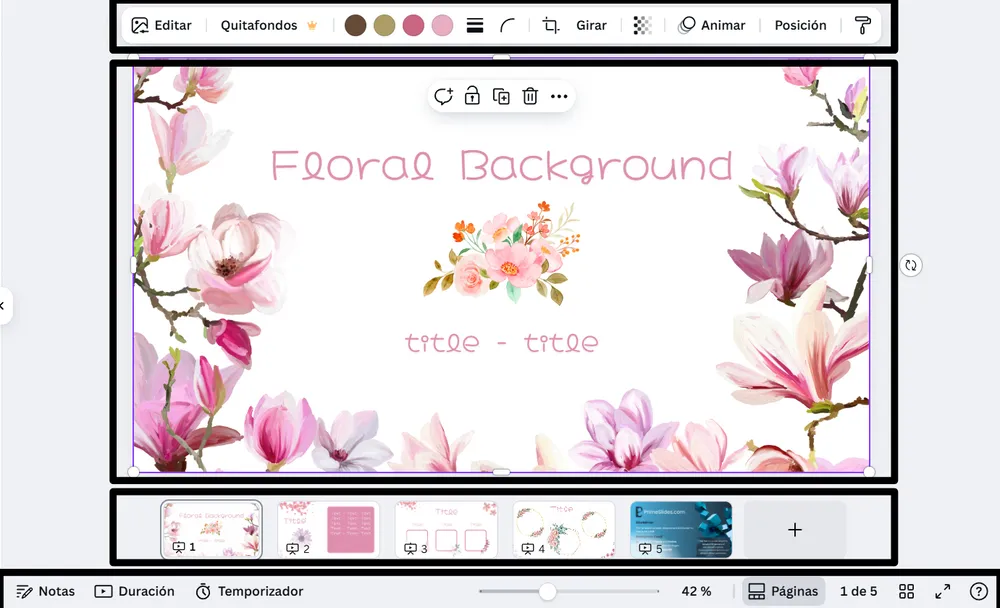
– STEP 4. In the center, you’ll see your active slide. At the top, there’s a toolbar with options like Edit, Background Remover (premium), color controls for selected elements or images, and other text/image tools. At the bottom, you’ll see a slide navigator with all pages and a “+” button to add a new slide. At the very bottom, there’s an extra toolbar with options for Notes, Presentation Duration, Timer, etc.
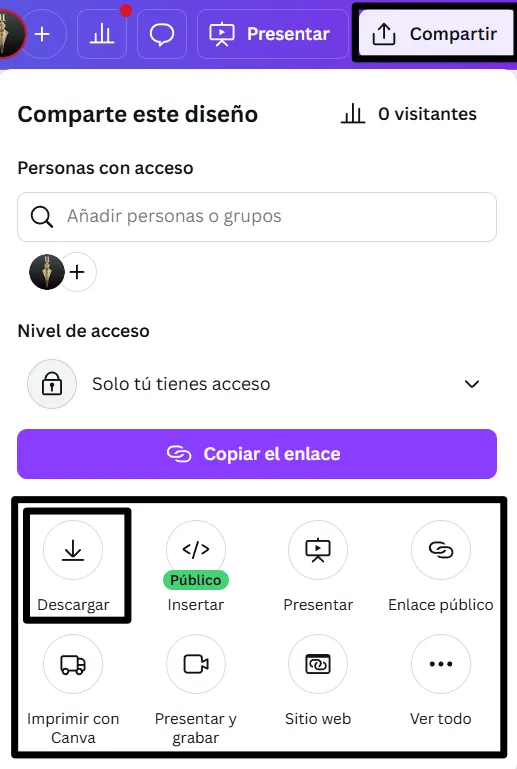
– STEP 5. Download the .pptx file. When you’re done editing, click “Share” to see multiple options: Download, Present, Embed on a Website, Create a Public Link, and more.
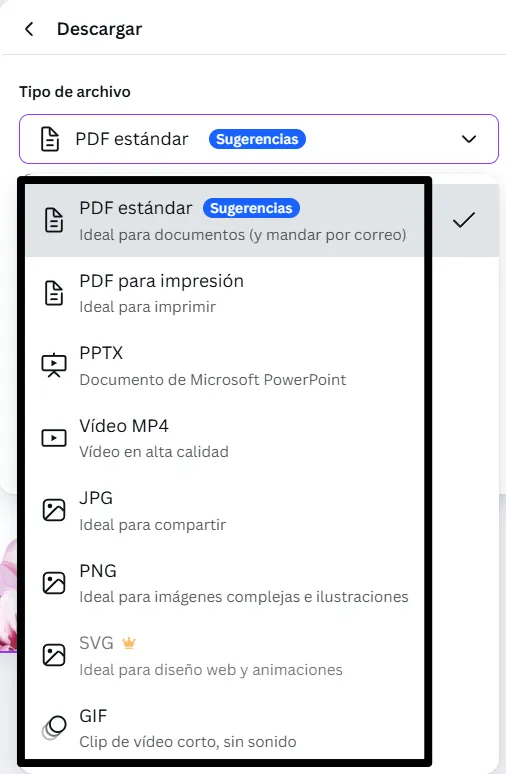
– STEP 6. You can export your presentation in several formats: PDF, PPTX, Video, JPG, PNG, etc.
🎉 Thanks for downloading!
Do you want early access to new free presentation templates, design tips, and exclusive updates? Join our newsletter today.